ADB Frequently Asked Questions

Common questions about ADB:
Basic Questions
Common Issue: ADB Crashes
Crash
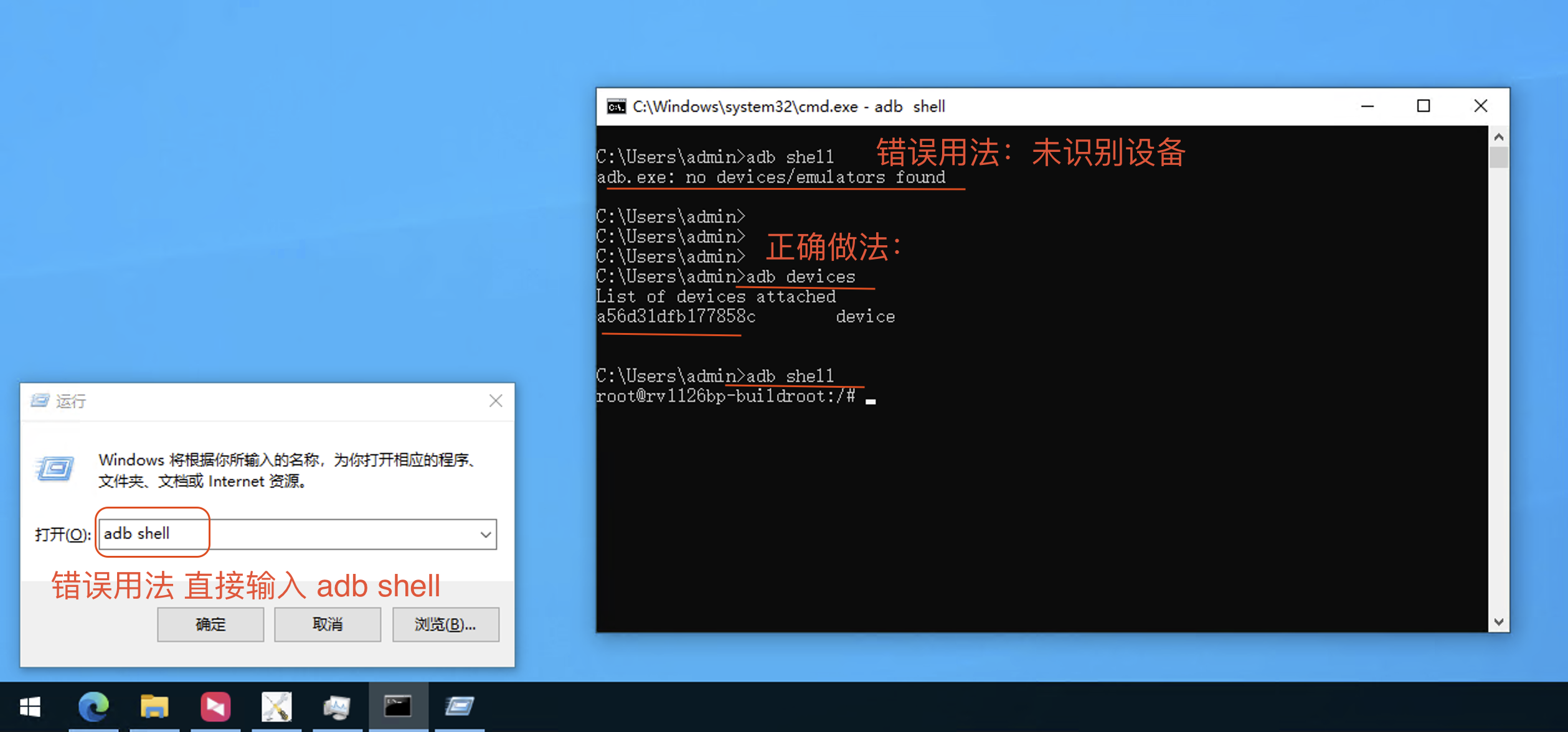
Incorrect Usage:
Directly entering adb shell in the Win + R run dialog. If the device is not properly connected via USB, you won't enter the ADB shell. Windows will
Correct Usage
First, enter cmd in the Win + R run dialog. Then, execute adb shell.
If the device is not properly connected and recognized, you will see:
adb.exe: no devices/emulators found
After successful recognition:
C:\Users\admin>adb devices
List of devices attached
a56d31dfb177858c        device


C:\Users\admin>adb shell
Common Issue: ADB Not Working
When multiple ADB instances might exist on the system, they
error:cannot connect to daemon
You can resolve this by executing adb kill-server:
adb kill-server

# Should work normally now
C:\Users\admin>adb devices
List of devices attached
a56d31dfb177858c        device