Preface

Upgrade Guide for Rockchip Series Mainboards
This document is a general upgrade guide for the Rockchip series of mainboards, containing complete technical details and user guidance paths. The
DC690mainboard is used as an example, but other models can also refer to these operations.
Modified by Version Change Description Modification Date Roy V1.0 Document Creation 2025/03/26
0. Prepare Required Files
Recommended action: To avoid file confusion, create a new directory on your desktop named after the specific mainboard driver, for example DC690, and place all downloaded upgrade files and firmware inside it.
DriverAssitant_v5.13.zip
RKDevTool_v3.30_for_window.zip
Fanconn_V1.0.13_DC690_GMJ_UFS_V1.2_20250227094832.zip
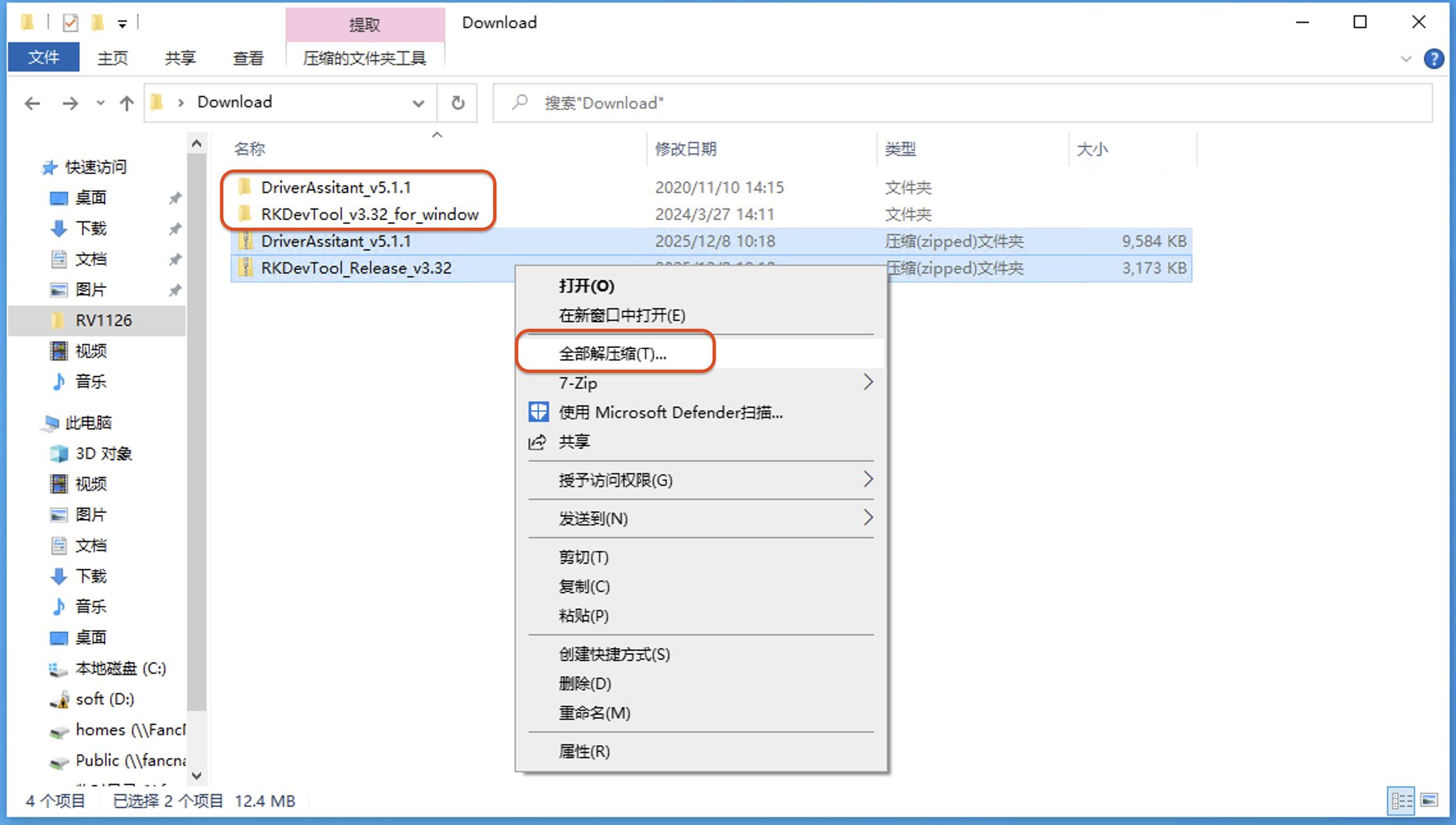
1. Extract Files
It is recommended to right-click and use 7zip to extract to *\
The extracted directory structure will be as follows:
DriverAssitant_v5.13
RKDevTool_v3.30_for_window
Fanconn_V1.0.13_DC690_GMJ_UFS_V1.2_20250227094832
2. Install Driver
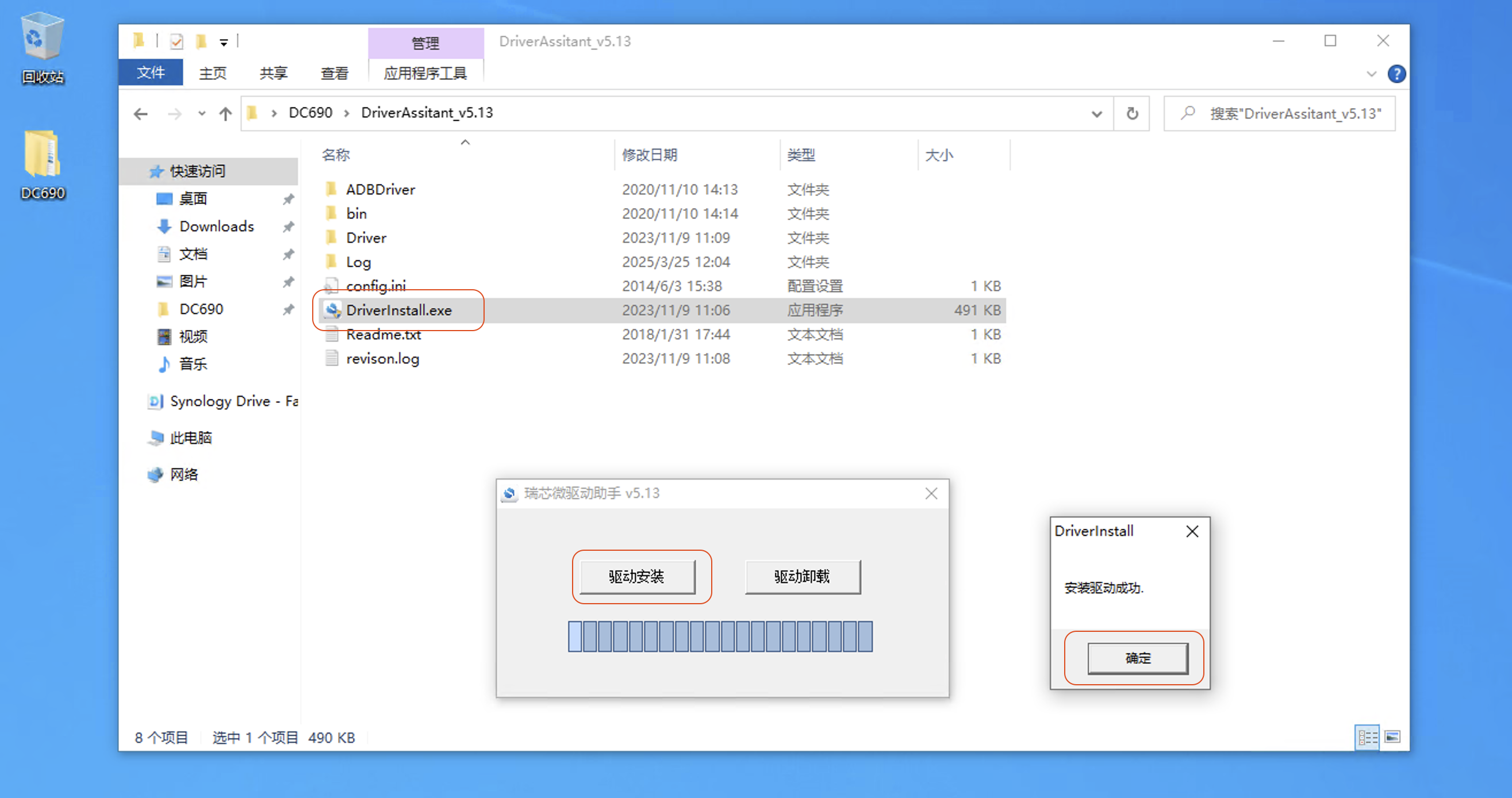
Navigate to DC690\DriverAssitant_v5.13 and run DriverInstall.exe to install the driver.
Upon completion, the screen will look like this:
3. Open the Upgrade Software
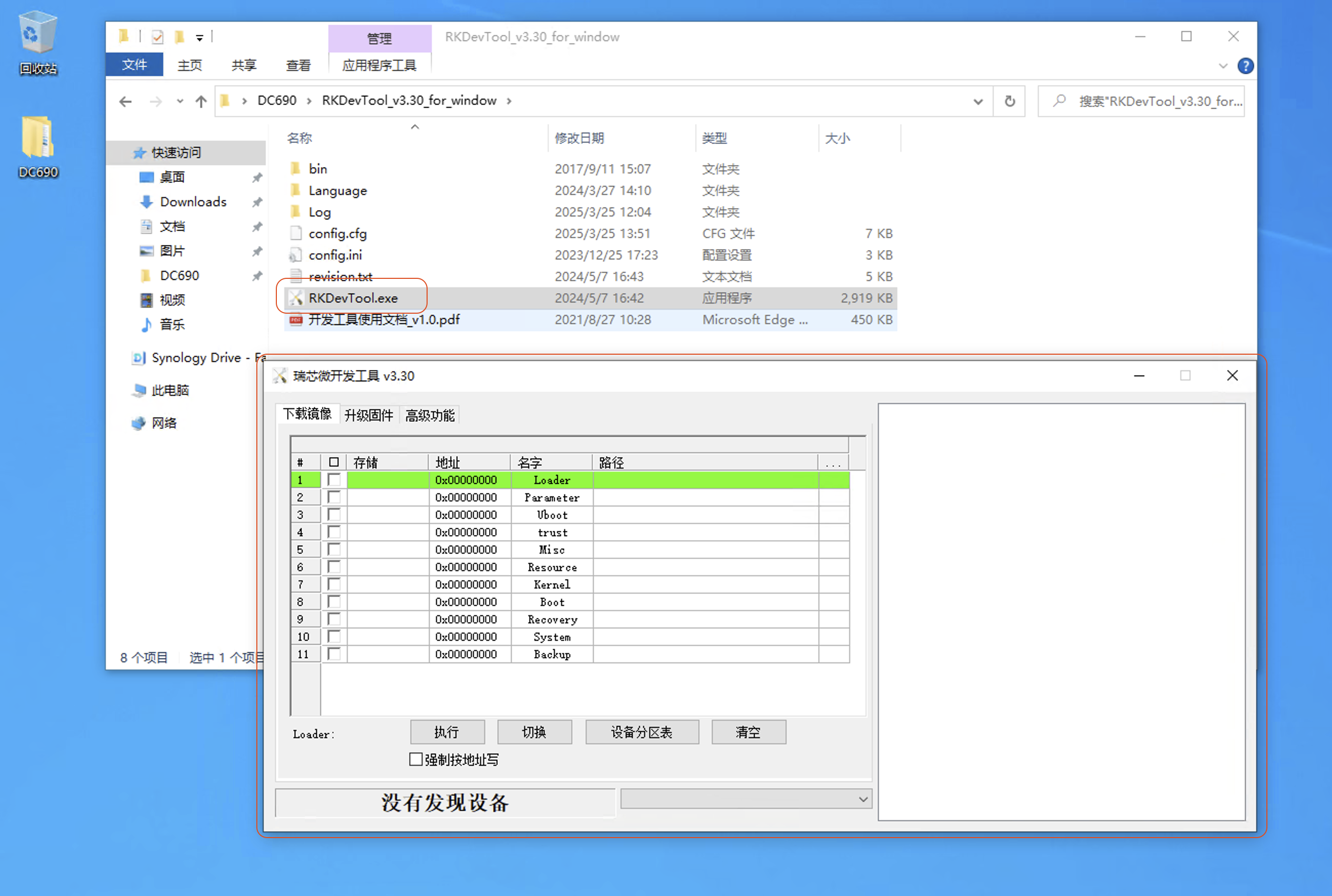
Navigate to RKDevTool_v3.30_for_window and run RKDevTool.exe to launch the upgrade software.
Upon opening, the screen will look like this:
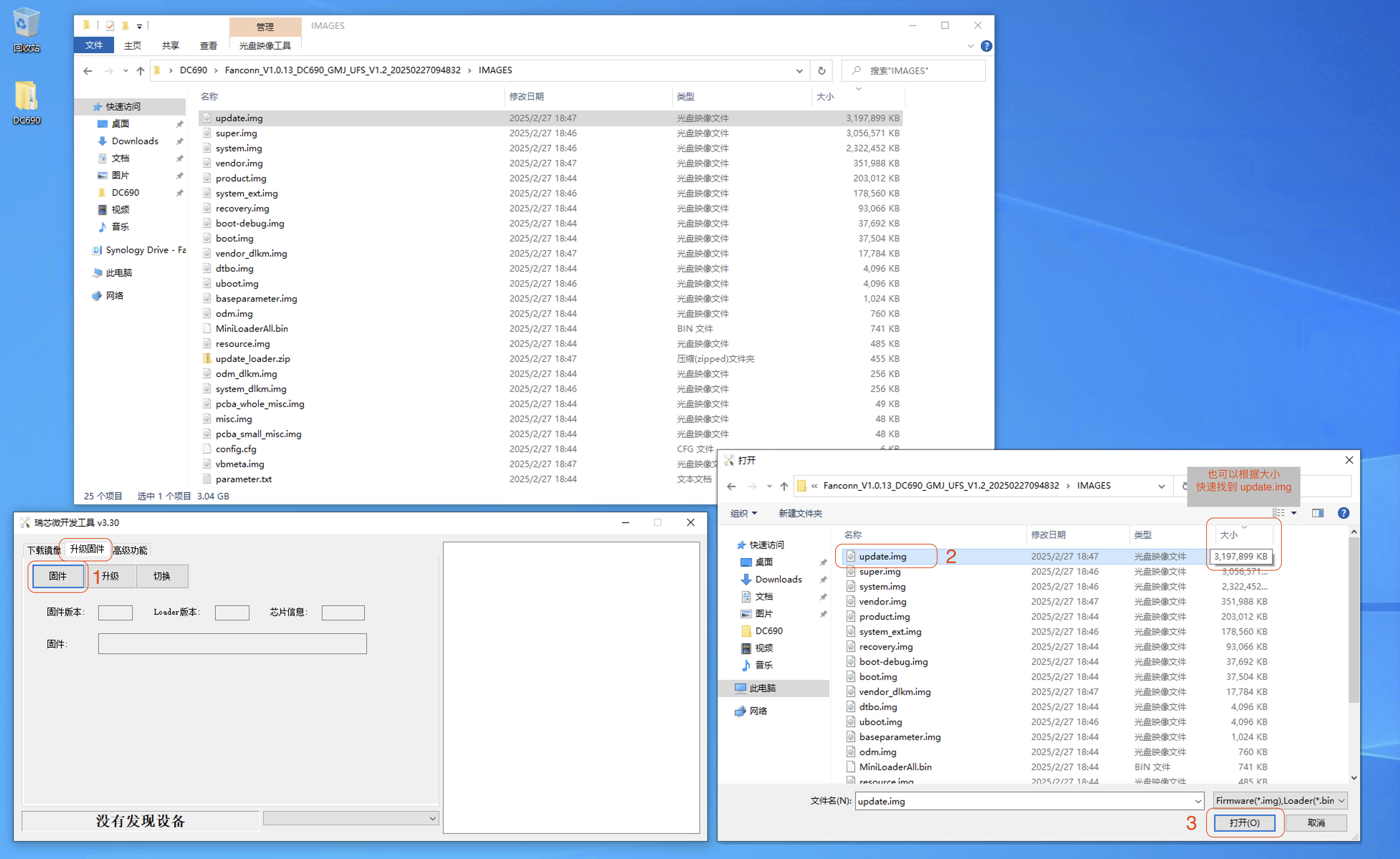
4. Prepare Firmware
-
Click on
Upgrade Firmware-Firmware -
Navigate to
Fanconn_V1.0.13_DC690_GMJ_UFS_V1.2_20250227094832\IMAGESand selectupdate.img -
Click Open
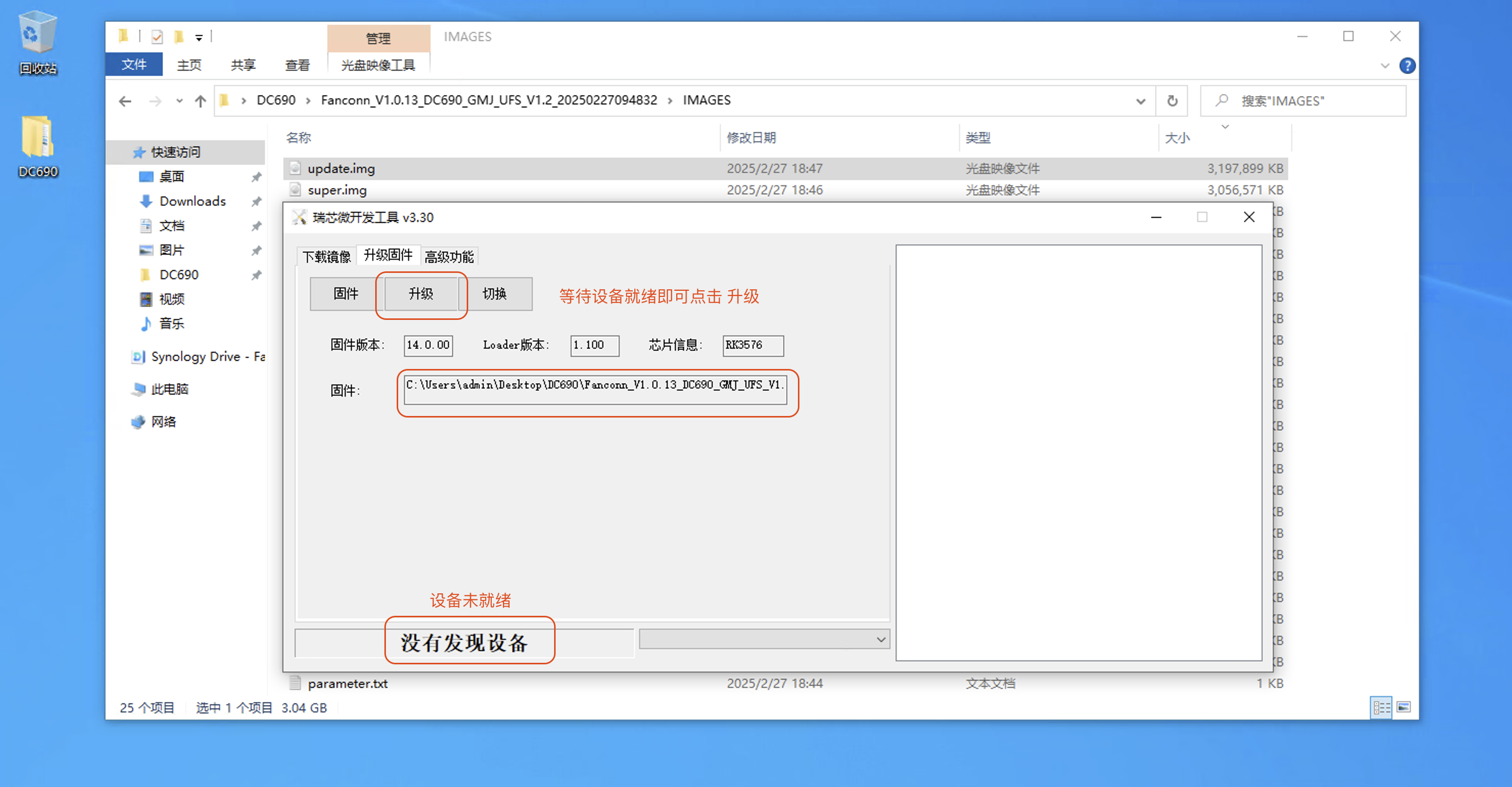
- Wait for the device
Effect after completion:
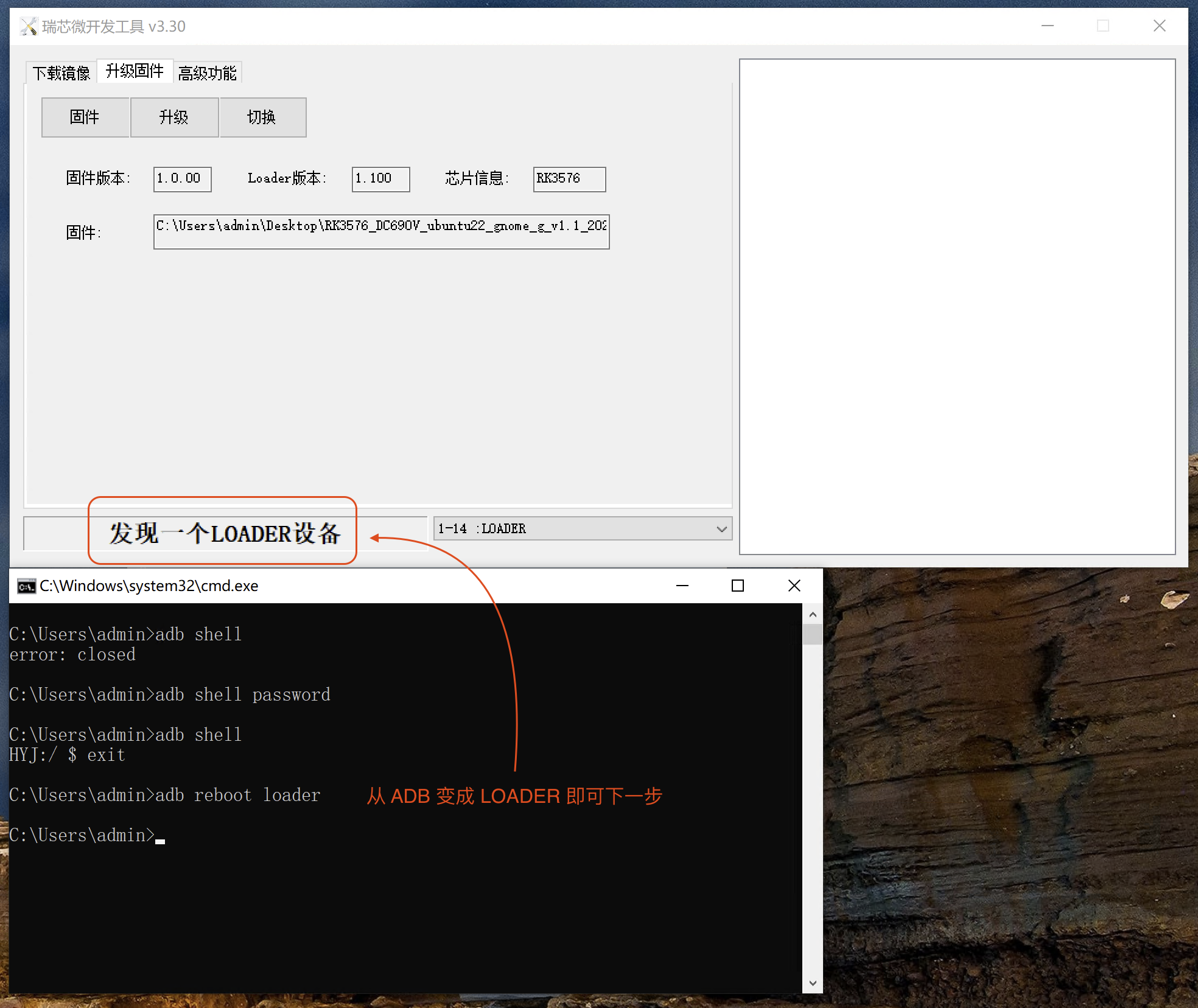
5. Connect the Mainboard
-
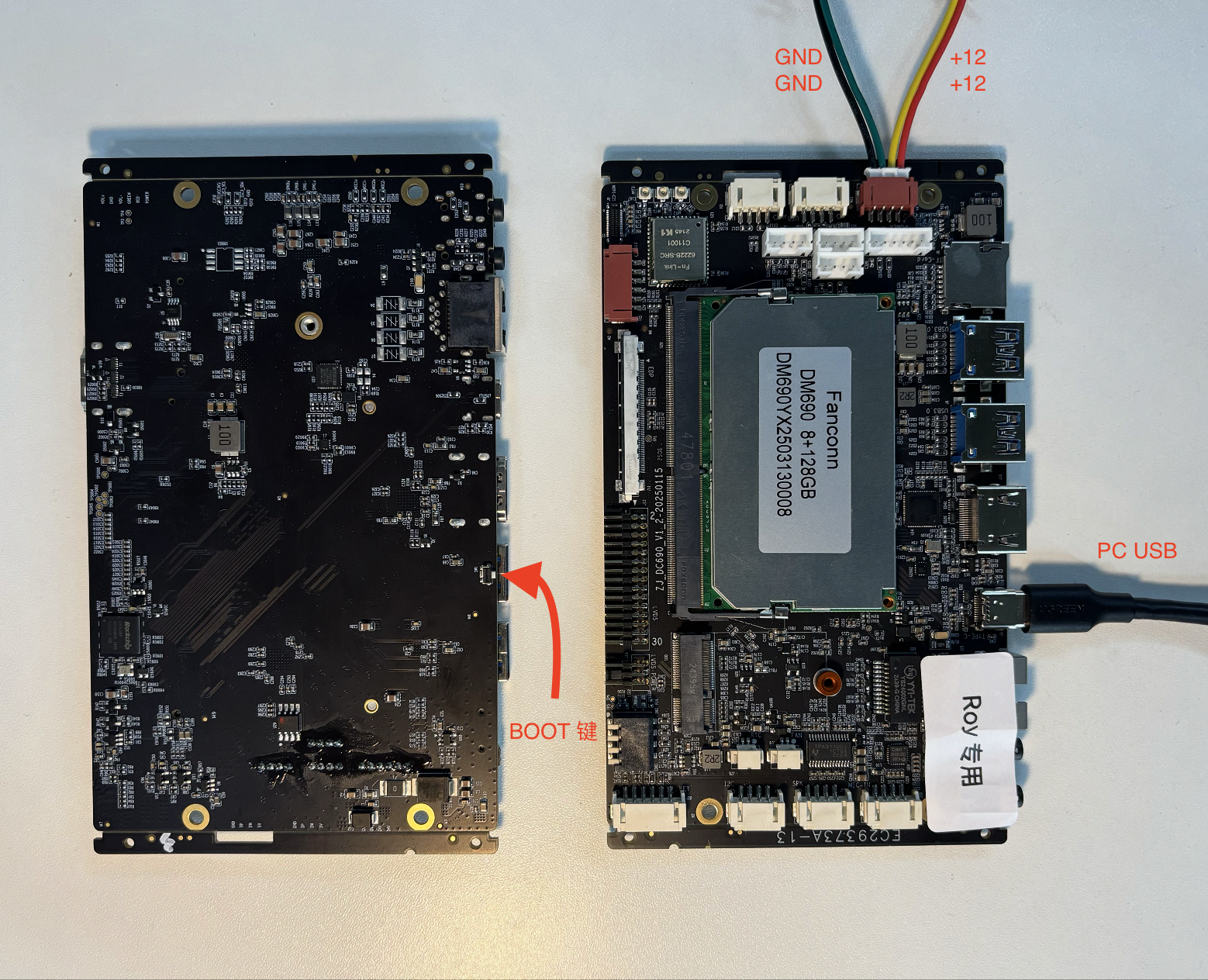
First, connect the
USB TYPE-Ccable to the mainboard. -
Press and hold the
Boot buttonwithout releasing it. -
Connect the
DC12Vpower supply.
Wiring Diagram
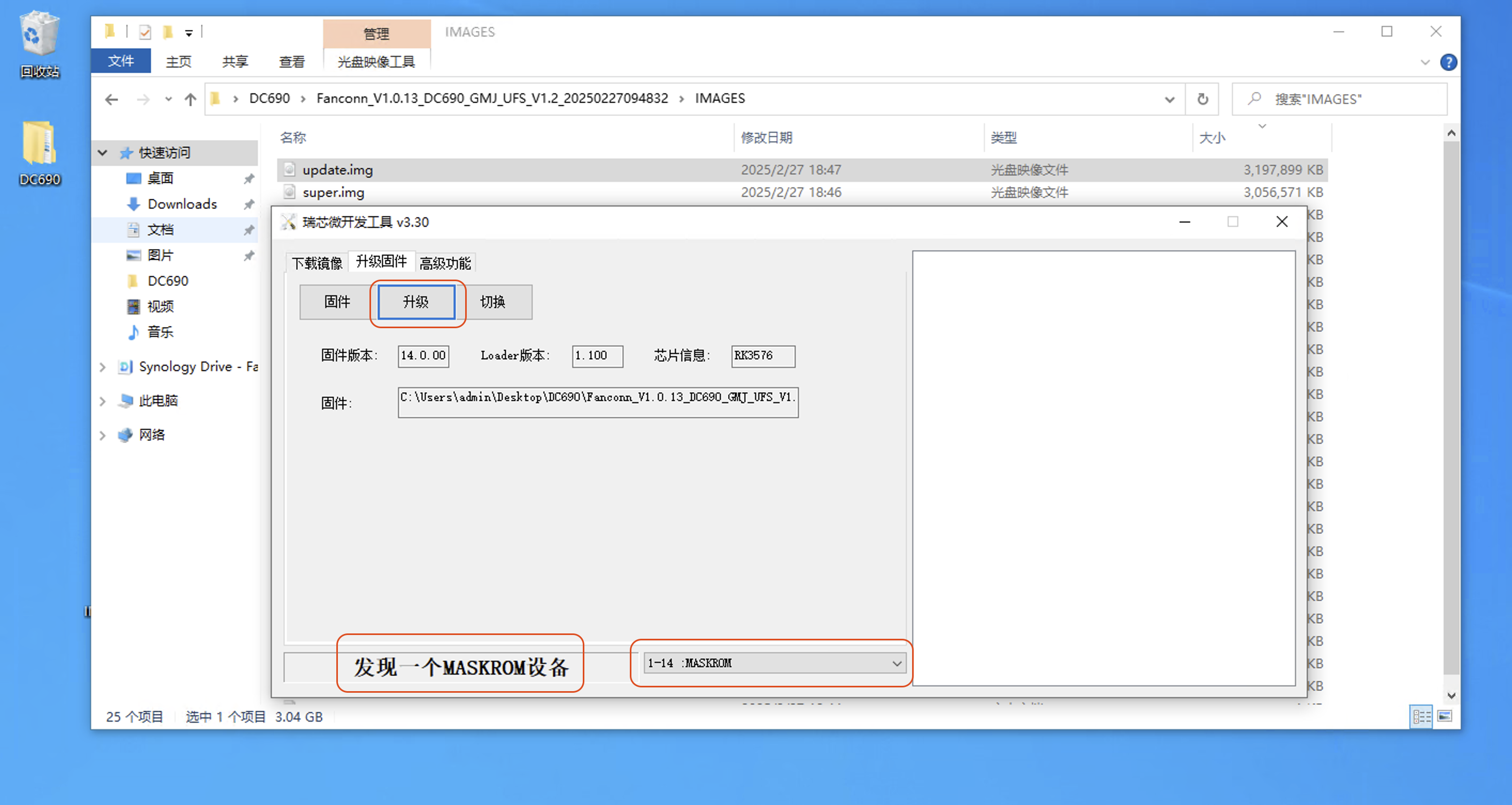
- When
MASKROM Deviceis displayed, it means the device has been successfully recognized.
Displayed as
MASKROM Device
6. Complete the Upgrade
Click Upgrade and wait for it to reach 100% completion.
Wait for 100% completion
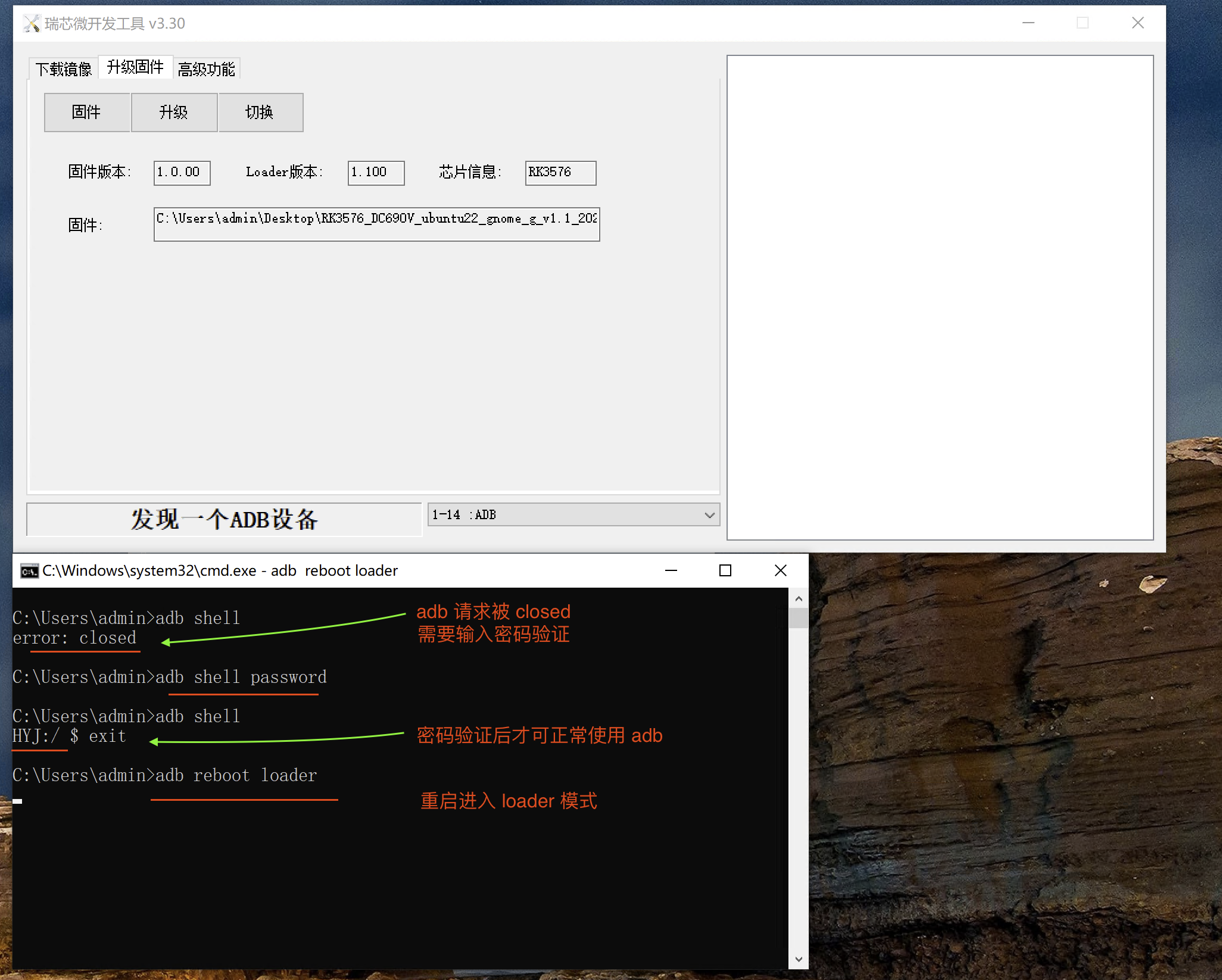
Upgrade Complete