connect-board
Entering Loader Mode
1.1 Entering Loader Mode by Pressing Boot Button
-
First,
completely disconnect power , then connect theUSB TYPE-Cor other type of data cable to the mainboard. -
Press and hold the
Boot buttonwithout releasing it. -
Connect the
DC5V/DC12Vpower supply. -
When the device is displayed as
MASKROM/LOADERdevice, you can release the button.
-
Note: RV1126/B uses a
5V power supply . -
You must
completely disconnect power before pressing and holding the button while connecting power. The RV1126 can be powered solely by connecting the USB cable.
Common Boot Connection References
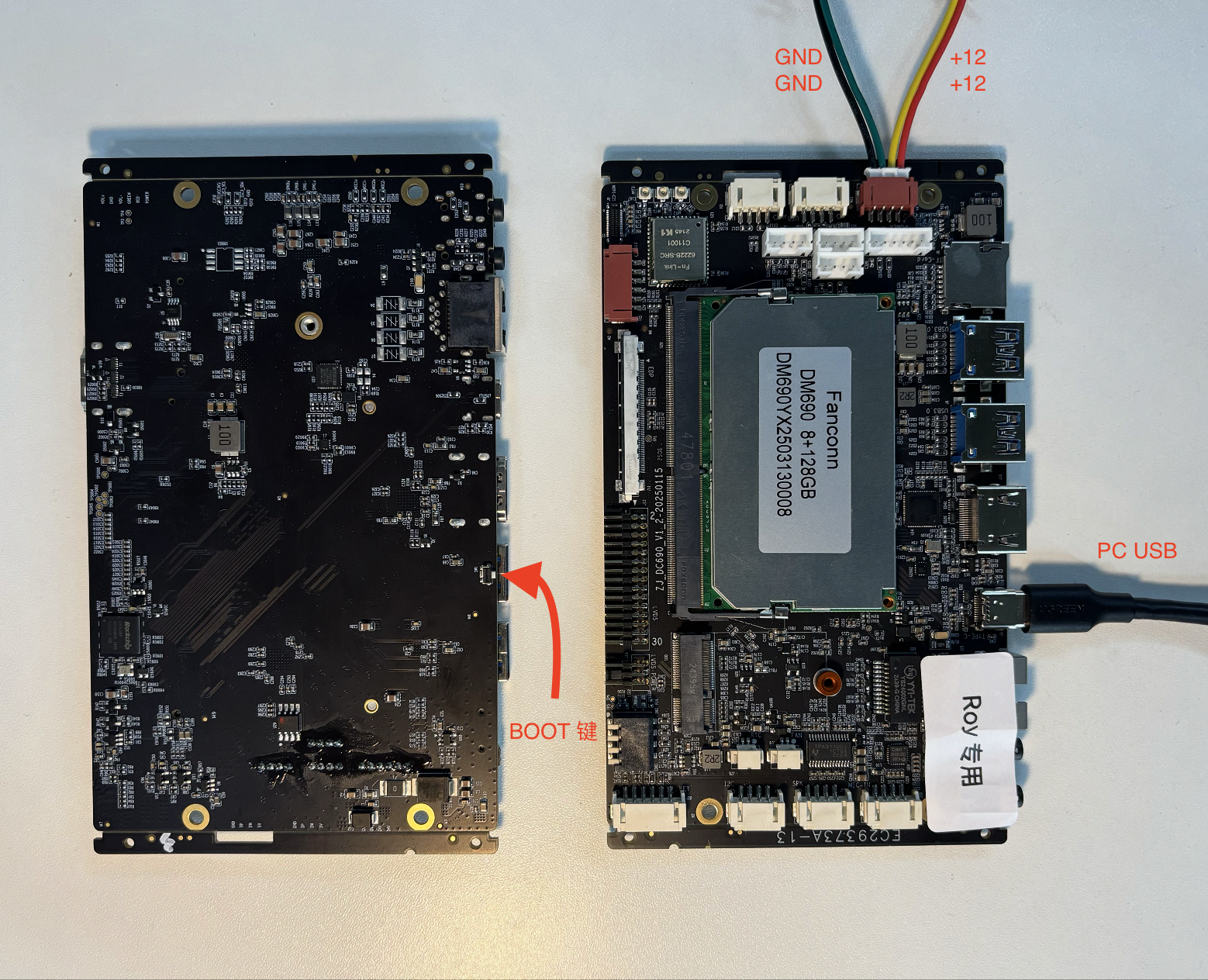
- DC690 / DC690V
Wiring Diagram
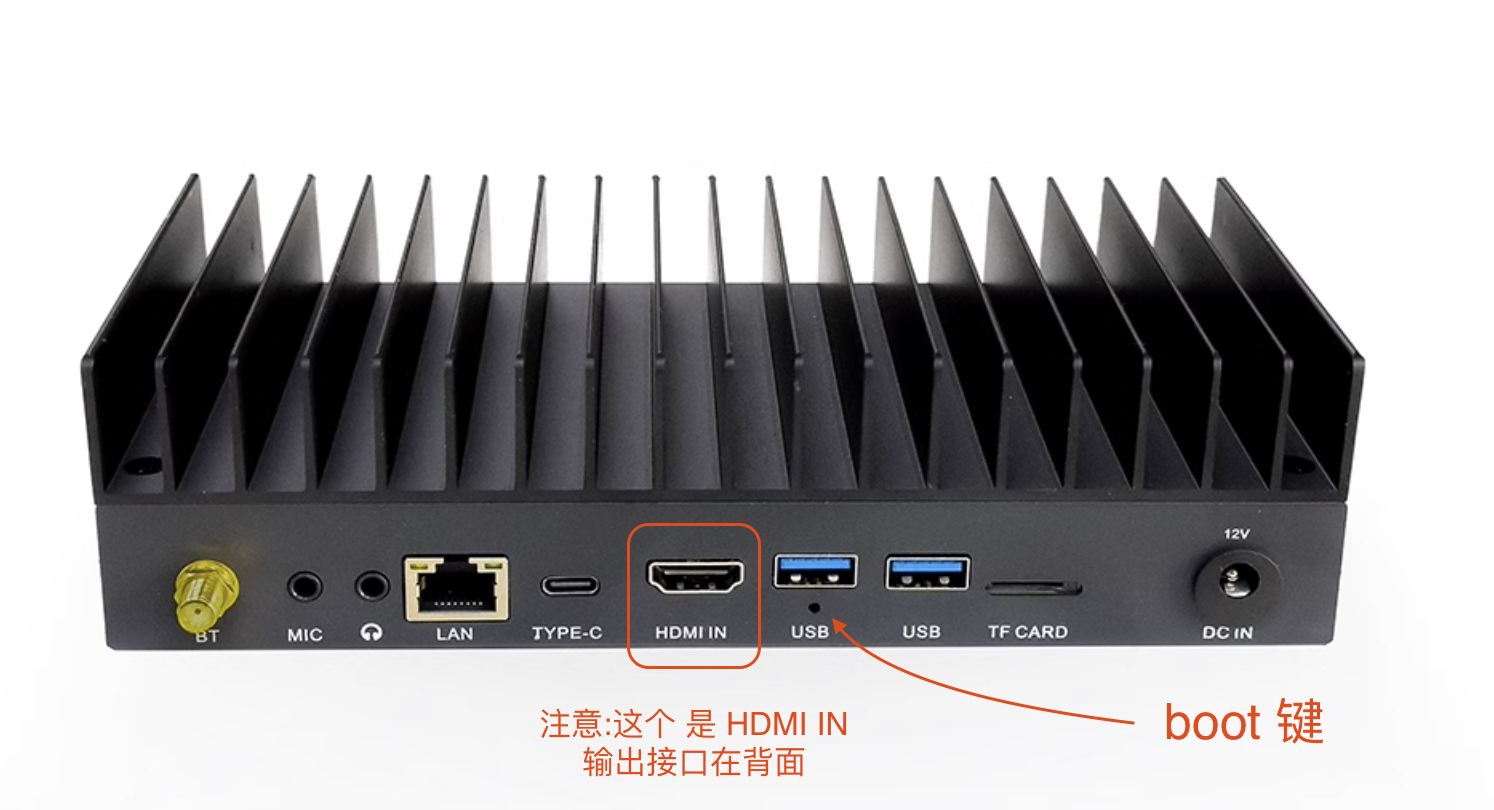
- DC690V AI BOX Form Factor
Wiring Diagram
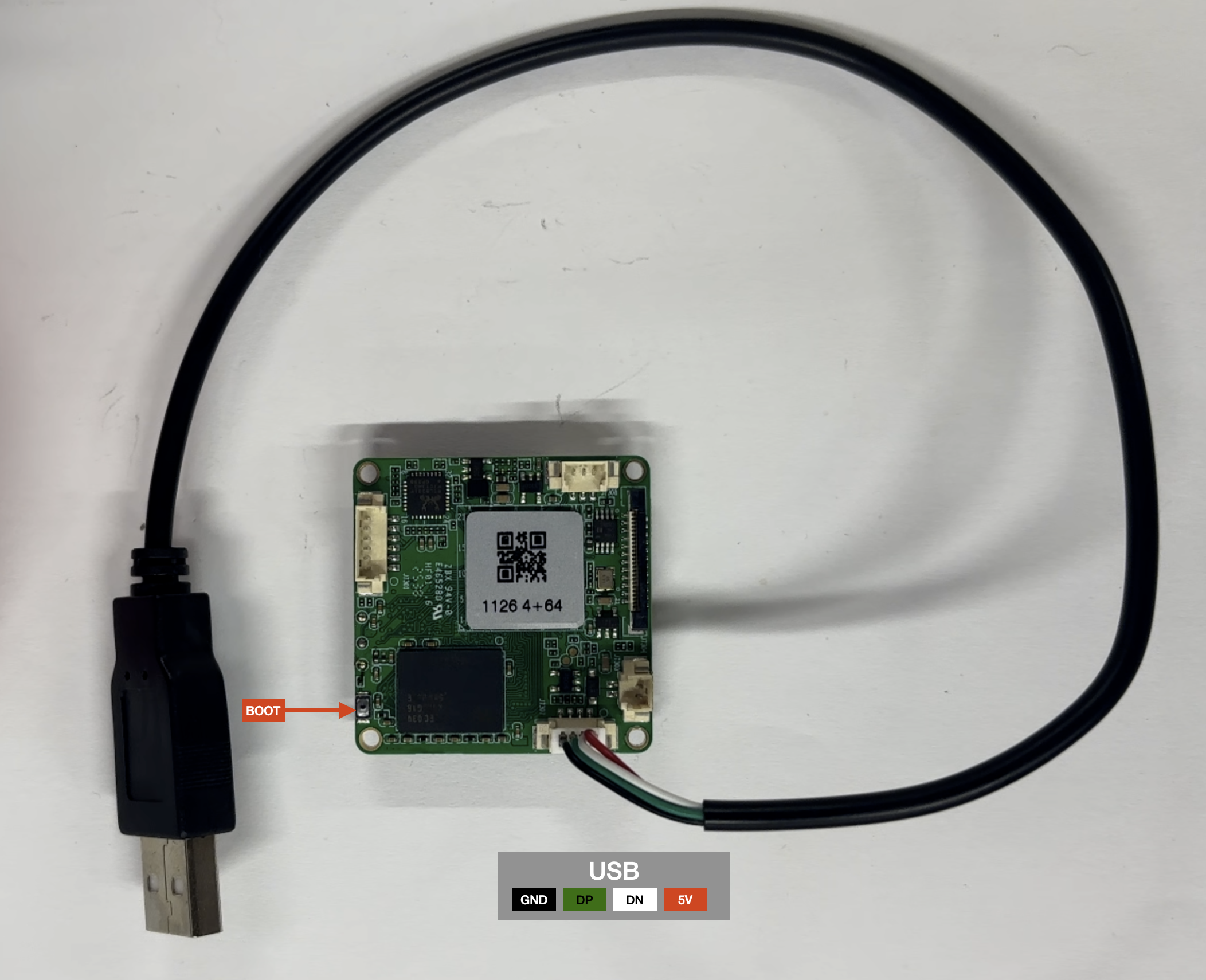
- RV1126 / RV1126B-p
Wiring Diagram
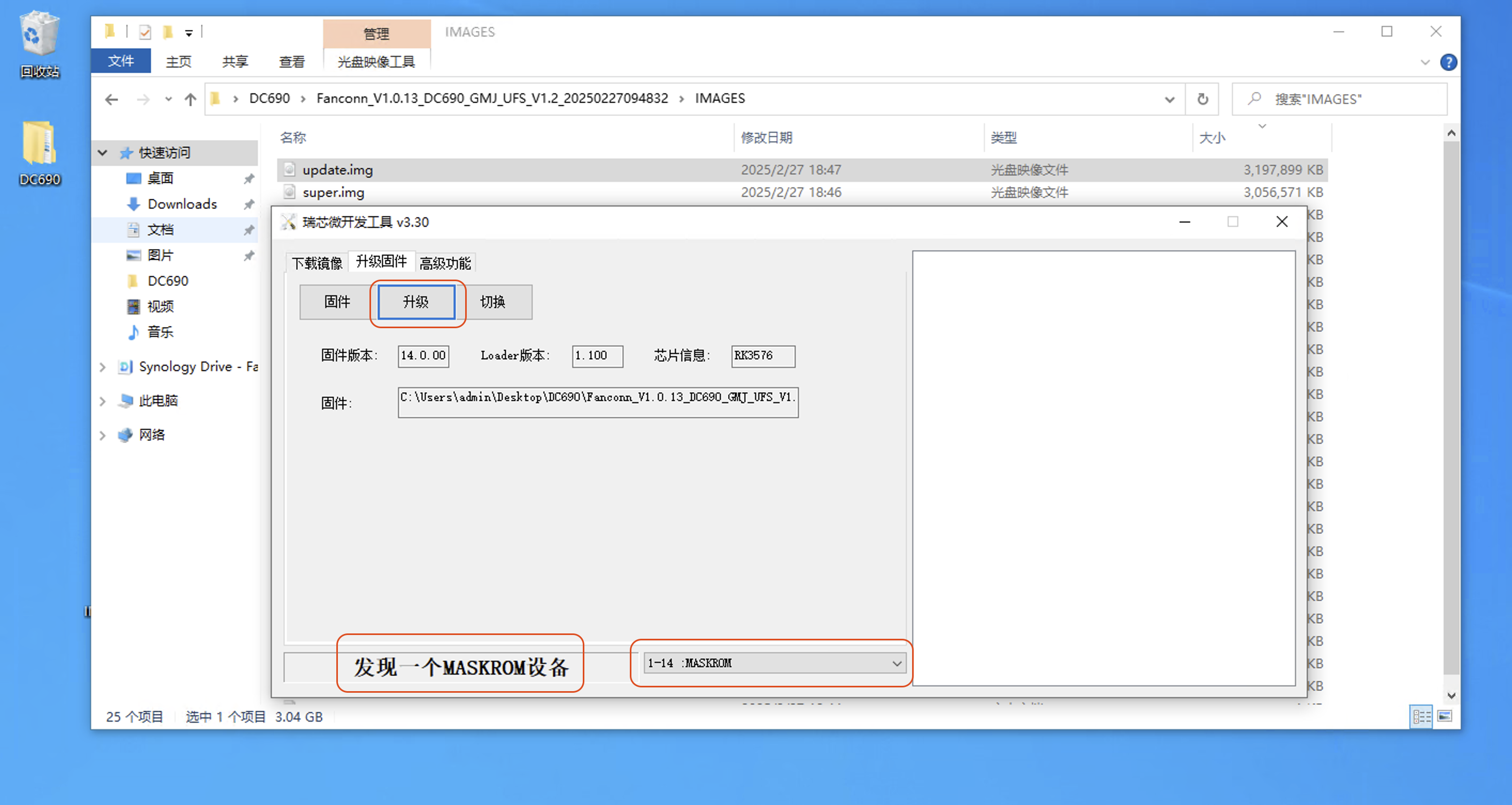
- Display of
MASKROM/LOADER deviceindicates successful recognition.
Note: Both
LoaderandMaskrommodes can be used for system upgrades.
Note: Both
LoaderandMaskrommodes can be used for system upgrades.
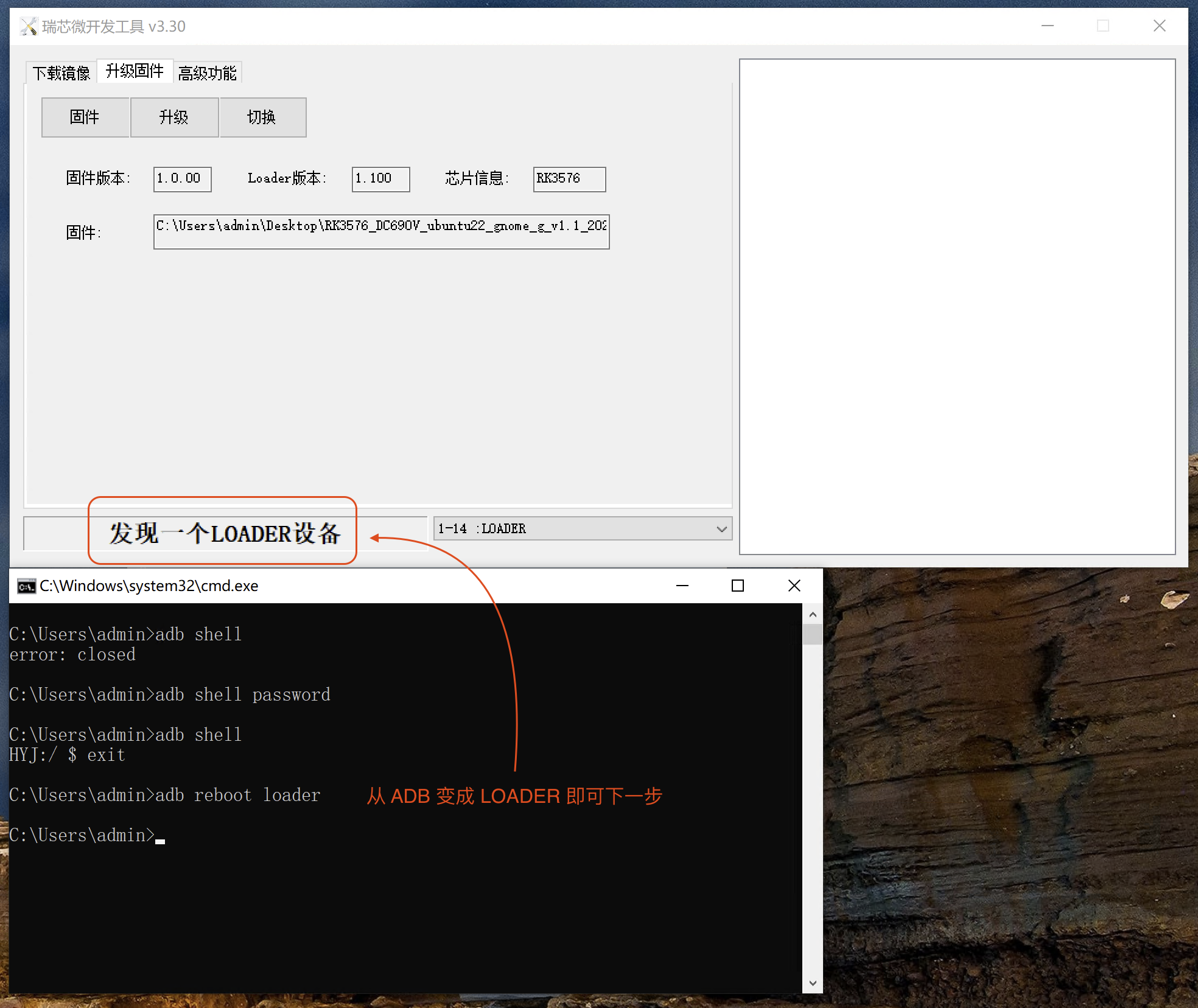
1.2 Entering Loader Mode via adb
When the device is in a normal state, you can also enter upgrade mode by directly inputting the following commands via adb.
# Check if the device is connected

adb devices
# List of devices attached
# Reboot into loader mode
adb reboot loader
Note: Both
LoaderandMaskrommodes can be used for system upgrades.
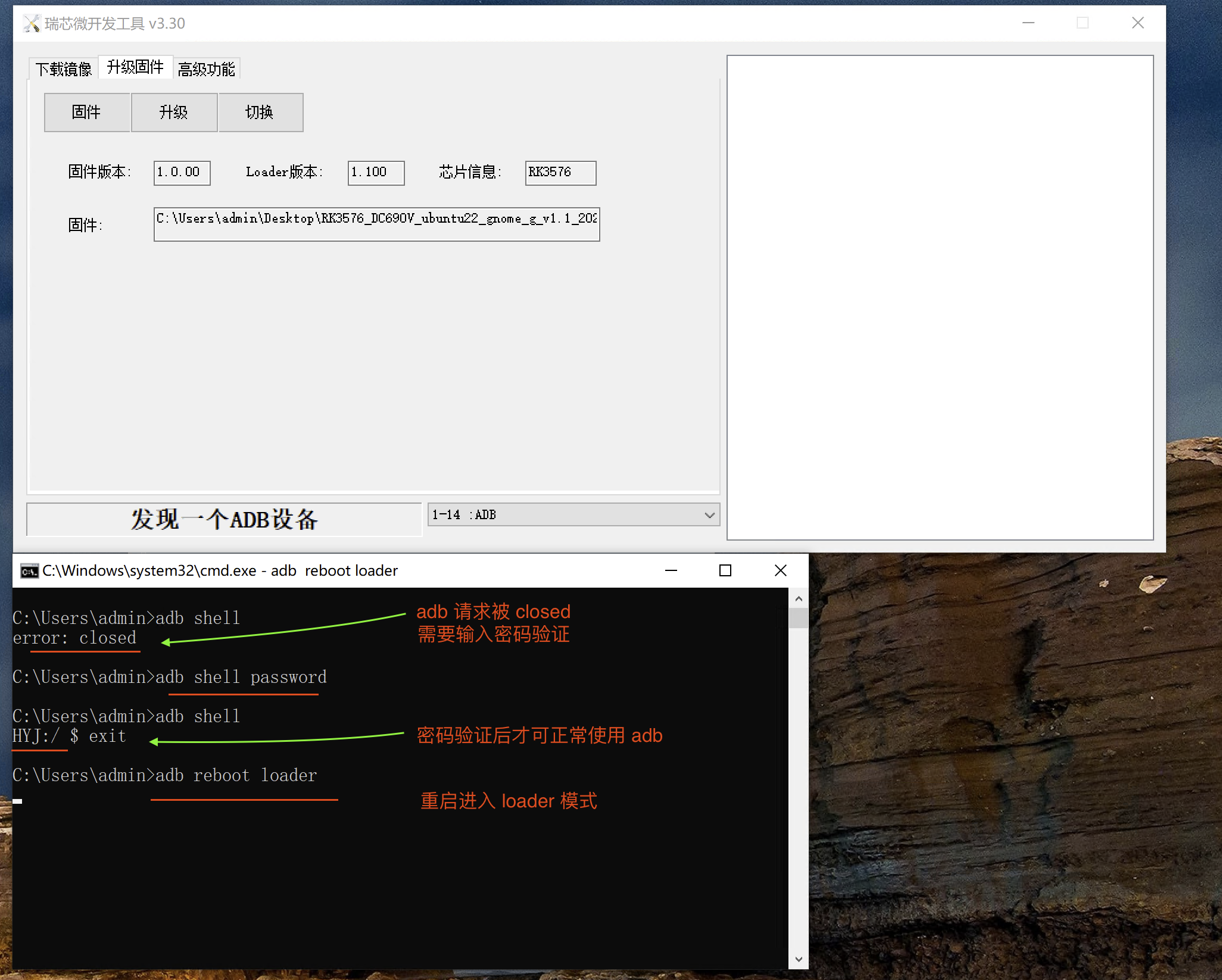
If you encounter error: closed during debugging, it indicates that password verification is required to continue debugging.
If you error: closed
error: closed


# Verify password
adb shell password
# Reboot into loader mode
adb reboot loader
Enter the password to proceed with normal debugging. Note: password is not the actual password. Please contact technical personnel to obtain the actual password.
Note: The password is not publicly released. Please contact technical personnel to obtain it.
Unlocking adb commands
For specific adb usage reference
Entering Maskrom Mode
2.1 Entering Maskrom Mode by Shorting Maskrom Pins
-
First,
completely disconnect power , then connect theUSB TYPE-Cor other type of data cable to the mainboard. -
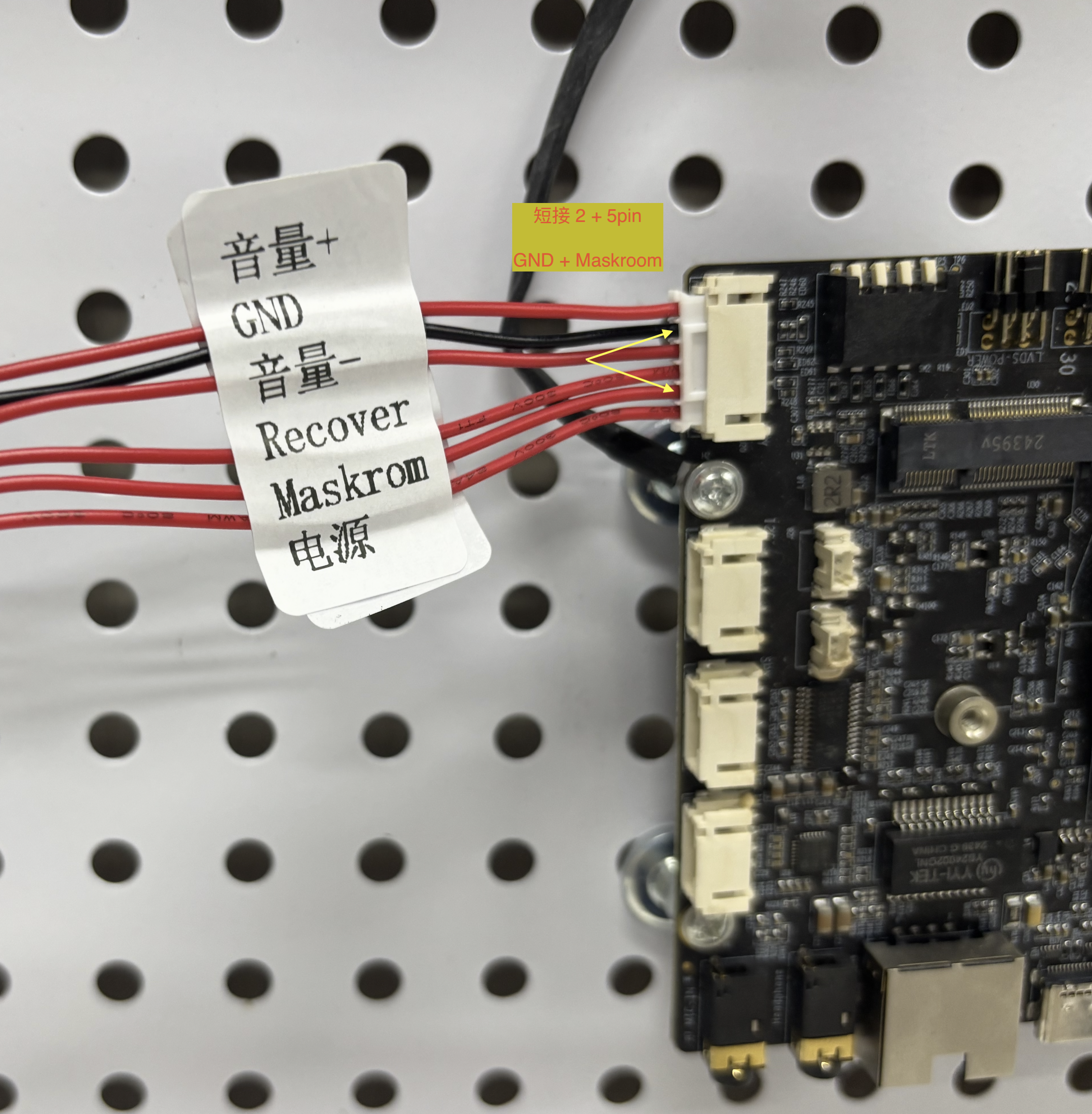
Press and hold the shorted
GND + Maskrompins without releasing. -
Connect the
DC5V/DC12Vpower supply. -
When the device is displayed as
MASKROM/LOADERdevice, you can release the short.
-
Note: RV1126/B uses a
5V power supply . -
You must
completely disconnect power before shorting the pins and connecting power. The RV1126 can be powered solely by connecting the USB cable.
Common Maskrom Connection References
- DC690 / DC690V
Wiring Diagram
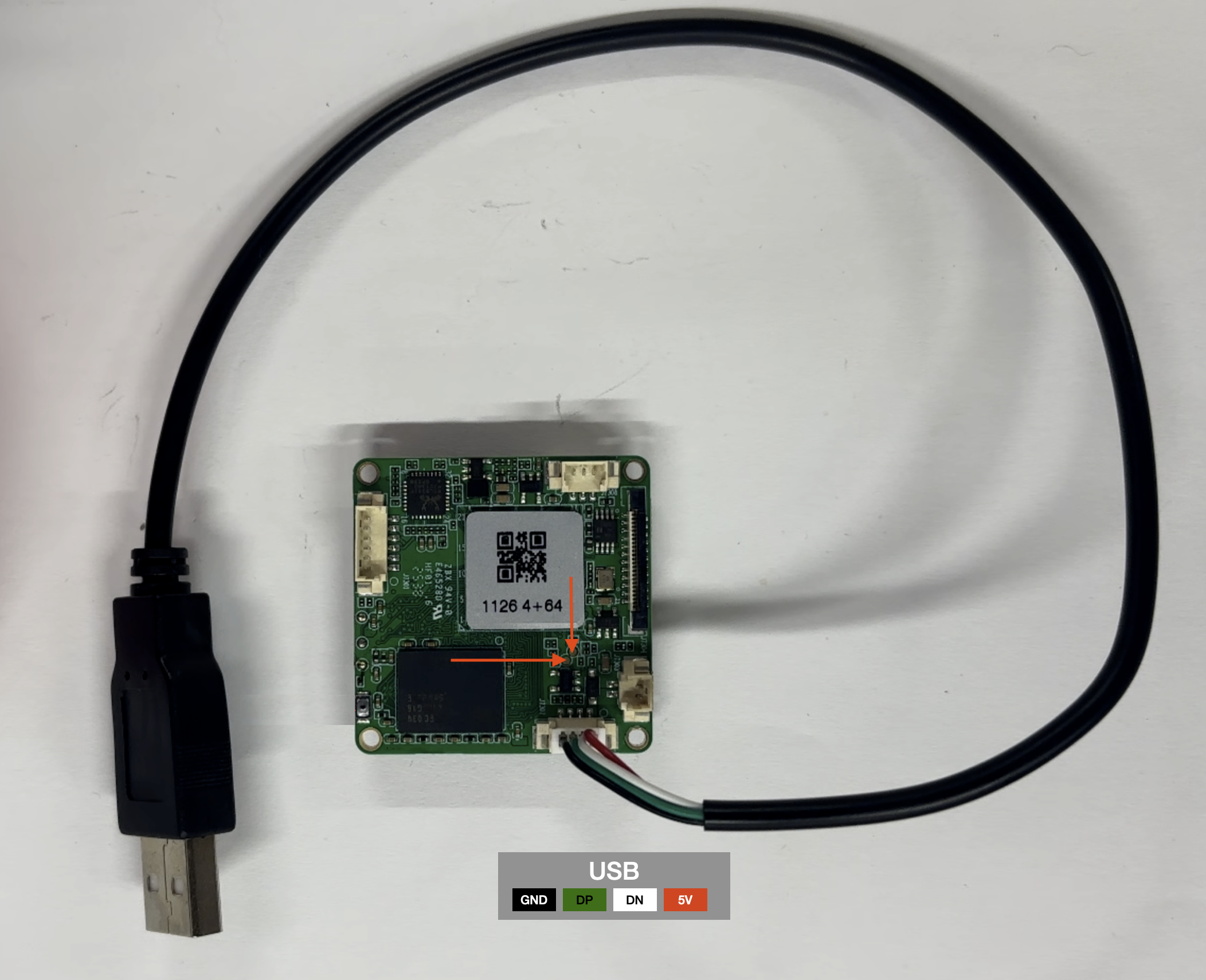
- RV1126 / RV1126B-p
RV1126 / RV1126B-p requires shorting two contact points
- Display of
MASKROM/LOADER deviceindicates successful recognition.
Note: Both
LoaderandMaskrommodes can be used for system upgrades.
Note: Both
LoaderandMaskrommodes can be used for system upgrades.