Common ADB Commands

Common ADB commands are listed here.
Starting Debugging
Wired Debugging
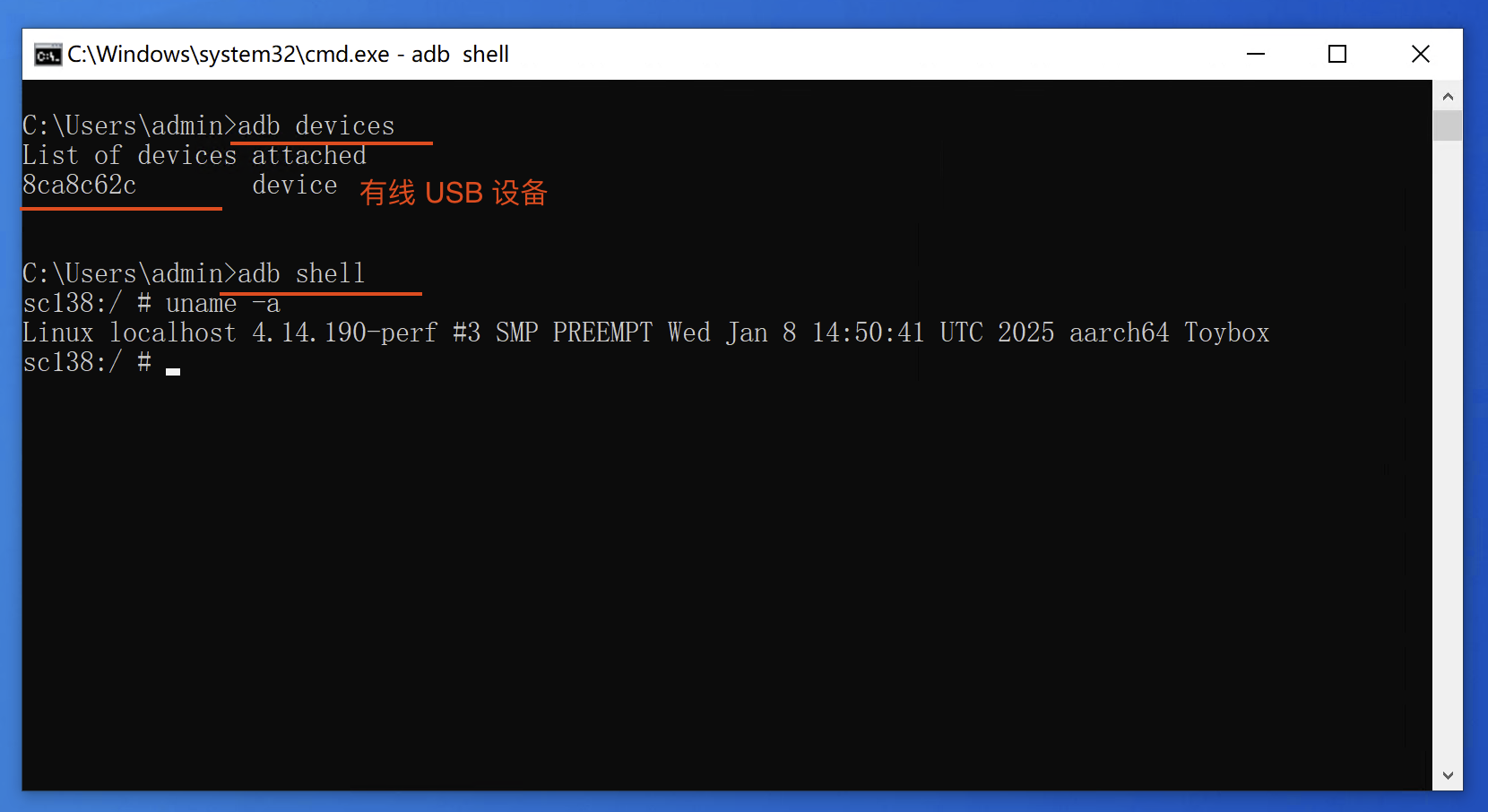
Connect the device's USB port to the computer. Enter the following command in the Command Prompt to see the connected device information.
adb devices

# List of devices attached
# 8ca8c62c        device (USB device ID)

adb shell

## Inside the device:
uname -a
Viewing devices
Check IP Address After Wired Debugging
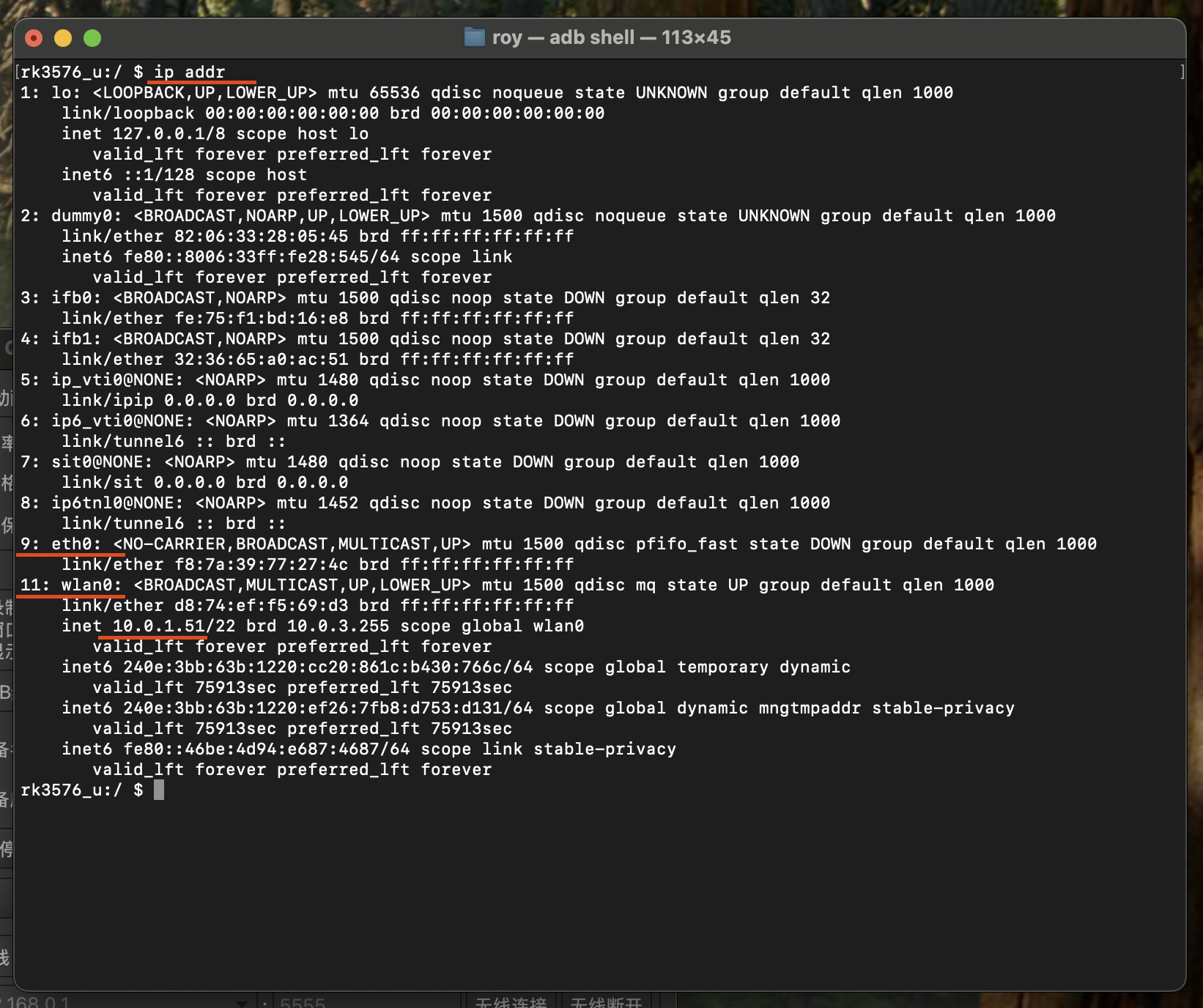
adb shell

## Inside the device:
ip addr
You can view the wired IP address
Usually
eth0
You can view the wireless IP address
Usually
wlan0
Wireless Debugging
Wireless debugging is similar to wired debugging. The computer and the device must be connected to the same local area network.
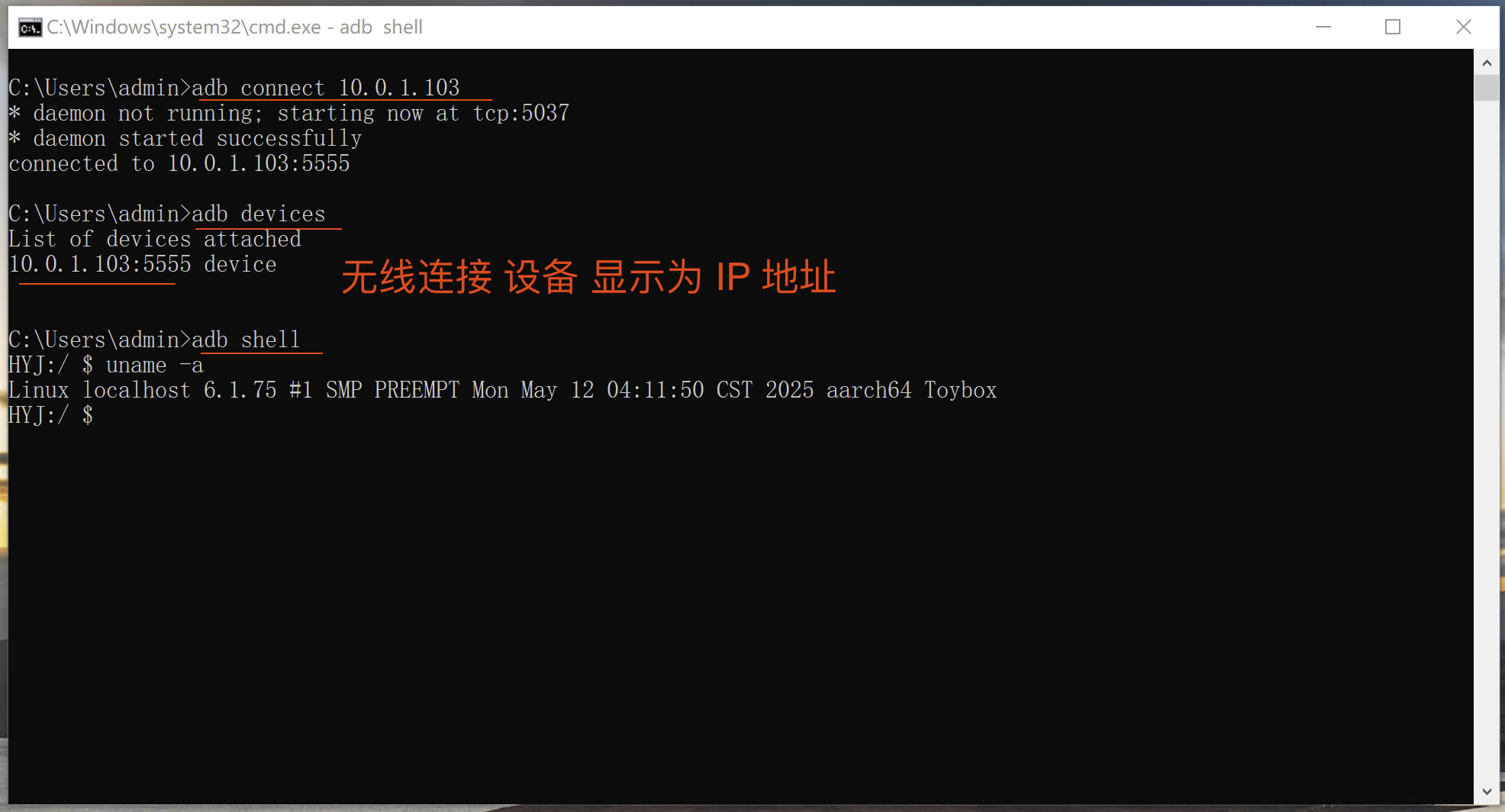
In the Command Prompt, type adb connect [device IP] to connect to the ADB device over the network.
adb connect 10.0.1.103

adb devices

List of devices attached
10.0.1.103:5555 device

adb shell

## Inside the device:
uname -a
Wireless debugging
Enter Flash Mode
In some cases, you need to use commands to enter a specific mode for debugging.
Qualcomm: Enter flash mode
adb reboot edl
Rockchip: Enter flash mode
adb reboot loader
Common Commands
Debugging Commands
Check OTA status
logcat --pid=`pidof com.fanconn.fancota`
Check HDMI status
logcat --pid=`pidof com.qj.camera` > logcat.txt

logcat | grep FancHdmi > logcat.txt
logcat -c

logcat > logcat.txt
Common Errors
Debugging Disconnected
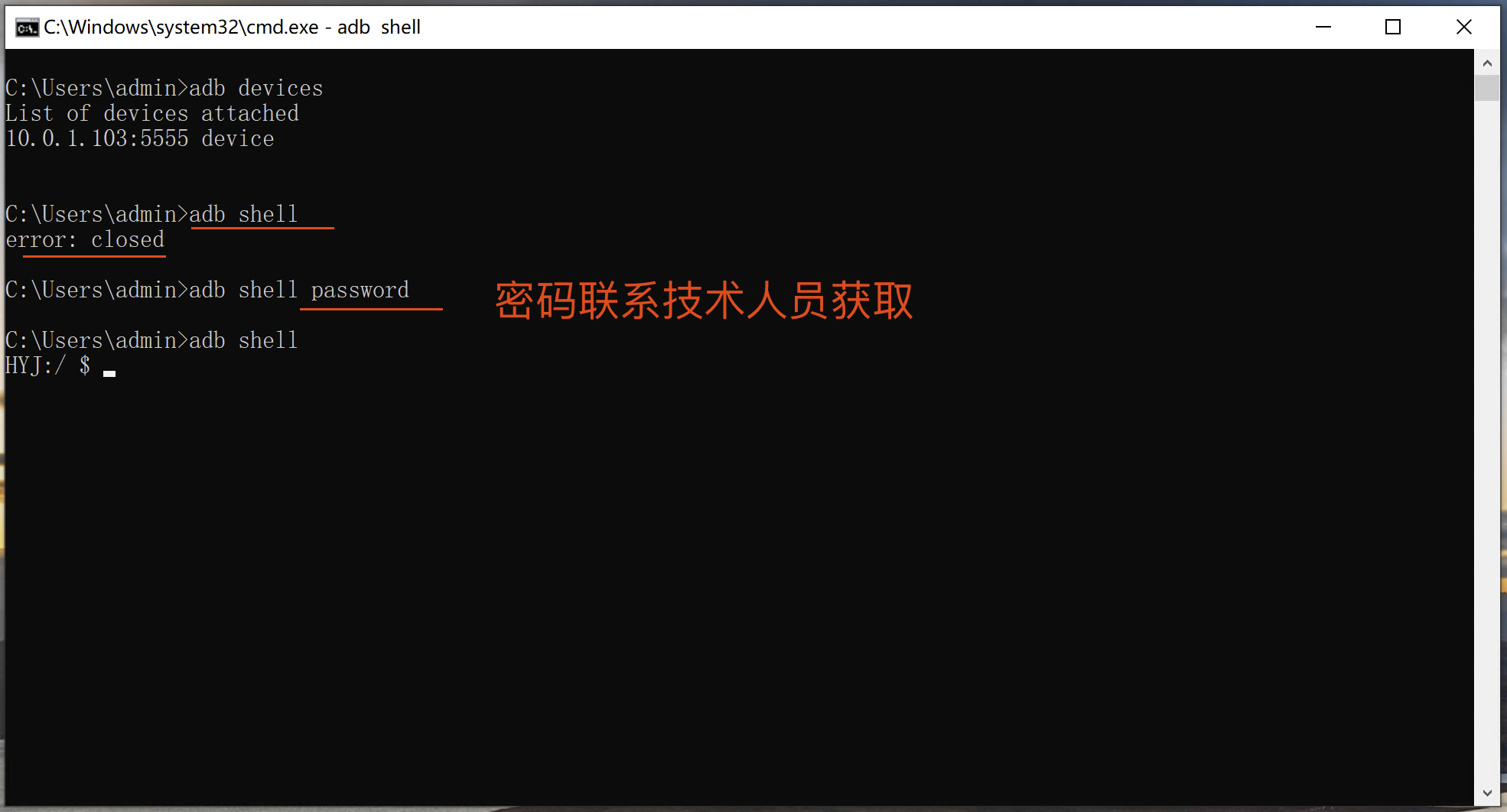
If you see the following message during debugging, it means password verification is required to continue.
error: closed
Enter the password for normal debugging. Note: password is not the actual password. Contact technical personnel for the actual password.
adb shell password
Verifying password
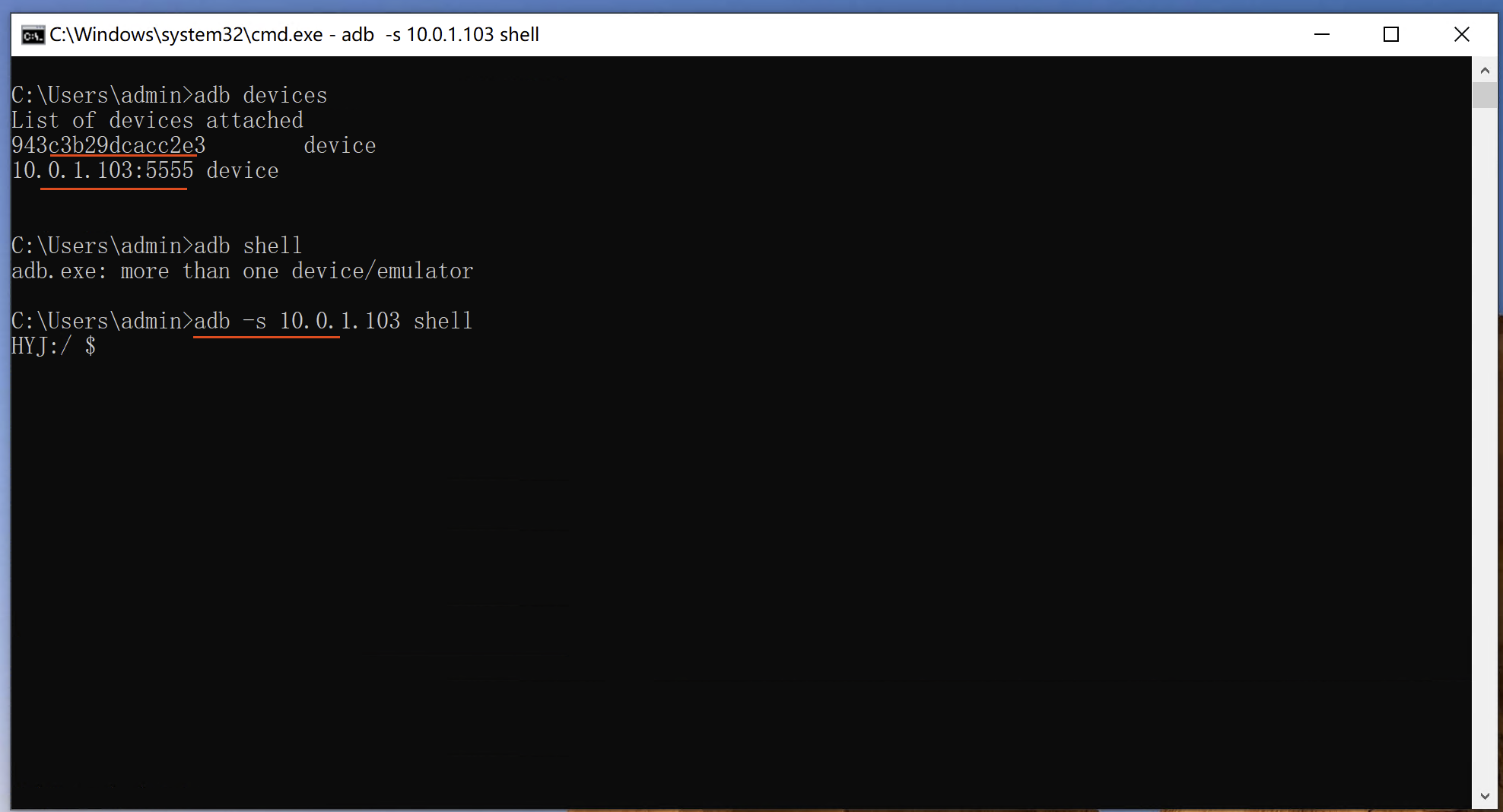
Using Multiple Devices
If multiple devices are connected simultaneously, you can use the -s option to specify the device:
C:\Users\admin>adb -s 10.0.1.103 shell
Using multiple devices
Wired Device Not Recognized
Do not use a dual-headed TYPE-C cable as it may cause recognition issues.
Or try using a different cable.
Wireless Device Not Recognized
Ensure the device and the computer are connected to the same Wi-Fi network.
When mixing wired and Wi-Fi connections, make sure both are connected to the same router/Wi-Fi network.