Quick Install - MAC

GT400 Installation
Quickly get started with the GT400 REDCAP 5G Dongle (module:
MT5710-CN) on Mac
Prerequisites
- A Mac (connect directly over USB-C if possible; avoid docks)
- Dongle GT400 and a Type-C data cable
- A Nano-SIM card with Internet service
- A Linux / OpenWrt device reachable over SSH (for sending AT commands; the Mac has no usable AT port)
Installing the Nano-SIM Card
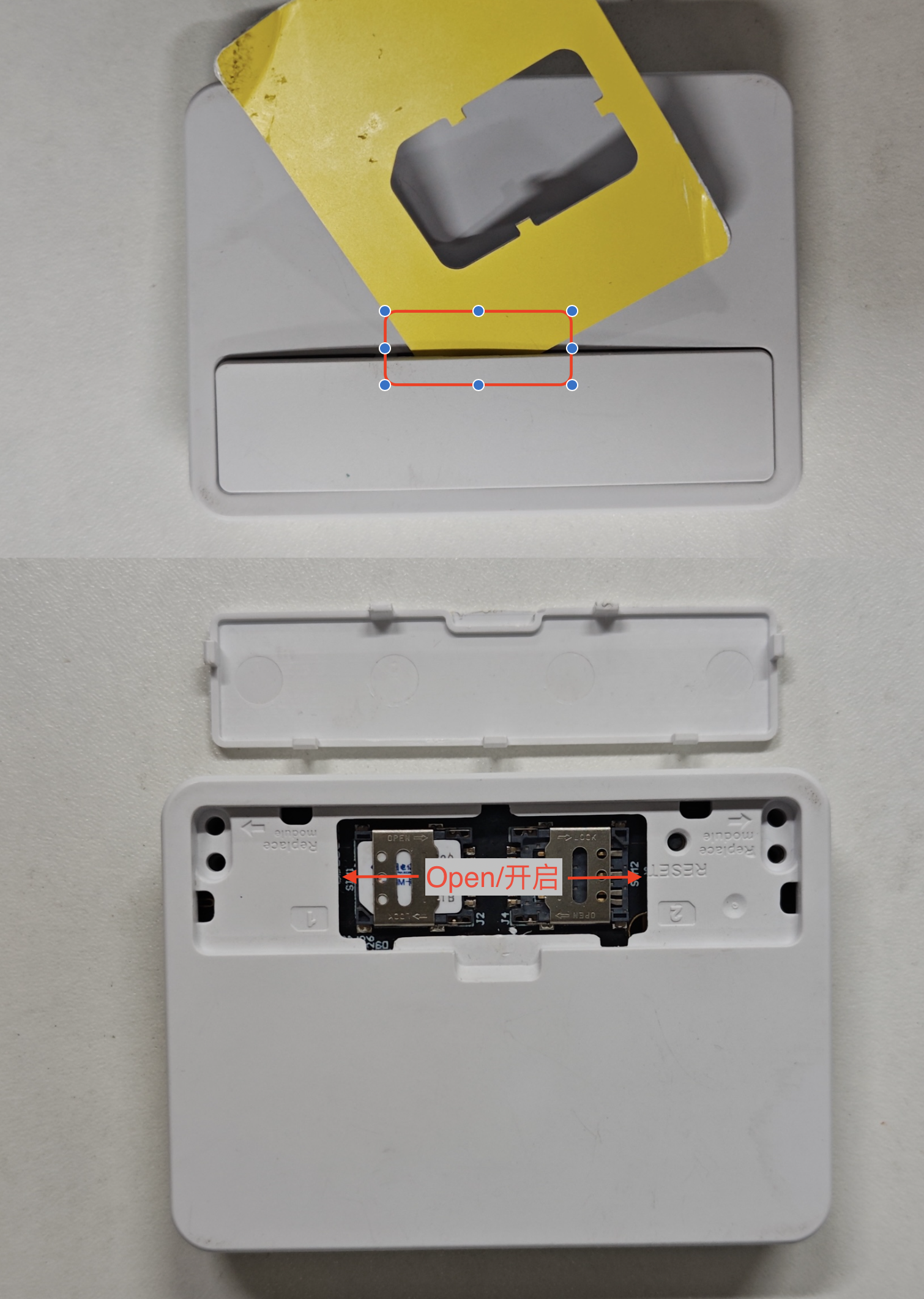
- Find a plastic card and pry the cover open
- Gently pull out the SIM1 card holder, insert the Nano-SIM card, and push it back in place
The Mac is picky about USB network adapter modes. Choose according to the table below and do not expect RNDIS / NCM / ECM+Stick alone to obtain a stable DHCP lease on the Mac.
AT^SETMODE | Dial-up mode | Host IP | Recommendation for Mac |
|---|---|---|---|
0 (ECM) | USB E5 (Mode=2 + SETE5STICK=1) | LAN (such as 192.168.8.x) | Recommended, verified |
0 (ECM) | USB Stick (Mode=1 + SETE5STICK=0) | Carrier address | Not recommended; often "not connected" with no IP |
4 (Linux NCM) | Stick / E5 | — | Not recommended for Mac; for daily OpenWrt use see the Linux document |
6 (RNDIS) | — | — | Unusable / not recommended; Windows-oriented |
1 (Win10 NCM) | — | — | Unusable / not recommended; Windows-oriented |
Device conclusion: with ECM + Stick only, the Mac can see the adapter / MAC, but it usually stays "not connected" and never gets an IP.
ECM + USB E5 works: the Mac obtains a LAN IP over DHCP (measured192.168.8.7, gateway192.168.8.1).
The Mac has no usable AT port, so do all configuration on Linux / OpenWrt first, then move the device to the Mac.
Step 1: Prepare the AT Port on Linux / OpenWrt
For detailed driver installation, see Quick Install - Linux. Only the commands needed for Mac preconfiguration are listed here.
# Confirm the module
lsusb
# You should see: 3466:3301 TD Tech Ltd. TDTECH MT571X

# Bind option when the VID/PID is not in the whitelist
echo 3466 3301 > /sys/bus/usb-serial/drivers/option1/new_id

# Installing the ECM driver is recommended (for self-check)
apk add kmod-usb-net-cdc-ether minicom
# Classic OpenWrt opkg: opkg install kmod-usb-net-cdc-ether minicom

minicom -D /dev/ttyUSB1 -b 115200
Minicom: type a command and press Enter to send it; to exit press Ctrl + A → Q → Yes.
Step 2: Switch to ECM + USB E5 (Recommended for Mac)
Wait for
OKor the result after each line before sending the next one.
ATE0
AT
AT^SETMODE?
AT^SETMODE=0
(0 = Linux ECM Normal, driver-free on Mac / Linux)
AT^TDCFG?
(shows the current Mode / LHCM. Mode 1 = USB Stick; 2 = USB E5)
AT^TDCFG="infcfg","mode",2
(switch to USB E5: the module performs NAT and the host gets a LAN IP)
AT^SETE5STICK=1
(switch the dial-up side to E5)
AT^TDCFG?
AT^SETE5STICK?
AT^SETMODE?
(confirm: Mode: 2, SETE5STICK: 1, SETMODE: 0)
LHCM is usually
192.168.8.1,255.255.255.0,192.168.8.2,192.168.8.254by default.
Example of changing the pool (some firmware is sensitive to quotation marks, so keep the default if it fails):
AT^TDCFG="infcfg","lhcm","192.168.1.1,255.255.255.0,192.168.1.100,192.168.1.200"
AT+CGDCONT=1,"IPV4V6","ctnet"
AT^SETAUTODIAL=1,1,"IPV4V6","ctnet","","",0
(change the APN according to the carrier; auto-dial is written permanently so no AT commands are needed after plugging into the Mac)
AT^RESET
(a reboot is required for USB E5 Mode=2 to actually take effect)
After rebooting, USB drops and re-enumerates. Rebind the serial port, enter minicom and continue:
echo 3466 3301 > /sys/bus/usb-serial/drivers/option1/new_id
minicom -D /dev/ttyUSB1 -b 115200
AT^TDCFG?
AT^SETE5STICK?
AT^SETMODE?
AT^SETAUTODIAL?
AT^NDISSTATQRY?
(if auto-dial has connected, NDISSTATQRY reports connected; otherwise dial manually:)
AT^NDISDUP=1,1,"ctnet"
If connectivity is abnormal, run the following once more:
AT^NDISDUP=1,0
AT^IPFILTERSWITCH=0
AT+CFUN=0
AT+CFUN=1
AT^NDISDUP=1,1,"ctnet"
Step 3: Self-Check on Linux (Before Moving to the Mac)
# The driver should be cdc_ether
dmesg | grep -i cdc_ether
readlink /sys/class/net/usb0/device/driver

# Request a LAN address from the module via DHCP (should be 192.168.8.x under E5)
udhcpc -i usb0 -n -q -t 5
ip addr show usb0
# Expected: inet 192.168.8.2/24, gateway 192.168.8.1

ping -I usb0 -c 3 192.168.8.1
# ICMP may be restricted by the carrier; confirm over HTTP:
wget -qO- --timeout=8 http://captive.apple.com/hotspot-detect.html
Once you get a 192.168.8.x address and HTTP works, move the device to the Mac.
Step 4: Plug into the Mac and Test Speed / Connectivity
- Unplug from the router and connect directly to the Mac's USB-C port (avoid docks if possible).
- System Settings → Network, then wait 30–60 seconds (auto-dial).
- The service name is usually TDTECH MT571X.
- Select Using DHCP for IPv4.
Success indicator (verified): an address such as 192.168.8.7 is obtained, with router / gateway 192.168.8.1.
Mac Obtaining an IP (Measured)
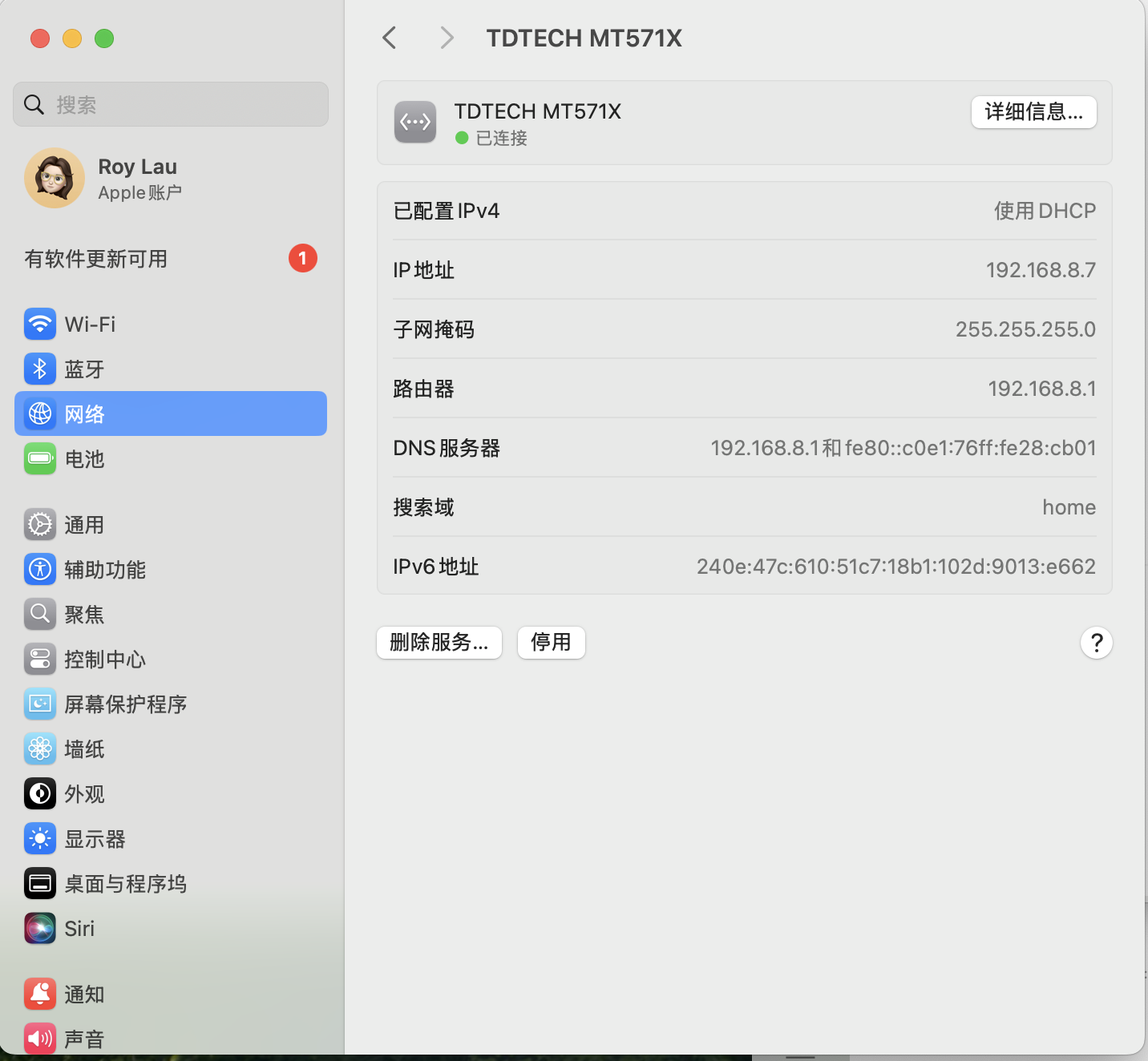
If it still shows "not connected" or has no IP, configure it manually:
| Item | Value |
|---|---|
| IP | 192.168.8.10 |
| Mask | 255.255.255.0 |
| Router | 192.168.8.1 |
| DNS | 8.8.8.8 |
ifconfig
networksetup -listallhardwareports
networksetup -getinfo "TDTECH MT571X"
ping -c 4 192.168.8.1
# Speed test: Speedtest client / web page; before testing, turn off Wi-Fi or drag this service to the top
Comparison: ECM + Stick Only (Usually Unusable on Mac)
Useful for comparison or troubleshooting; do not expect the Mac to obtain DHCP:
AT^TDCFG="infcfg","mode",1
AT^SETE5STICK=0
AT^SETMODE=0
AT^RESET
On Linux, Stick normally gives usb0 a carrier-side address (such as 10.x.x.x).
On the Mac you often see only the MAC, with the status "not connected" and no IP.
Restoring Daily OpenWrt NCM + Stick
To restore daily router use after testing on the Mac:
AT^TDCFG="infcfg","mode",1
AT^SETE5STICK=0
AT^SETMODE=4
AT^CFGMASKMODE=2
AT^SETAUTODIAL=1,1,"IPV4V6","ctnet","","",0
AT^RESET
On the OpenWrt side use kmod-usb-net-cdc-ncm; the interface is usually usb0 (cdc_ncm). See Quick Install - Linux.
Troubleshooting
| Symptom | Handling |
|---|---|
| Mac shows only a MAC and "not connected" | Confirm it is Mode=2 + SETE5STICK=1 + SETMODE=0 and that AT^RESET has been executed |
No usb0 on Linux | apk add kmod-usb-net-cdc-ether; dmesg | grep cdc_ether |
| Under E5 there is only a LAN and HTTP fails | Hang up and redial + AT^IPFILTERSWITCH=0 + toggle CFUN (see above) |
AT^TDCFG=...lhcm... returns ERROR | Use the default 192.168.8.0/24 |
| Configuration is in disarray | AT^RESET; or reconfigure Mode=2 / E5 / ECM as in Step 2 |
Mode Quick Reference
AT^SETMODE (USB mode)
| Value | Meaning | Scenario |
|---|---|---|
0 | Linux ECM | Driver-free on Mac / Linux (Mac requires E5) |
2 | Linux ECM Debug | Debugging |
4 | Linux NCM | Daily OpenWrt use |
6 | Win10 RNDIS | Windows (not recommended for Mac) |
AT^TDCFG="infcfg","mode" + AT^SETE5STICK (dial-up mode)
| Mode | SETE5STICK | IP obtained by the host | Mac |
|---|---|---|---|
2 | 1 | LAN (such as 192.168.8.x) | Recommended, verified |
1 | 0 | Carrier address (Stick) | Works on Linux, often fails on Mac |
Checklist (Mac E5 Speed Test)
- ✅
AT^SETMODE?→0 - ✅
AT^TDCFG?→Mode: 2, with LHCM containing192.168.8.1 - ✅
AT^SETE5STICK?→1 - ✅
AT^RESEThas been executed andAT^SETAUTODIAL?has been written - ✅
usb0on Linux obtains192.168.8.xand HTTP works - ✅ The Mac obtains
192.168.8.x(such as.7) and a speed test can run
Relationship with Other Documents
| Document | Scenario |
|---|---|
| This document | Mac: ECM + USB E5 |
| Quick Install - Linux | OpenWrt: Linux NCM (SETMODE=4) |
| Quick Install - Windows | Windows: RNDIS / NCM |