Quick Install - Windows

BG95-M3 Installation
Quickly get started with the BG95-M3 LPWA Dongle on Windows
Prerequisites
- A Windows PC
- Dongle BG95-M3 and a USB data cable (USB-A connector)
- A valid Nano-SIM card (must support LTE Cat M1 / NB-IoT)
- Windows USB driver
Installing the Nano-SIM Card
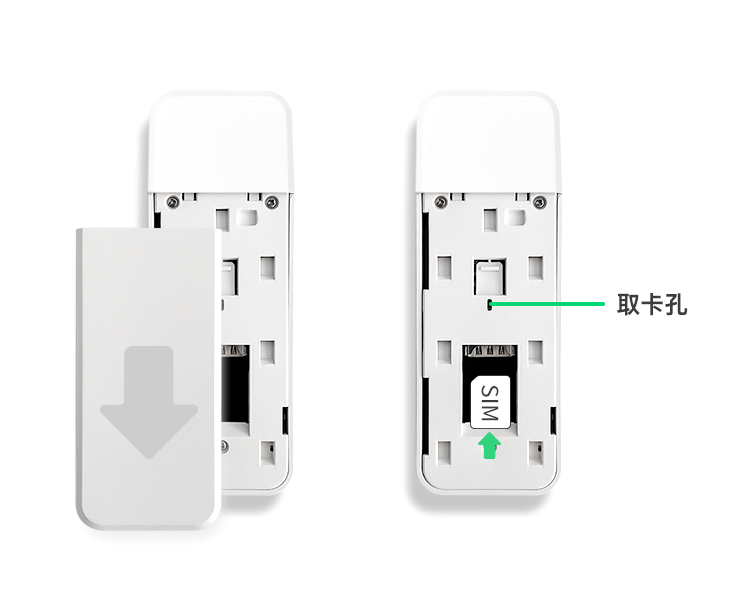
- If the device has a USB protective cover, remove it first (skip this step for bare-board devices without an enclosure)
- Push the Nano-SIM card into the slot in the direction indicated on the slot, and make sure it is seated firmly
Connecting to the PC USB Port
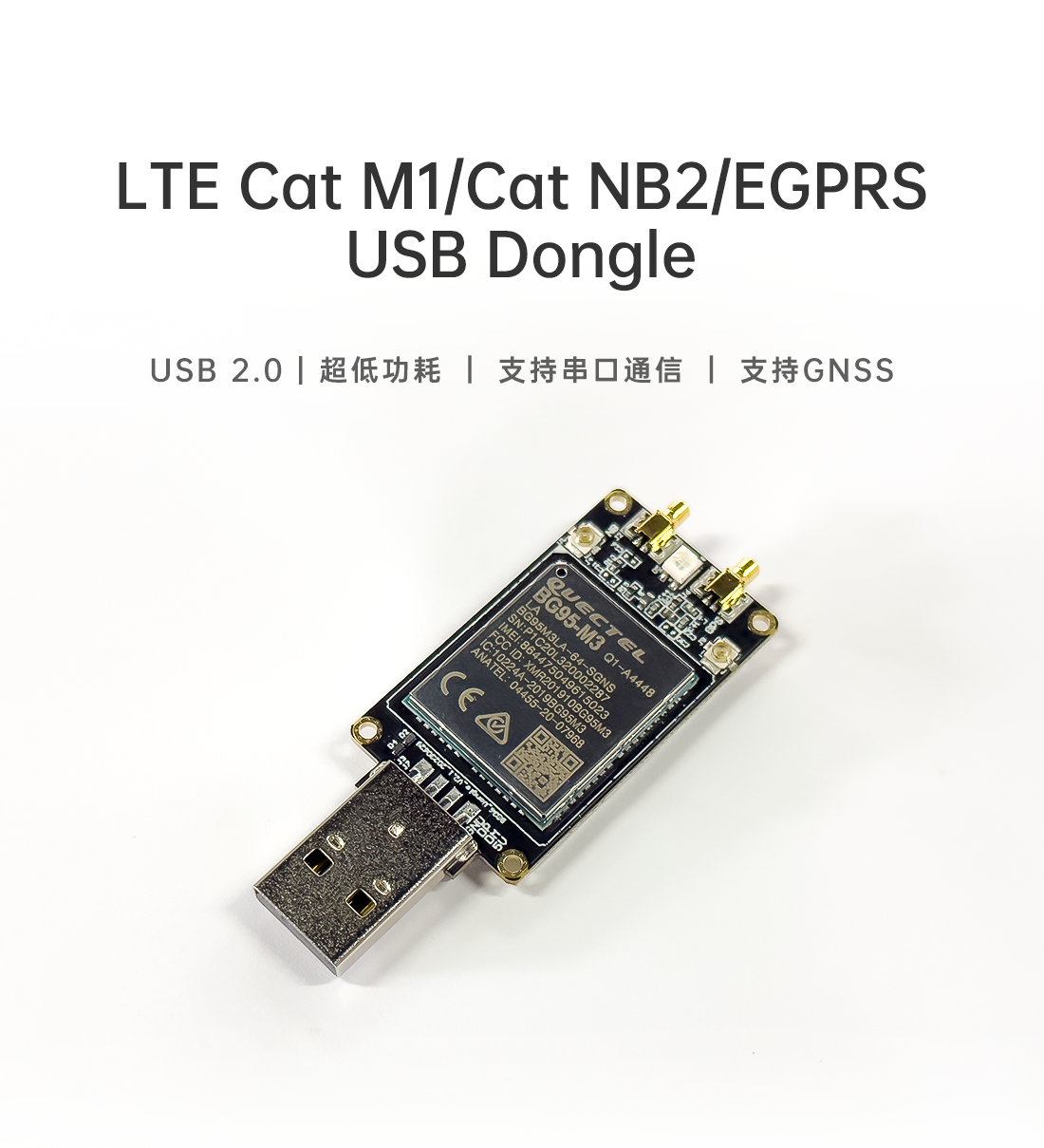
Simply plug the USB-A connector into a USB port on the PC; if the USB port cannot supply enough power, a powered USB hub is recommended.
Configuring the Dongle
Downloading the Driver
Quectel LTE&5G Windows USB Driver V2.2.4
Checking the Device
- Insert the SIM card and connect the dongle to the PC
- Open
This PC→Manage(G)→Device Manager→Other devices - You should see
Quectel LPWA Module(BG95-M3) with no driver installed
Installing the Driver
- Download and extract the driver
- Run the installer and click
Next - After installation, the Quectel network adapter appears under
Device Manager→Network adapters
Getting Online
Once the driver is installed, Windows automatically obtains an address through the Dongle (usually 192.168.225.x). Open a browser and browse the web.
The ECM composition of the BG95 only provides a network adapter, not an AT serial port.
If Device Manager shows only a network adapter and no Quectel AT Port, the module is currently in ECM composition, which is normal. To send AT commands, refer to Device Debugging.
Driver Not Recognized
If some devices are still not recognized, refer to:
Solution for AT port not working after switching to ECM or RNDIS.docx