Quick Install - Linux / OpenWrt

BG95-M3 Installation
Quickly get started with the BG95-M3 LPWA Dongle on Linux / OpenWrt
Prerequisites
- A Linux device (this article uses an OpenWrt / ImmortalWrt router as an example)
- Dongle BG95-M3 and a USB data cable
- A valid Nano-SIM card (must support LTE Cat M1 / NB-IoT)
- The router's WAN port has working Internet access (for downloading drivers)
The USB composition of the BG95-M3 differs from that of the EC25/EG25:
- BG95 uses
AT+QCFGEXT="usbnet",...to switch compositions - Under the ECM composition there is only a network adapter, no USB AT serial port (neither
/dev/ttyUSB*nor/dev/ttyACM*will appear)
Therefore the procedure in this article is: first get the ECM network adapter online, then switch back to the modem composition for AT debugging when needed.
Connecting the Device
Installing the Nano-SIM Card
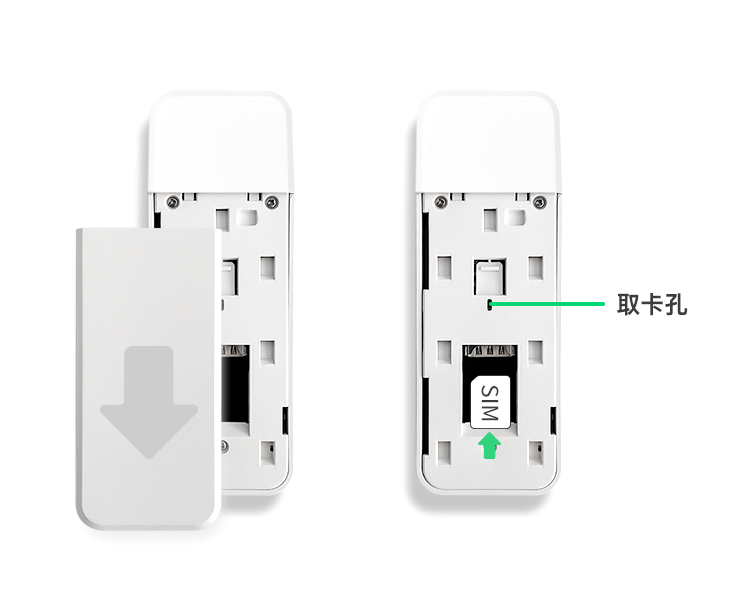
- If the device has a USB protective cover, remove it first (skip this step for bare-board devices without an enclosure)
- Push the Nano-SIM card into the slot in the direction indicated on the slot
Connecting to the Router USB Port
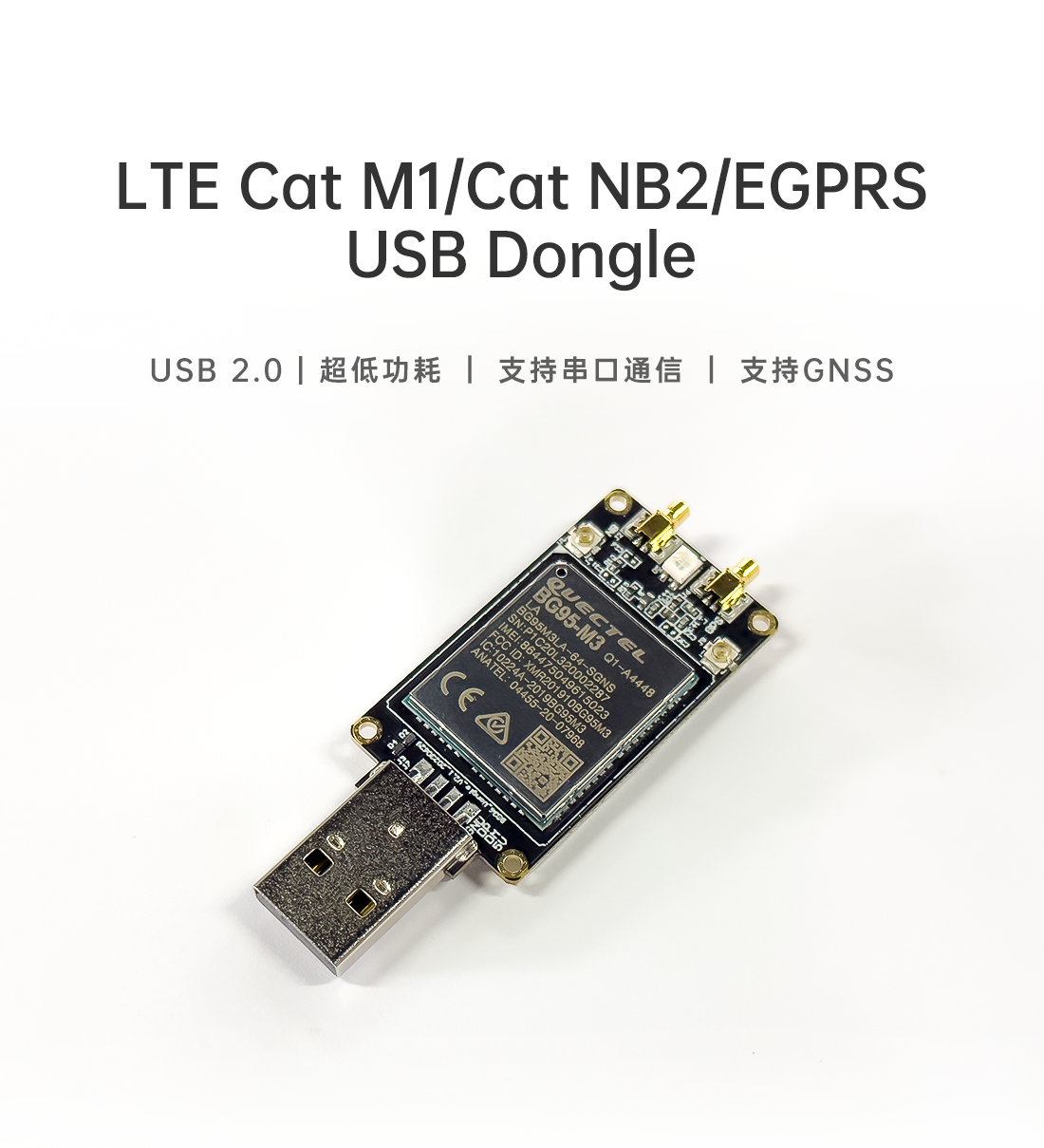
Note: The BG95 draws a large transient current when registering on the network; insufficient USB power on some routers causes the module to reboot repeatedly (consecutive
USB disconnectmessages indmesg). A USB hub with an independent power supply is recommended.
Configuring the Dongle - Router Side
Connecting to the Router
ssh root@192.168.1.1
Checking the USB Device
root@OpenWrt:~# lsusb
Expected output:
Bus 001 Device 002: ID 2c7c:0700 Quectel, Incorporated Quectel LPWA Module
If lsusb: not found is reported:
# opkg
opkg update && opkg install usbutils

# apk
apk update && apk add usbutils
Viewing the USB Interface Composition
root@OpenWrt:~# ls /sys/bus/usb/devices/1-1:1.*
Under the ECM composition there are 3 interfaces:
| Interface | Class | Purpose |
|---|---|---|
1-1:1.0 | ff/ff/ff | DIAG |
1-1:1.1 | 02/06/00 | ECM control |
1-1:1.2 | 0a/00/00 | ECM data |
This is also why
/dev/ttyACM*does not appear: interface1.1is the ECM control interface, not CDC-ACM.
Installing the ECM Driver
# opkg
opkg update
opkg install kmod-usb-net-cdc-ether

# apk
apk update
apk add kmod-usb-net-cdc-ether
After installation, confirm that the driver is loaded:
root@OpenWrt:~# dmesg | grep cdc_ether
cdc_ether 1-1:1.1 eth2: register 'cdc_ether' at usb-11200000.usb-1, CDC Ethernet Device, 00:a0:c6:62:1c:00
Confirming the Network Adapter Name
root@OpenWrt:~# ls /sys/class/net
OpenWrt usually names the USB ECM adapter eth2 (or usb0; refer to the actual output).
root@OpenWrt:~# ip addr show eth2
Expected output (the address is assigned by the module's built-in DHCP):
9: eth2: <BROADCAST,MULTICAST,UP,LOWER_UP> mtu 1500 qdisc fq_codel state UNKNOWN qlen 1000
    link/ether 00:a0:c6:62:1c:00 brd ff:ff:ff:ff:ff:ff
    inet 192.168.225.20/24 brd 192.168.225.255 scope global eth2
Configuring the Interface
Change the WAN port device to the actual adapter name (the example uses eth2):
uci set network.wan.device='eth2'
uci set network.wan6.device='eth2'

uci commit network
service network reload
In a multi-WAN environment, it is recommended to configure the cellular link as a backup:
uci set network.wan2.device='eth2'
uci set network.wan26.device='eth2'
uci set network.wan2.metric='20'
uci set network.wan26.metric='20'

uci commit network
service network reload
The smaller the metric value, the higher the priority; keep the primary link at
0and set the cellular link to20.
Verification
Checking the Interface Status
root@OpenWrt:~# ifstatus wan
Confirm "up": true and that a 192.168.225.x address has been obtained.
Testing the Module Link
root@OpenWrt:~# ping -c 3 192.168.225.1
If this succeeds, the ECM link between the router and the module is working.
Testing Internet Access
root@OpenWrt:~# ping -I eth2 -c 3 223.5.5.5
- Succeeds: the module has registered and established a data connection
- Fails, but
192.168.225.1is reachable: the problem is on the module side (SIM not registered, APN, data plan, frequency bands)
When the BG95-M3 was tested in the ECM composition:
- USB enumeration was normal (
2c7c:0700) - The ECM link was working (
192.168.225.20, gateway192.168.225.1reachable by ping) - However, there was no IPv4 / IPv6 data egress
Because the ECM composition has no AT port, CEREG/CSQ cannot be queried on this device. To check the registration status, refer to Device Debugging and switch to the modem composition.
FAQ
| Symptom | Cause | Solution |
|---|---|---|
lsusb does not show 2c7c:0700 | Insufficient power / not enumerated | Use another USB port or a powered hub |
No eth2 / usb0 | ECM driver not installed | Install kmod-usb-net-cdc-ether |
No /dev/ttyACM* | The ECM composition has no AT port by design | Normal; switch to the modem composition |
Still no serial port after installing kmod-usb-acm | The interface is not CDC-ACM | No need to install; see the row above |
| Has an IP but no Internet access | Module not registered / APN / data plan | Switch to the modem composition and troubleshoot with AT commands |
| Module keeps reconnecting | Insufficient USB power | Use a powered hub |
For AT commands and registration checks, see Device Debugging.