Expansion Board CAM126B-P-24 Wi-Fi / Bluetooth Debugging
This document records the connection and verification methods for Wi-Fi and Bluetooth on the CAM126B-P-24 expansion board, as well as troubleshooting for common problems.
Compatible firmware:
Fanconn_V1.6.0_RV1126B_BUILDROOT_EMMC_V1.1_20261028.tar
Fanconn_V1.3.0_RV1126B_DEBIAN12_EMMC_V1.1_20261028.tar.gz
Versions released after October 28, 2026
Prerequisites for debugging:
- The image must include the AIC8800 drivers (
aic8800_bsp/aic8800_fdrv/aic8800_btlpm). If an older image does not have these three modules,wlan0will not appear inifconfig -a - The board shell must be reachable via
adbor the Ethernet port - The SDIO voltage is 1.8V
Module and Hardware Preparation
| Item | Description |
|---|---|
| Wireless module | AIC8800D80, SDIO for Wi-Fi and UART for BT |
| Band | Dual band 2.4G / 5G; in testing it negotiated to 5G (5200MHz, 40MHz, Wi-Fi 6) |
| BT serial port | /dev/ttyS2, 1500000 baud, hardware flow control |
| Device tree | Still uses wifi_chip_type = ap6212; the actual chip is AIC8800, so configuration should follow the actual driver |
The S01 DIP switch selects where the module UART is routed:
| DIP position | Function | Description |
|---|---|---|
| 1 / 3 on | WIFI / BT | UART connected to the module; Wi-Fi and Bluetooth work normally |
| 2 / 4 on | TTL | UART connected to the 24PIN header as a debug serial port |
When the module behaves abnormally, first confirm that S01 is set to 1 / 3. When set to 2 / 4, the UART is switched to the TTL header and Bluetooth will appear as hci0 with no response.
Connecting to a WIFI Network
Installation
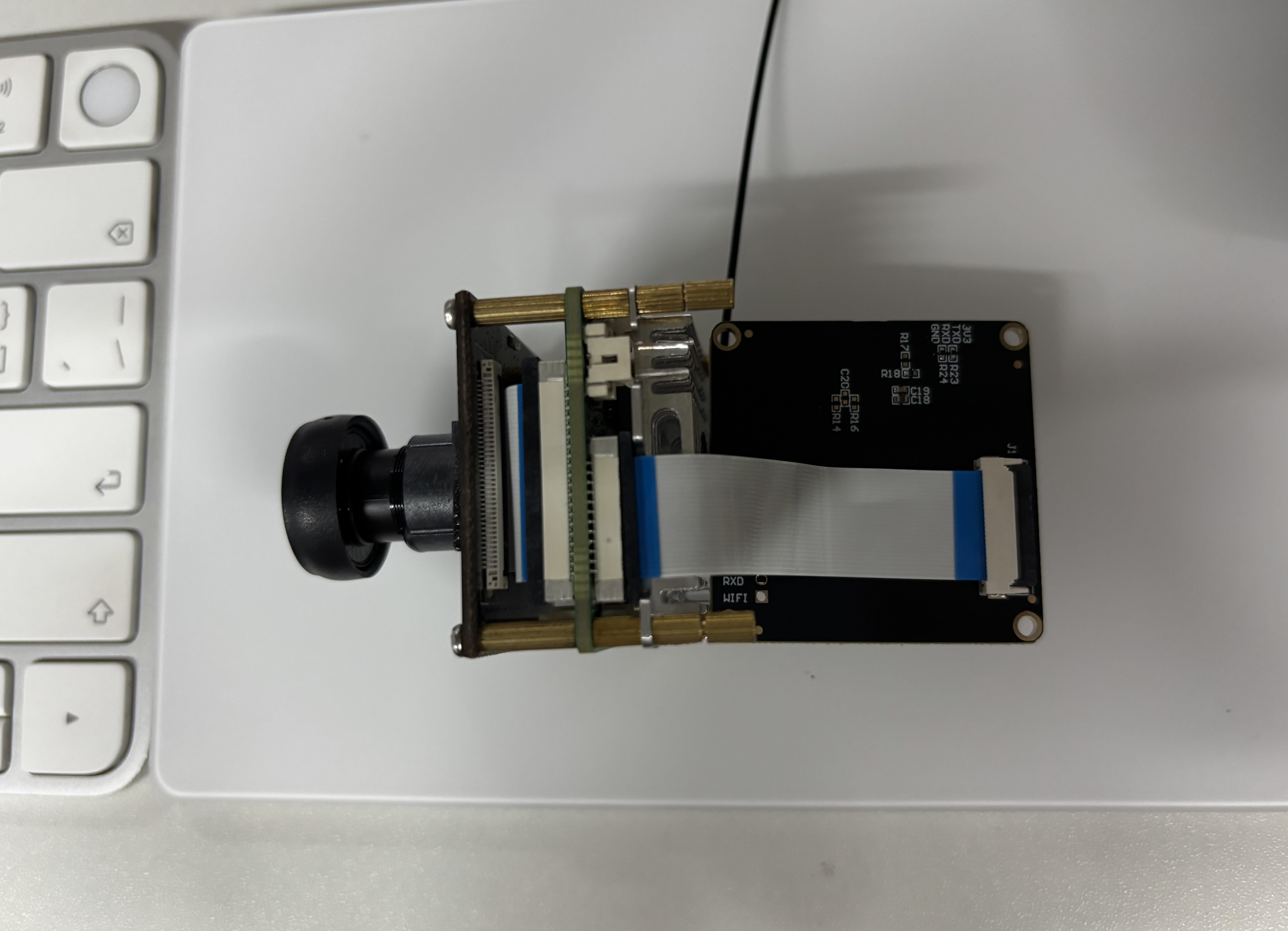
- Pressing down the black latch on the expansion board locks the FPC cable; lifting it releases the cable.
1. Confirm the Network Interface and Driver
ifconfig -a                 # wlan0 should be visible
lsmod | grep aic8800        # aic8800_bsp / aic8800_fdrv / aic8800_btlpm
dmesg | grep -i 'New interface create'
2. Write the SSID / Password
Edit /etc/wpa_supplicant.conf:
ctrl_interface=/var/run/wpa_supplicant
ap_scan=1
update_config=1

network={
    ssid="ORBI60"
    psk="fanconn123"
    key_mgmt=WPA-PSK
}
At boot, ifup wlan0 actually loads /var/run/wpa_supplicant/wpa_supplicant.conf, and wpa_cli save_config writes to the same file; on this image /etc/wpa_supplicant.conf is a separate, independent file that is not synchronized automatically, so you must modify both to keep the configuration consistent after a reboot.
3. Scan and Connect
wpa_cli -i wlan0 scan
sleep 6
wpa_cli -i wlan0 scan_results      # confirm the target SSID and encryption type are visible

wpa_cli -i wlan0 reconfigure       # reload the configuration above
sleep 8
wpa_cli -i wlan0 status            # wpa_state=COMPLETED means connected
You can also add the network interactively, with equivalent results:
wpa_cli -i wlan0 add_network
wpa_cli -i wlan0 set_network 0 ssid '"ORBI60"'
wpa_cli -i wlan0 set_network 0 psk '"fanconn123"'
wpa_cli -i wlan0 enable_network 0
wpa_cli -i wlan0 save_config
4. Obtain an IP
dhcpcd runs in the background and will assign an address automatically after connecting:
ifconfig wlan0
ip route
If no address is obtained automatically, run it manually once:
udhcpc -i wlan0 -q
5. Verify
ping -c 4 10.0.0.1
ping -c 4 www.baidu.com
wpa_cli -i wlan0 signal_poll       # check RSSI / LINKSPEED
6. Boot Autostart
The startup flow is /etc/init.d/S36wifibt-init.sh → /usr/bin/wifibt-init.sh: it loads the three aic8800 modules, starts hciattach, and then starts wpa_supplicant with the following parameters:
wpa_supplicant -B -i wlan0 -c /var/run/wpa_supplicant/wpa_supplicant.conf -P /run/wpa_supplicant.wlan0.pid
To restart the whole Wi-Fi chain (driver + hciattach + wpa_supplicant):
/etc/init.d/S36wifibt-init.sh restart
7. Disconnecting and Deleting Network Configuration
Note the difference between the two kinds of "disconnect": the former keeps the configuration, the latter deletes it completely:
| Operation | Key command | Result |
|---|---|---|
| Disconnect only | disconnect | Configuration kept; reconnect or a reboot reconnects automatically |
| Disconnect and delete | remove_network + save_config | Configuration disappears from the file and no longer reconnects automatically |
Disconnect only: keep the configuration
Commonly used when debugging roaming, with poor signal, or when temporarily switching hotspots:
wpa_cli -i wlan0 disconnect
wpa_cli -i wlan0 status          # should be wpa_state=DISCONNECTED

wpa_cli -i wlan0 reconnect       # reconnect when needed
sleep 8
wpa_cli -i wlan0 status          # back to wpa_state=COMPLETED
ifconfig wlan0                   # the IP may change; confirm a new address is obtained
If no IP is obtained after reconnect, bring the interface down and up again:
ifconfig wlan0 down
ifconfig wlan0 up
wpa_cli -i wlan0 reconnect
Disconnect and completely delete the configuration
wpa_cli -i wlan0 list_networks        # first confirm the id to delete, 0 / 1 ...
wpa_cli -i wlan0 remove_network 0     # remove from memory
wpa_cli -i wlan0 save_config          # write back to the configuration file
wpa_cli -i wlan0 disconnect
save_config only writes /var/run/wpa_supplicant/wpa_supplicant.conf, and at boot ifup wlan0 (the wpa-conf in /etc/network/interfaces.d/wlan0) reads the same path. On this image /etc/wpa_supplicant.conf is a separate independent file that is not synchronized automatically, so it must be handled separately; otherwise the leftover network block will still be used to reconnect:
cat /var/run/wpa_supplicant/wpa_supplicant.conf   # only global parameters should remain, with no network block
cat /etc/wpa_supplicant.conf                      # if a network block still exists, delete it or rewrite the whole file
After deletion, stop the station link completely (this is also required before switching to AP):
killall wpa_supplicant
dhcpcd -k wlan0
sleep 1
ip addr flush dev wlan0
ifconfig wlan0 down
Confirm it is disconnected:
wpa_cli -i wlan0 status      # Failed to connect ... means wpa_supplicant has exited
ip -4 addr show wlan0        # no inet address
Switching SSID (delete first, then add)
Method 1: edit the configuration file directly (recommended; still takes effect after a reboot)
vi /etc/wpa_supplicant.conf     # modify ssid / psk in the network block
wpa_cli -i wlan0 reconfigure
sleep 8
wpa_cli -i wlan0 status
Method 2: add and delete online with wpa_cli, then write the configuration back
wpa_cli -i wlan0 list_networks        # view existing networks and their ids
wpa_cli -i wlan0 remove_network 0     # delete the old one
wpa_cli -i wlan0 add_network          # returns a new id, assumed to be 0
wpa_cli -i wlan0 set_network 0 ssid '"Fanconn"'
wpa_cli -i wlan0 set_network 0 psk '"fanconn123"'
wpa_cli -i wlan0 enable_network 0
wpa_cli -i wlan0 save_config          # write back to /var/run/wpa_supplicant/wpa_supplicant.conf
wpa_cli -i wlan0 reassociate
sleep 8
wpa_cli -i wlan0 status
ssid/pskmust be wrapped in double quotes inside single quotes, for example'"ORBI60"'; otherwise they will be parsed as hexadecimal- After switching, the IP is re-obtained automatically by
dhcpcd; if it is still the old address, runifconfig wlan0 down && ifconfig wlan0 upor restartdhcpcd save_configdepends onupdate_config=1in the configuration; without this line it only changes memory and is lost on reboot
FAQ
| Symptom | Cause / Handling |
|---|---|
No wlan0 in ifconfig -a | The aic8800 driver is not loaded; confirm with lsmod and the aic logs in dmesg, and run /etc/init.d/S36wifibt-init.sh restart if necessary |
wpa_cli reports Failed to connect to non-global ctrl_ifname: wlan0 | wlan0 does not exist or wpa_supplicant has not started |
Could not read interface wlan0 flags: No such device | Same as above; first resolve the missing network interface |
wpa_state=SCANNING / 4WAY_HANDSHAKE hangs | Wrong password or the router is in WPA3 mode; check the encryption type with scan_results first |
| Connected but no IP | The router's DHCP pool is exhausted; run udhcpc -i wlan0 -q manually |
| Weak signal / low rate | Connect the J5 IPEX antenna and check RSSI with signal_poll (around -40dBm is good) |
WIFI Hotspot (AP Mode)
wlan0 is a station by default (connected to a router). This section switches it to AP mode for phones / host computers to connect. This image has no NAT capability, so two schemes are provided; choose one according to your purpose:
| Scheme | Purpose | Terminal address | Pros | Cons |
|---|---|---|---|---|
| DHCP scheme | Communication with the 1126BP: debugging, file transfer, adb, RTSP, etc. | 192.168.126.100 ~ 200, gateway 192.168.126.1 | Fixed subnet, predictable addresses, independent of the site network | The terminal cannot access the Internet |
| Transparent routing scheme | Let the terminal access the Internet through the board's eth0 | Upstream subnet 10.0.3.100 ~ 150, gateway 10.0.0.1 | The terminal can access the Internet | No NAT; addresses are assigned by the upstream subnet, so LAN communication requires knowing the terminal IP; depends on the upstream router and may be blocked by ARP validation / client isolation |
The kernel of this image has CONFIG_NF_CONNTRACK / CONFIG_NF_NAT / CONFIG_BRIDGE all disabled, and there is no iptables in the system, so neither NAT sharing nor bridging is possible; "transparent routing" is the only workaround.
Common Preparation: Stop the Station Link
Both schemes require disconnecting the current Wi-Fi and stopping the client process first (see ### 7. Disconnecting and Deleting Network Configuration above for how to delete the configuration):
wpa_cli -i wlan0 remove_network 0       # if a network is still saved
wpa_cli -i wlan0 save_config
wpa_cli -i wlan0 disconnect
killall wpa_supplicant
dhcpcd -k wlan0
sleep 1
ip addr flush dev wlan0
ifconfig wlan0 down
Then tell dhcpcd to ignore wlan0, otherwise it will grab an address as a DHCP client:
grep -q '^denyinterfaces wlan0' /etc/dhcpcd.conf || echo 'denyinterfaces wlan0' >> /etc/dhcpcd.conf
killall -HUP dhcpcd
Scheme 1: DHCP Scheme (communicate with the 1126BP, no Internet access)
The board runs DHCP itself and hands out 192.168.126.0/24 addresses to terminals. Terminals are on the same subnet as the board and can directly access services on the board; the board does not forward, so terminals cannot access the Internet (the board itself still accesses the Internet through eth0, unaffected).
1. Bring Up the AP (WPA2 encryption)
Write /etc/hostapd_ap.conf:
interface=wlan0
driver=nl80211
ctrl_interface=/var/run/hostapd
ctrl_interface_group=0
ssid=RV1126B-p
hw_mode=g
channel=6
ieee80211n=1
wmm_enabled=1
auth_algs=1
wpa=2
wpa_passphrase=00000000
wpa_key_mgmt=WPA-PSK
rsn_pairwise=CCMP
Run it in the foreground first; once AP-ENABLED appears, move it to the background:
ifconfig wlan0 up
timeout 8 hostapd /etc/hostapd_ap.conf      # wlan0: AP-ENABLED means it is working
hostapd -B /etc/hostapd_ap.conf             # run as a background daemon
hostapd_cli -i wlan0 status | grep -E '^(state|ssid|freq)'
The rfkill: Cannot open RFKILL control device in the output does not affect the AP and can be ignored.
2. Configure 192.168.126.1 and DHCP
ip addr flush dev wlan0
ip addr add 192.168.126.1/24 dev wlan0
ifconfig wlan0 up
Back up and then overwrite /etc/dnsmasq.conf so that it only provides DHCP and does not hand out a public egress:
[ -f /etc/dnsmasq.conf.bak ] || cp -a /etc/dnsmasq.conf /etc/dnsmasq.conf.bak
cat > /etc/dnsmasq.conf <<'EOF'
interface=wlan0
bind-interfaces
dhcp-range=192.168.126.100,192.168.126.200,255.255.255.0,12h
dhcp-option=3,192.168.126.1
dhcp-option=6,192.168.126.1
log-dhcp
EOF
/etc/init.d/S80dnsmasq restart
dhcp-option=3 is the gateway and dhcp-option=6 is DNS; both point to the board itself. Terminals can access services on the board but have no public egress, so the system prompt "Connected, no Internet access" is normal.
3. Verify
Connect the phone to RV1126B-p (password 00000000); it should obtain 192.168.126.100 ~ 200, with gateway / DNS being 192.168.126.1.
hostapd_cli -i wlan0 all_sta        # whether the terminal MAC is associated
cat /var/lib/misc/dnsmasq.leases    # leases already handed out
On the terminal, ping 192.168.126.1 should succeed; when accessing board services the address is fixed at 192.168.126.1 (for example adb connect 192.168.126.1:5555).
4. No-Password Version
When troubleshooting encryption negotiation issues, you can switch to an open hotspot; the address and DHCP stay exactly the same:
cat > /etc/hostapd_ap_open.conf <<'EOF'
interface=wlan0
driver=nl80211
ctrl_interface=/var/run/hostapd
ctrl_interface_group=0
ssid=RV1126B-p-open
hw_mode=g
channel=6
ieee80211n=1
wmm_enabled=1
auth_algs=1
wpa=0
EOF

killall hostapd
sleep 2
hostapd -B /etc/hostapd_ap_open.conf
hostapd_cli -i wlan0 status | grep -E '^(state|ssid)'
wpa=0 means an open network; the phone will not prompt for a password, but the system will warn that it is insecure. Switch back to the encrypted hotspot when done:
killall hostapd && sleep 2 && hostapd -B /etc/hostapd_ap.conf
5. Disconnect and Delete the Hotspot Configuration
killall hostapd
ip addr flush dev wlan0
ifconfig wlan0 down
rm -f /etc/hostapd_ap.conf /etc/hostapd_ap_open.conf
Restore the original dnsmasq configuration (backed up before the first operation):
/etc/init.d/S80dnsmasq stop
[ -f /etc/dnsmasq.conf.bak ] && cp -a /etc/dnsmasq.conf.bak /etc/dnsmasq.conf
/etc/init.d/S80dnsmasq start
To return to station (client) mode, remove the dhcpcd block and start wpa_supplicant again (provided that /var/run/wpa_supplicant/wpa_supplicant.conf still contains a network block):
sed -i '/^denyinterfaces wlan0$/d' /etc/dhcpcd.conf
killall -HUP dhcpcd
wpa_supplicant -B -i wlan0 -c /var/run/wpa_supplicant/wpa_supplicant.conf -P /run/wpa_supplicant.wlan0.pid
sleep 8
wpa_cli -i wlan0 status
udhcpc -i wlan0 -q
Scheme 2: Transparent Routing Scheme (terminal can access the Internet)
The board hands out upstream-subnet addresses to terminals and forwards traffic between eth0 / wlan0, so terminals can access the Internet directly. The trade-off is no NAT:
- Terminal addresses are assigned by the upstream subnet and the board cannot predict them; to communicate with the terminal you must first look up its IP with
cat /var/lib/misc/dnsmasq.leases - Depends on the upstream router being able to ARP the terminal IP; ARP validation / client isolation will break it
Phone 10.0.3.1xx/22 ──wlan0(AP,10.0.3.250)──▶ Board ──eth0(10.0.2.0)──▶ Gateway 10.0.0.1 ──▶ Internet
The AP part (hostapd configuration, encrypted / no password) is exactly the same as Scheme 1; only the differing steps are listed here.
1. Switch Addresses and Enable Forwarding
dnsmasq requires the DHCP pool to be in the same subnet as the interface address, so wlan0 must hold an address in the upstream subnet (here 10.0.3.250, avoiding commonly used ranges):
ip addr flush dev wlan0
ip addr add 10.0.3.250/22 dev wlan0
ifconfig wlan0 up
ip route del 10.0.0.0/22 dev wlan0 2>/dev/null
ip route add 10.0.0.0/22 dev wlan0 metric 3003 src 10.0.3.250

echo 1 > /proc/sys/net/ipv4/ip_forward
echo 1 > /proc/sys/net/ipv4/conf/eth0/proxy_arp
echo 1 > /proc/sys/net/ipv4/conf/wlan0/proxy_arp
After adding 10.0.0.0/22 to wlan0, a directly connected route with metric 0 is created, which takes precedence over eth0's metric 1002, so the board's own Internet access will be switched to wlan0. Therefore you must delete it and re-add it with metric 3003, then use the following command to confirm the uplink still goes through eth0:
ip route get 10.0.0.1 # should output dev eth0
2. Change the DHCP Pool and Return Routes
Add a /32 route for each lease to ensure return packets go out through wlan0:
cat > /etc/ap_lease.sh <<'EOF'
#!/bin/sh
case "$1" in
  add|old) ip route replace "$3/32" dev wlan0 ;;
  del)     ip route del "$3/32" dev wlan0 2>/dev/null ;;
esac
EOF
chmod +x /etc/ap_lease.sh
Back up and then overwrite /etc/dnsmasq.conf:
cp -a /etc/dnsmasq.conf /etc/dnsmasq.conf.bak
cat > /etc/dnsmasq.conf <<'EOF'
interface=wlan0
bind-interfaces
dhcp-range=10.0.3.100,10.0.3.150,255.255.252.0,12h
dhcp-option=3,10.0.0.1
dhcp-option=6,10.0.0.1
dhcp-script=/etc/ap_lease.sh
log-dhcp
EOF
/etc/init.d/S80dnsmasq restart
3. Verify
Connect the phone to RV1126B-p (password 00000000); it should obtain 10.0.3.100 ~ 150, with gateway and DNS both 10.0.0.1, and can access the Internet directly. Observe on the board side at the same time:
hostapd_cli -i wlan0 all_sta      # whether the terminal MAC is associated
cat /var/lib/misc/dnsmasq.leases  # look up the terminal IP; needed for LAN communication / troubleshooting
ip route | grep 10.0.3            # 10.0.3.1xx/32 dev wlan0 should appear
ping -c 3 www.baidu.com           # the board's own connectivity (via eth0)
In this mode the terminal address is not fixed, so you must know its IP to communicate with it (cat /var/lib/misc/dnsmasq.leases); Scheme 1, by contrast, uses fixed 192.168.126.x.
| Symptom | Cause / Handling |
|---|---|
| Phone connects but has no IP | Check with logread | grep dnsmasq whether a pool mismatch is reported; confirm dnsmasq has restarted and the wlan0 address is in 10.0.0.0/22 |
| Phone has an IP but cannot open web pages | The upstream router performs ARP validation / client isolation on IPs not in its DHCP records; confirm proxy_arp is 1 on both sides and that ip route | grep 10.0.3 has the corresponding /32 |
| The board itself cannot access the Internet | ip route get 10.0.0.1 goes through wlan0; follow step 1 of this scheme to rebuild the 10.0.0.0/22 route with metric 3003 |
| AP fails to start or its state flaps | Run killall hostapd first, and confirm that no wpa_supplicant/dhcpcd is occupying wlan0 |
The no-password version is exactly the same as step 4 of Scheme 1 (only the hostapd configuration file is replaced; the address and DHCP stay unchanged).
4. Disconnect and Delete the Hotspot Configuration
killall hostapd
ip addr flush dev wlan0
ifconfig wlan0 down
rm -f /etc/hostapd_ap.conf /etc/hostapd_ap_open.conf /etc/ap_lease.sh
Revert forwarding and proxy ARP so that the board stops answering ARP on behalf of upstream hosts:
echo 0 > /proc/sys/net/ipv4/ip_forward
echo 0 > /proc/sys/net/ipv4/conf/eth0/proxy_arp
echo 0 > /proc/sys/net/ipv4/conf/wlan0/proxy_arp
ip route flush dev wlan0
The commands to restore the original dnsmasq configuration and return to station mode are the same as step 5 of Scheme 1.
All of the above are runtime configurations; the hotspot will not start automatically after a reboot (wlan0 still follows the ifup station flow, but since the network block has been removed from the configuration, it will not reconnect automatically). To start the hotspot automatically at boot, turn the first two steps of the corresponding scheme into a startup script such as /etc/init.d/S37wifi-ap.sh.
Bluetooth Debugging
1. Confirm the Controller
At boot, wifibt-init.sh performs the attach automatically; under normal circumstances it is ready to use:
hciconfig -a
hci0:   Type: Primary  Bus: UART
        BD Address: D8:02:5F:19:D6:EB  ACL MTU: 1021:9  SCO MTU: 255:4
        UP RUNNING
        HCI Version: 5.4 (0xd)  Revision: 0xb
2. Manual attach (when the automatic flow fails)
ps | grep hciattach                     # confirm whether the process is running
hciattach -s 1500000 /dev/ttyS2 any 1500000 flow
The power-on state can be confirmed with rfkill and gpio:
for r in /sys/class/rfkill/rfkill*; do echo "$r $(cat $r/name) state=$(cat $r/state)"; done
cat /sys/kernel/debug/gpio | grep bt     # gpio-193 bt_default_poweron should be out hi
3. Scan and Pair
bluetoothctl
[bluetooth]# power on
[bluetooth]# agent on
[bluetooth]# default-agent
[bluetooth]# scan on
Non-interactive method (scan for 20 seconds and then print the results):
bluetoothctl --timeout 20 scan on > /tmp/bt_scan.log 2>&1
bluetoothctl devices
4. Drivers and Firmware
| File | Description |
|---|---|
aic8800_bsp.ko | Bus / power management; responsible for downloading the BT patch |
aic8800_btlpm.ko | BT low-power management |
/lib/firmware/fw_patch_8800d80_u02_ext0.bin | BT patch firmware |
/lib/firmware/aic_userconfig_8800d80.txt | Wi-Fi RF configuration |
The patch loading and serial parameters can be confirmed in dmesg:
aicbt_patch_table_load bt uart_baud[3]:1500000
aicbt_patch_table_load bt uart_flowctrl[3]:1
FAQ
| Symptom | Cause / Handling |
|---|---|
hciconfig -a produces no output | hciattach is not running or has exited; perform step 2 manually |
hci0: Opcode 0x0c03 failed: -110 | The chip is not powered or the UART does not reach the module; check the rfkill state and whether S01 is set to 1 / 3 |
bluetoothctl list reports No default controller available | HCI was not attached successfully |
| No devices found when scanning | power on was not issued, or scan on ran for too short a time (at least 10s is recommended) |
The controller name shows BlueZ 5.77 | No alias is set by default; change it with bluetoothctl system-alias <name> |
Test Record
Test date 2026-10-29, image Buildroot 2024.02 / rockchip_rv1126b (2026-10-28 06:55), kernel 6.1.141, logged in via adb connect 10.0.2.0:5555.
| Item | Result | Measured data |
|---|---|---|
| Driver loading | Normal | aic8800_bsp / aic8800_fdrv / aic8800_btlpm all present in lsmod, New interface create wlan0 |
| wlan0 | Normal | MAC D8:02:5F:19:D6:EA |
| Scanning | Normal | scan_results shows ORBI60 (multiple BSSIDs on 2.4G / 5G / 5.8G) |
| Connection | Success | wpa_state=COMPLETED, ssid=ORBI60, key_mgmt=WPA2-PSK, 5200MHz / 40MHz |
| IP | Obtained automatically | 10.0.0.35/22, gateway 10.0.0.1 |
| Connectivity | Normal | ping 10.0.0.1 0% packet loss; ping www.baidu.com 0% packet loss, 5ms average |
| Signal | Good | RSSI=-40, LINKSPEED=286, NOISE=-92 |
| BT controller | Normal | hci0 UP RUNNING, BD Address D8:02:5F:19:D6:EB, HCI 5.4, Manufacturer 0x0b3b (AIC) |
| BT scanning | Normal | bluetoothctl --timeout 20 scan on found 17 devices (including phones, BLE sensors, etc.) |
On the same CAM126B-P-24 board, if the image flashed does not contain the aic8800 driver (for example, a build with the rockchip_rv1126b_ipc configuration), the wireless chip can still be enumerated on SDIO (mmc2 ... SDIO card at address 390b), but wlan0 will not appear and BT will have no hci0. In this case, switch to firmware that includes the AIC8800 driver first, and do not start troubleshooting from the wpa_supplicant configuration.