Quick Install - Windows

GT500 Installation
Quickly get started with the GT500 5G Dongle on Windows
Prerequisites
- A Windows PC
- Dongle GT500 and a Type-C data cable
- A Nano-Sim card with Internet service
- Driver software
Installing Nano-SIM Card 1
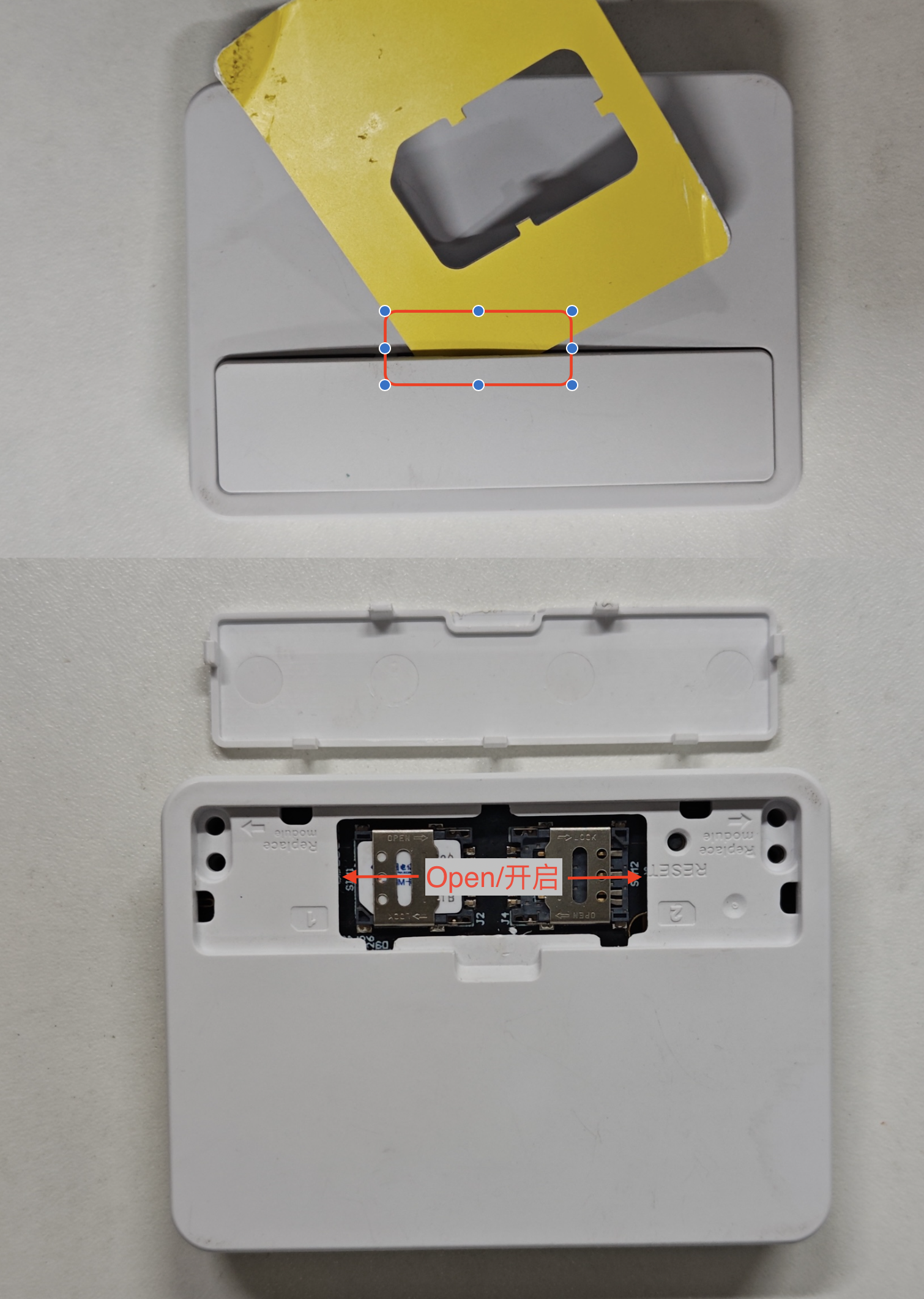
- Find a plastic card and pry the cover open
- Gently pull out the SIM1 card holder, insert the Nano-SIM card, and push it back in place
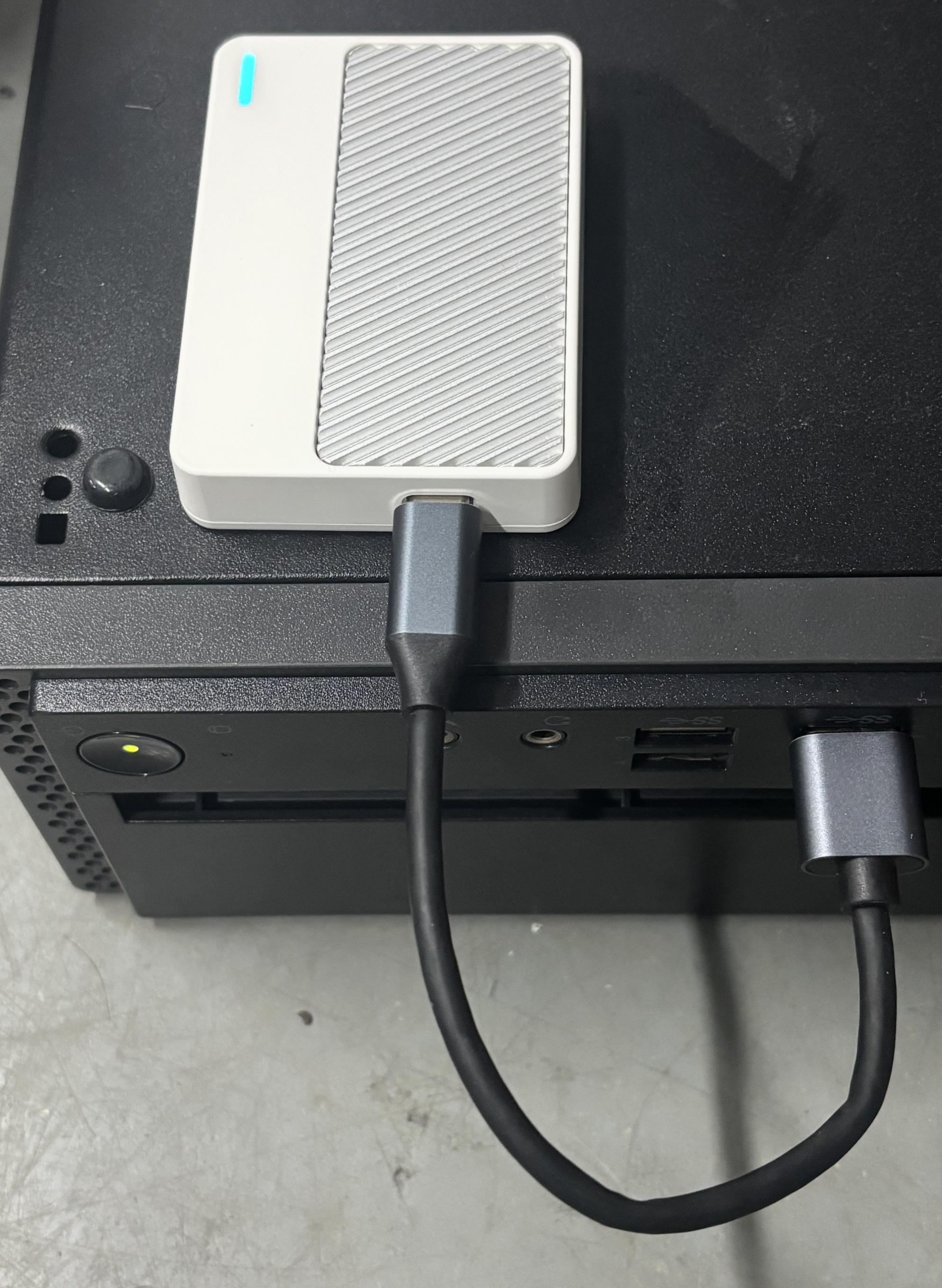
Connecting to the PC USB Port
A blue LED on the Dongle indicates successful network registration
Quick Configuration
The first three things to do after plugging in the Dongle: disable SIM hot-swap → check the USB mode → switch to the mode your system needs.
Recommended order
| Platform | Commands to run |
|---|---|
| Windows | 1 → 2 → 3 (disable hot-swap → check mode → switch to RNDIS) |
| Linux / Mac / Android | 1 → 2 → 4 (disable hot-swap → check mode → switch to ECM) |
| Dual-SIM models | Use 6 (SIM1) or 7 (SIM2), then confirm +CPIN: READY |
| Changes not taking effect | Run 8 AT+CFUN=1,1 to reboot the module |
Every command below was tested on a RM520N-GL (firmware
RM520NGLAAR03A04M4G, China Telecom 5G). Serial parameters115200 8N1, no flow control, each command ends with\r.
QCOM V1.6 quick start (QCOM ships a default command set; just pick the matching row number, no typing needed):
Download QCOM_V1.6_GT500 (includes GT500 commands)
| Step | Action |
|---|---|
| 1 | This PC → right-click Manage(G) |
| 2 | Device Manager → Ports (COM & LPT) |
| 3 | Find Quectel USB AT Port (COM10) and note the port number |
| 4 | Open QCOM V1.6, select that COM10 → baud rate 115200 → 8N1, no flow control |
| 5 | Click Open Port |
| 6 | In the command list on the left, pick the command by row number below and send it |
Choose All commands: selects the whole command list; without it, clicking a command does nothingEnter: appends a carriage return after each command; without it, the command waits forever with no response
To run the whole table in one go, tick both and click 全部 (Send All).
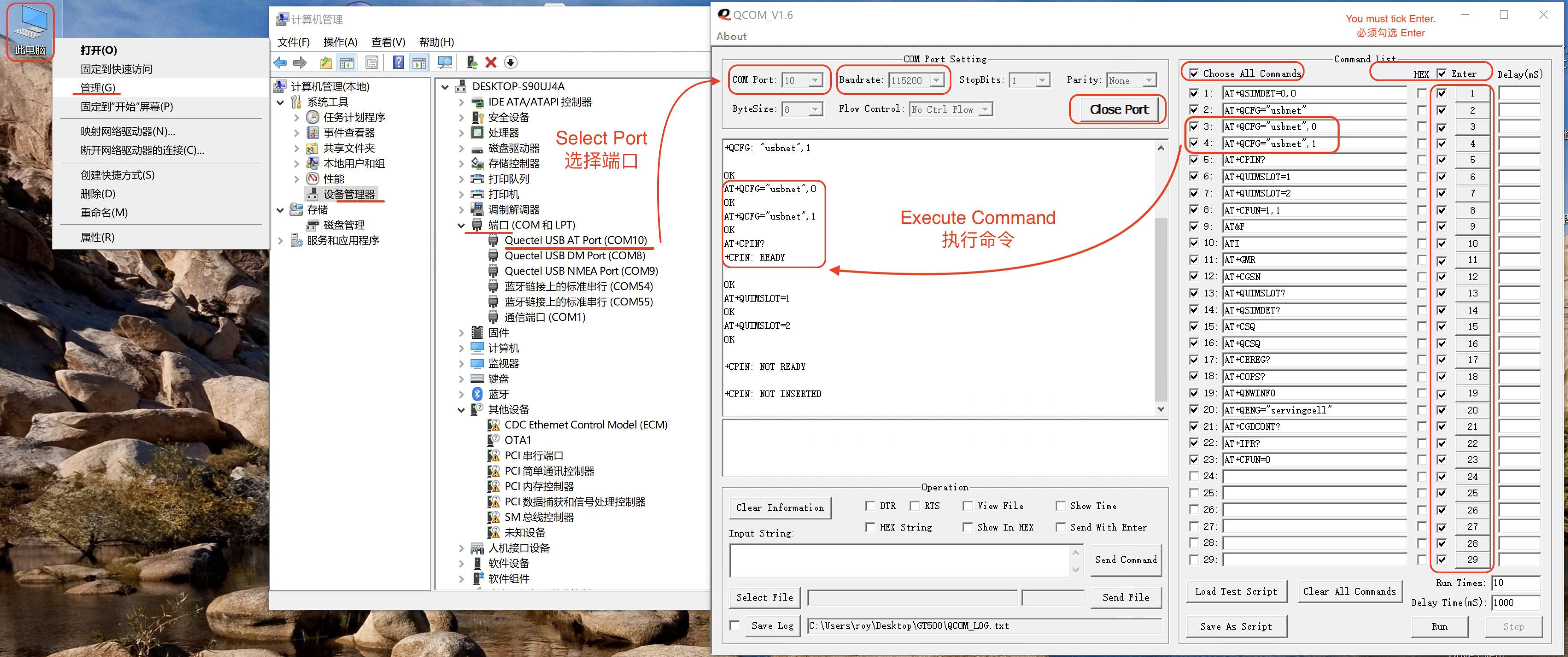
Figure: confirm
Quectel USB AT Port (COM10)in Device Manager, select the same port +115200in QCOM, clickOpen Port, then pick commands by row number.
| No. | Command | Notes | Measured response |
|---|---|---|---|
| 1 | AT+QSIMDET=0,0 | Disable SIM hot-swap detection; the first parameter 0 means off | OK, reads back +QSIMDET: 0,0 |
| 2 | AT+QCFG="usbnet" | Query the current USB mode (1=ECM, 0=RNDIS) | +QCFG: "usbnet",1 |
| 3 | AT+QCFG="usbnet",0 | Switch to Windows mode (RNDIS, driver-free); takes effect after AT+CFUN=1,1 | OK, reads back +QCFG: "usbnet",0 |
| 4 | AT+QCFG="usbnet",1 | Switch to Linux mode (ECM) | OK, reads back +QCFG: "usbnet",1 |
| 5 | AT+CPIN? | Check the SIM; +CME ERROR: 10 = no card, SIM PIN = PIN locked | +CPIN: READY |
| 6 | AT+QUIMSLOT=1 | Switch to SIM1; re-reads the card in about 3~5 s | OK, then +CPIN: READY |
| 7 | AT+QUIMSLOT=2 | Switch to SIM2; CPIN: NOT READY when that slot is empty | OK, reads back +QUIMSLOT: 2 |
| 8 | AT+CFUN=1,1 | Reboot the module; USB re-enumerates after ~40 s | OK, then the COM port disappears and returns; no AT response in between |
| 9 | AT&F | Factory reset (AT command defaults only, NV settings untouched) | OK; usbnet stays 1, QUIMSLOT stays 1, CGDCONT is not cleared; a few seconds of garbage / ERROR echoes afterwards |
| 10 | ATI | Model and firmware revision | Quectel / RM520N-GL / Revision: RM520NGLAAR03A04M4G |
| 11 | AT+GMR | Firmware revision | RM520NGLAAR03A04M4G |
| 12 | AT+CGSN | IMEI (15 digits on the real unit; middle 4 masked) | 86854906****457 |
| 13 | AT+QUIMSLOT? | Current SIM slot | +QUIMSLOT: 1 |
| 14 | AT+QSIMDET? | Hot-swap detection switch | +QSIMDET: 0,0 |
| 15 | AT+CSQ | Meaningless on 5G; use AT+QCSQ instead | +CSQ: 99,99 |
| 16 | AT+QCSQ | 5G returns RSRP / RSRQ / SINR | +QCSQ: "NR5G",-81,32,-10 (floats between -80 and -81 dBm) |
| 17 | AT+CEREG? | Registration status; 5G SA may return 0,0 while fully online | +CEREG: 0,0 (still able to access the Internet) |
| 18 | AT+COPS? | Current operator | +COPS: 0,0,"CHN-CT",11 |
| 19 | AT+QNWINFO | RAT / band / EARFCN | +QNWINFO: "TDD NR5G","46011","NR5G BAND 78",620640 |
| 20 | AT+QENG="servingcell" | Serving cell; cellID / TAC tail masked | +QENG: "servingcell","NOCONN","NR5G-SA","TDD",460,11,75A0CB***,390,752A**,620640,78,12,-81,-10,32,1,- |
| 21 | AT+CGDCONT? | Current APN profiles | 4 lines: ctnet(1) / IMS(2) / ctwap(3) / sos(4), all IPV4V6 |
| 22 | AT+IPR? | AT port baud rate | +IPR: 115200 |
| 23 | AT+CFUN=0 / AT+CFUN=1 | RF off / on; quick way to reload configuration | OK (no extra output) |
IMEI, cellID and TAC are values from the real unit with sensitive digits masked; signal figures vary with location and weather.
AT&F does not reset usbnet / QUIMSLOT / APN on this firmware (it only restores AT command defaults), and the Dongle keeps working afterwards. Other firmware versions may behave differently, so re-check AT+QCFG="usbnet" and AT+QUIMSLOT? after a factory reset.
Quectel USB AT Port only appears after the driver is installed. On a fresh PC, follow Configuring the Dongle first, then come back to the table above.
Configuring the Dongle
Install and configure the Dongle for Internet access
Downloading the Driver
- Official download links
https://www.quectel.com/download/quectel_lte_windows_usb_driver_for_mbim_v1-3/
https://www.quectel.com/download/quectel_windows_usb_driverq_ndis_v2-8_en/
- Local downloads
QCOM_V1.6_GT500 (includes GT500 commands)
Checking the Device
Using the GT500 as an example
- First install a
nanoSIMcard in the SIM 1 position
Extract
- Check whether the device is recognized
This PC - Manage(G) - Device Manager - Other devices - RM520N-GL
Device Manager
Installing the Driver
The RM520 module mainly uses MBIM mode; it is recommended to
install both
- After downloading the driver, extract and install it directly
Extract
- To install, just click
Next
Install
- Installation complete
Installation complete
- Check the installed network device
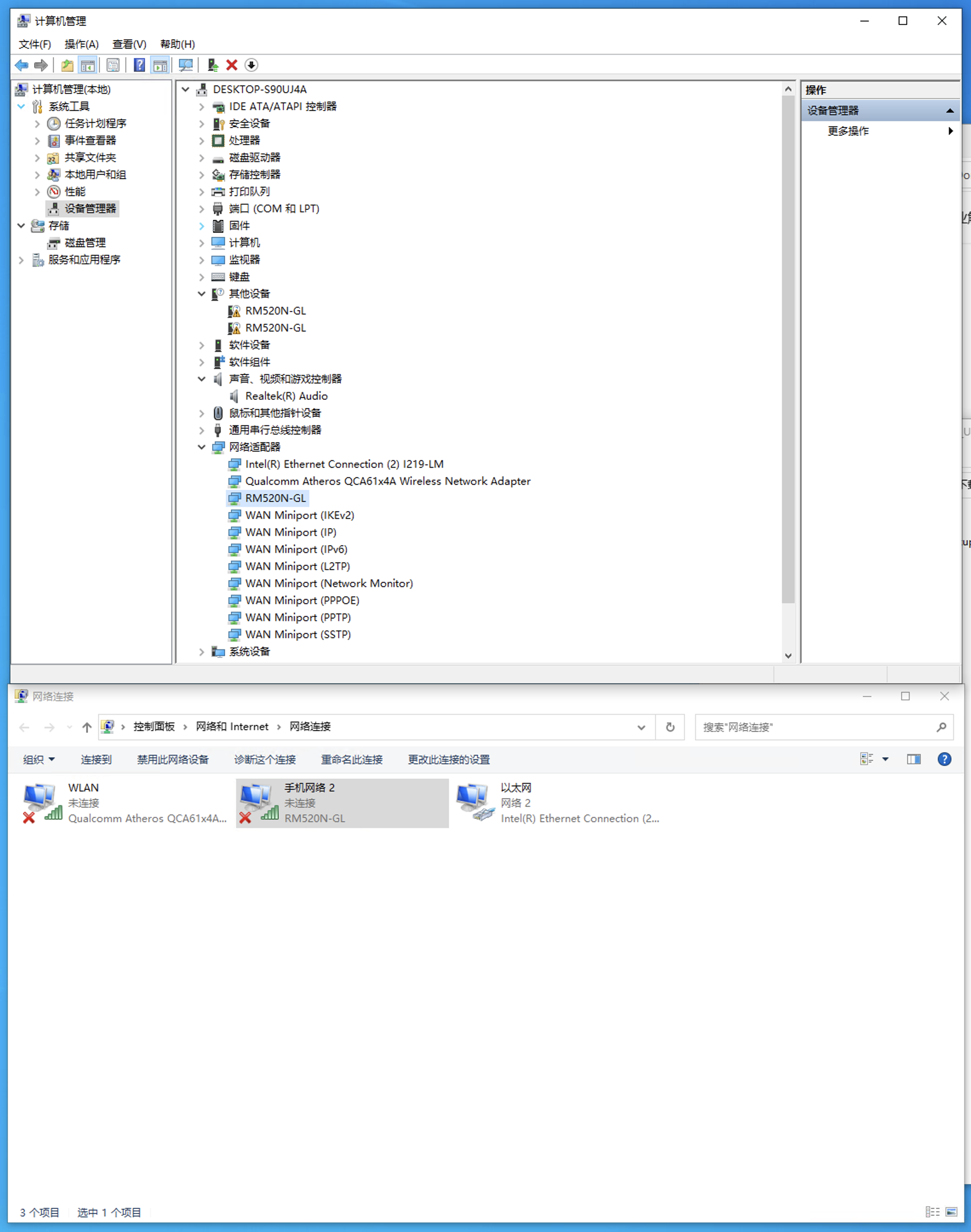
Device Manager-Network adapters-RM520N-GLIt shows as not connected because no SIM card is inserted
Wait for the cellular network to connect automatically and you can get online.
Configuration and Verification
Once the driver is installed, Windows treats the Dongle as a cellular device; no extra dial-up software is needed.
Confirming Recognition
| Where | What you should see |
|---|---|
Device Manager → Network adapters | RM520N-GL |
Settings → Network & Internet | A "Cellular" entry showing the operator name |
Setting the APN
Most SIM cards dial automatically; fill in manually if it does not connect:
Settings → Network & Internet → Cellular → Carrier settings → APN
| Item | Value |
|---|---|
| APN | Provided by the carrier; common: China Mobile cmnet, China Unicom 3gnet, China Telecom ctnet |
| Username / Password | Leave empty |
| IP type | IPv4 and IPv6 |
| APN type | Default |
Save, then go back to the Cellular page and click Connect.
FAQ
| Symptom | Resolution |
|---|---|
RM520N-GL shows a warning icon in Device Manager | Driver not fully installed; install both MBIM and NDIS |
| Adapter exists but Cellular shows "No service" | Check AT+CSQ and AT+CEREG? first; make sure the SIM is seated |
| Connects but web pages do not load | Wrong APN; fill it in manually, or reboot the module with AT+CFUN=1,1 |
Quectel AT Port not found | Occupied by MBIM mode; install the NDIS driver and replug |