Quick Install - Windows

EC25-AF Installation
Quickly get started with the EC25-AF LTE Cat 4 module (Mini PCIe to USB) on Windows
Prerequisites
- A Windows PC
- EC25-AF Mini PCIe module + Mini PCIe to USB 2.0 base board
- A Nano-SIM card with Internet service
- Windows USB driver
Installing the Nano-SIM Card
The Nano-SIM card is shown for demonstration only and is not included with this product.
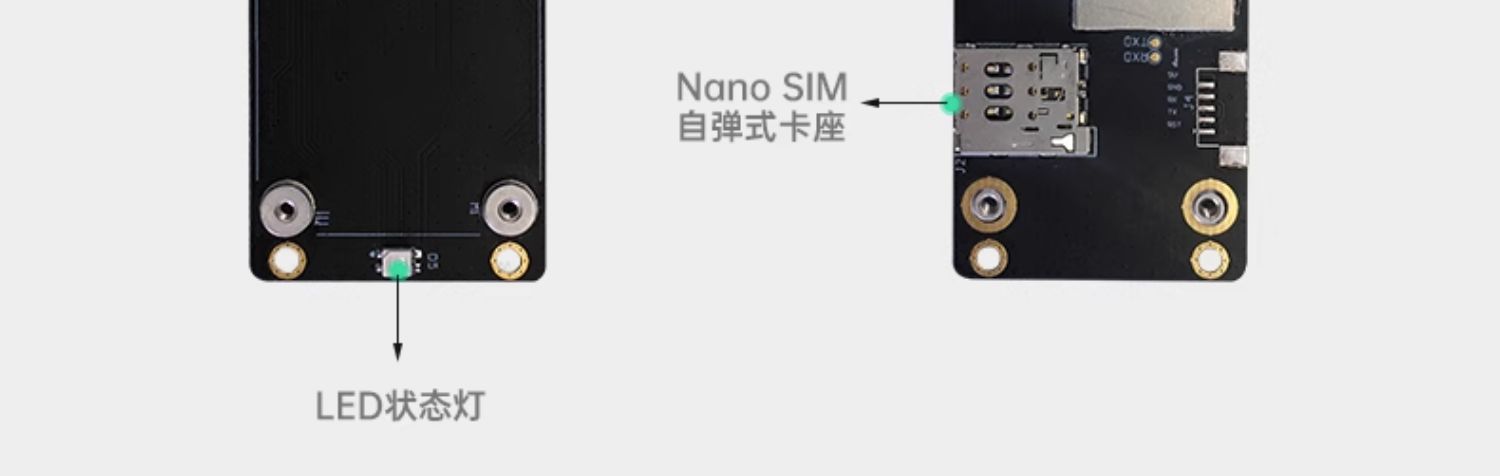
- Insert the SIM card into either the card slot on the module itself or the slot on the USB base board (choose one)
- Make sure it is seated firmly; the slot is push-push, so pressing it again ejects the card
For the card slot mapping, see Quick Install - Linux / OpenWrt.
Connecting to the PC USB Port
Simply plug the Mini PCIe to USB base board into a USB port on the PC; if the USB port cannot supply enough power, a powered USB hub is recommended.
Configuring the Dongle
Downloading the Driver
Quectel_LTE&5G_Windows_USB_Driver_V2.2.4 (for BG95-M3 and regular EC20 dongle).zip
If the module has been switched to MBIM or RNDIS mode, install the corresponding MBIM / NDIS driver:
https://www.quectel.com/download/quectel_lte_windows_usb_driver_for_mbim_v1-3/
https://www.quectel.com/download/quectel_windows_usb_driverq_ndis_v2-8_en/
Checking the Device
- Insert the SIM card and connect the device to the PC
- Open
This PC→Manage(G)→Device Manager→Other devices - You should see
EC25-AFwith no driver installed
Installing the Driver
- Download and extract the driver
- Run the installer and click
Next - After installation, the Quectel network adapter appears under
Device Manager→Network adapters
After the driver is installed, several Quectel AT ports appear under
Ports (COM & LPT), which can be used for Device Debugging.
Getting Online
Once the driver is installed, Windows automatically obtains an IP address through the module (usually 192.168.225.x). Open a browser and browse the web.
The EC25 has an empty APN after a factory reset. If an IP address has been obtained but web pages do not load, configure the APN on the AT port:
AT+CGDCONT=1,"IPV4V6","<APN>"
AT+CFUN=1,1
Driver Not Recognized
If some devices are still not recognized, or the AT port stops working after switching to ECM/RNDIS, refer to:
Solution for AT port not working after switching to ECM or RNDIS.docx
For Linux / OpenWrt, refer to Quick Install - Linux / OpenWrt.