Upgrade Firmware

Preface
This document introduces how to flash firmware from a host computer to the memory of a Qualcomm development board via a data cable.
When upgrading, you need to select the firmware and the appropriate upgrade method based on actual requirements.
If an accident occurs during the upgrade process and the bootloader is damaged, making it impossible to re-upgrade, you can still enter MaskRom mode to repair it.
Obtaining Firmware
Public Firmware
Qualcomm-DC665E-A13-GMJ-GMS
Link: https://pan.baidu.com/s/1sBi-sEaucUXsg5XJMlVLMA?pwd=fanc
Extraction code: fanc Copy this content and open the Baidu Netdisk mobile app for a more convenient operation.
Installing Flashing Tools
Download Materials
Download and install the Qualcomm USB driver: qualcomm_usb_driver_installer_10057.4.zip
Download and install the QPST/QFIL flashing tool: qpst.win.2.7_installer_00496.2.rar
Please download the
Driver
- Please install the driver first before flashing; otherwise, the host
cannot recognize the motherboard .
qualcomm_usb_driver_installer_10057.4.zip
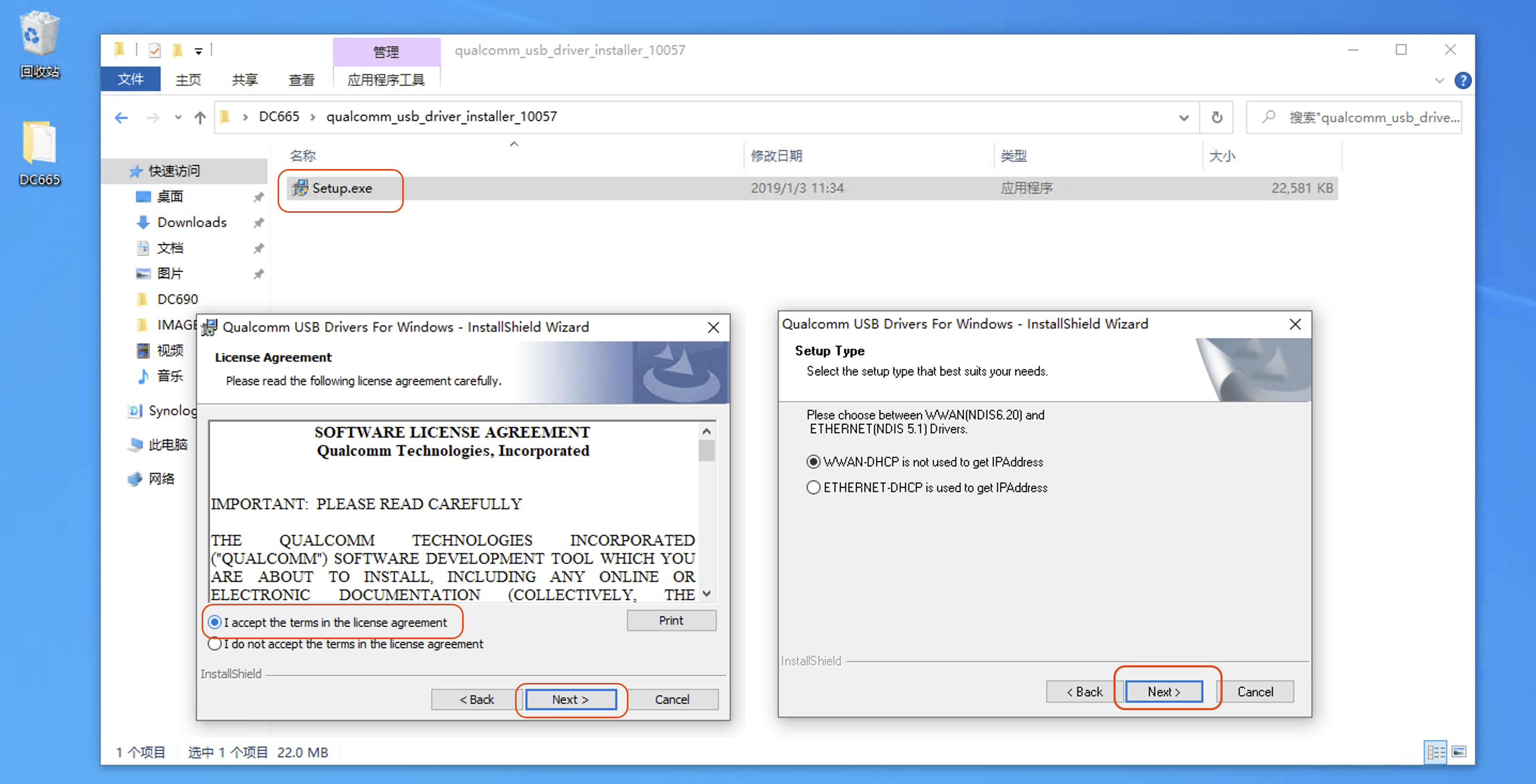
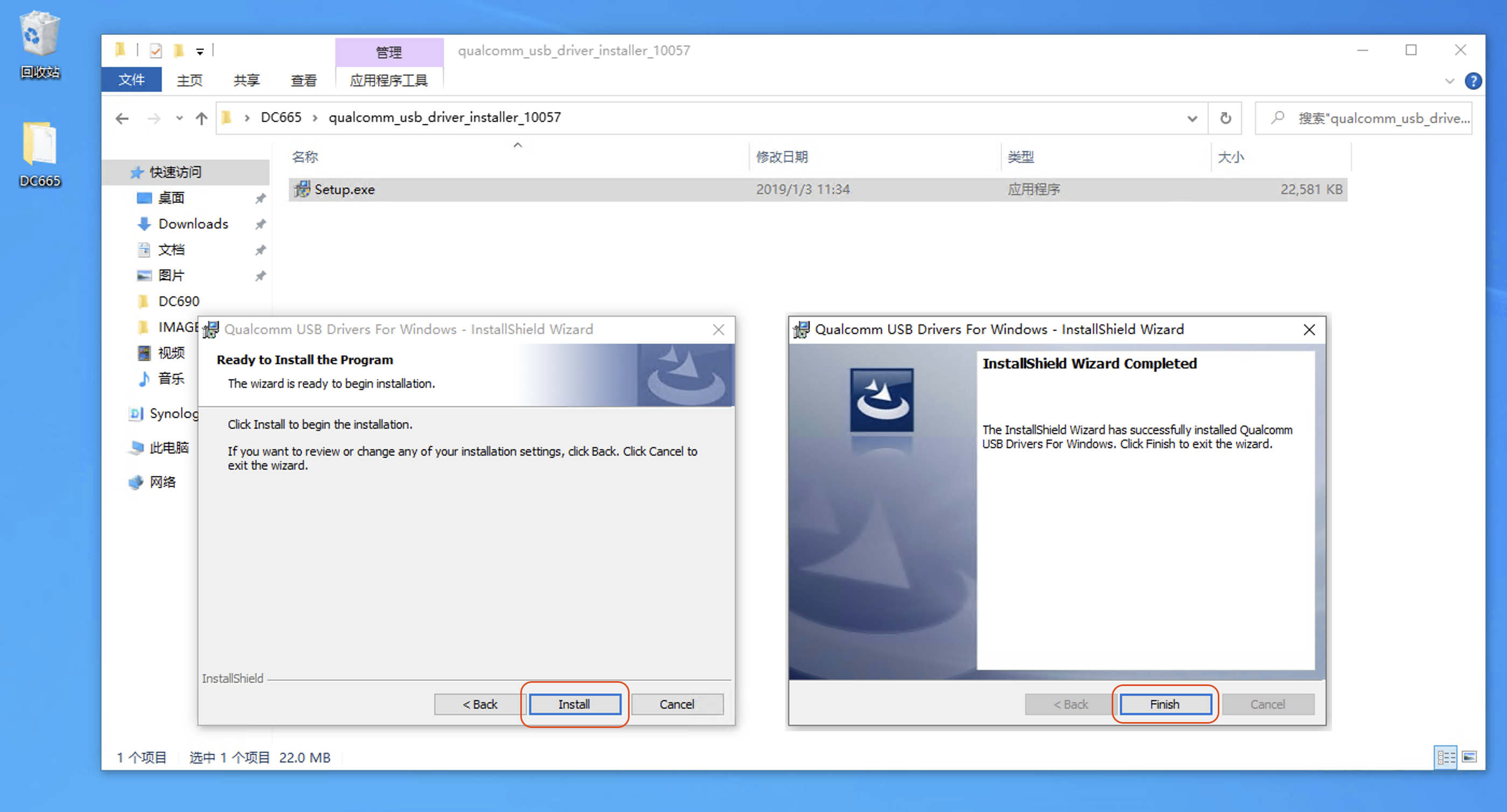
After decompressing, open qualcomm_usb_driver_installer_10057 \ Setup.exe to install the driver.
Installation completed
Flashing Tool
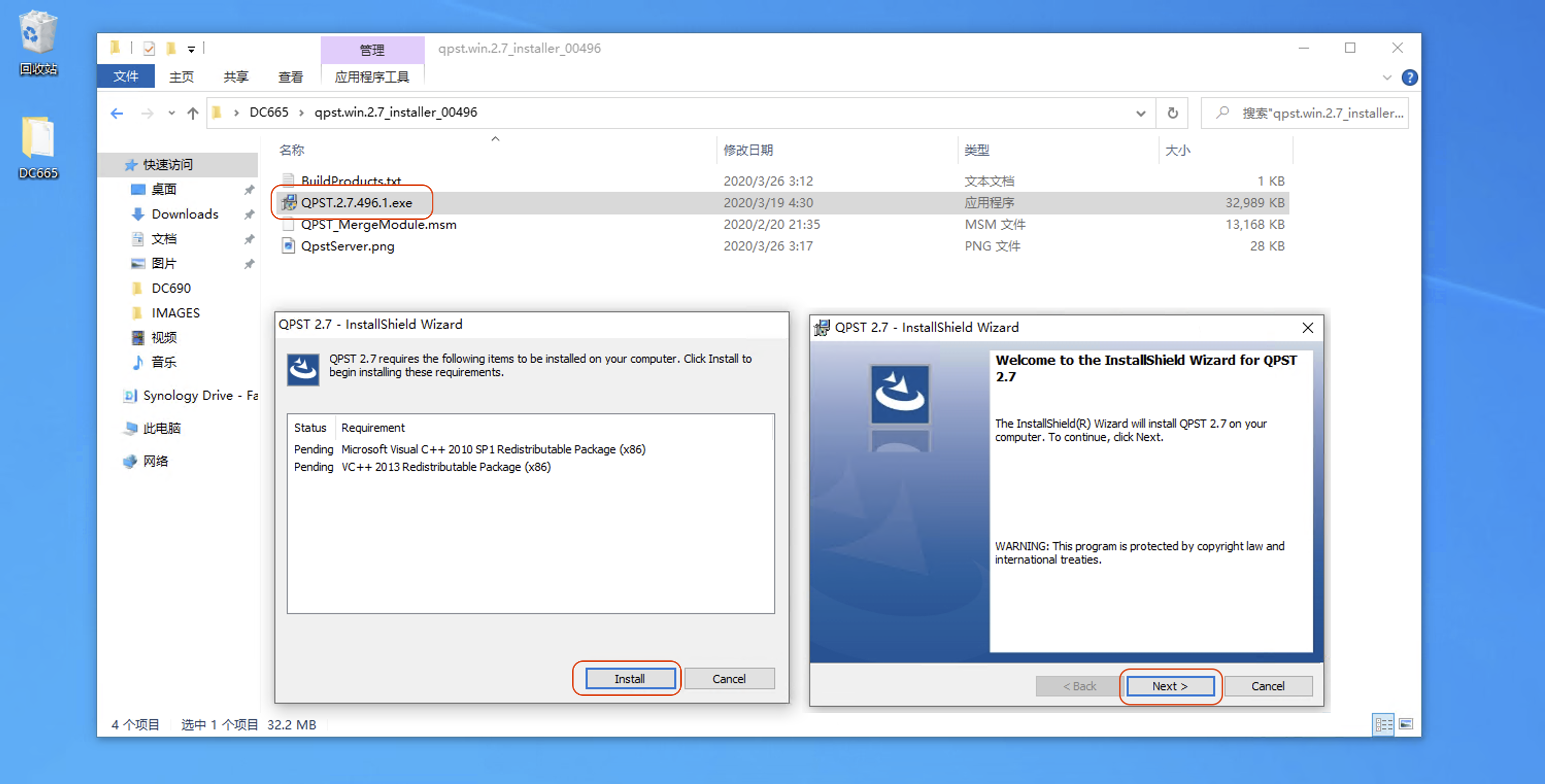
qpst.win.2.7_installer_00496.2.rar
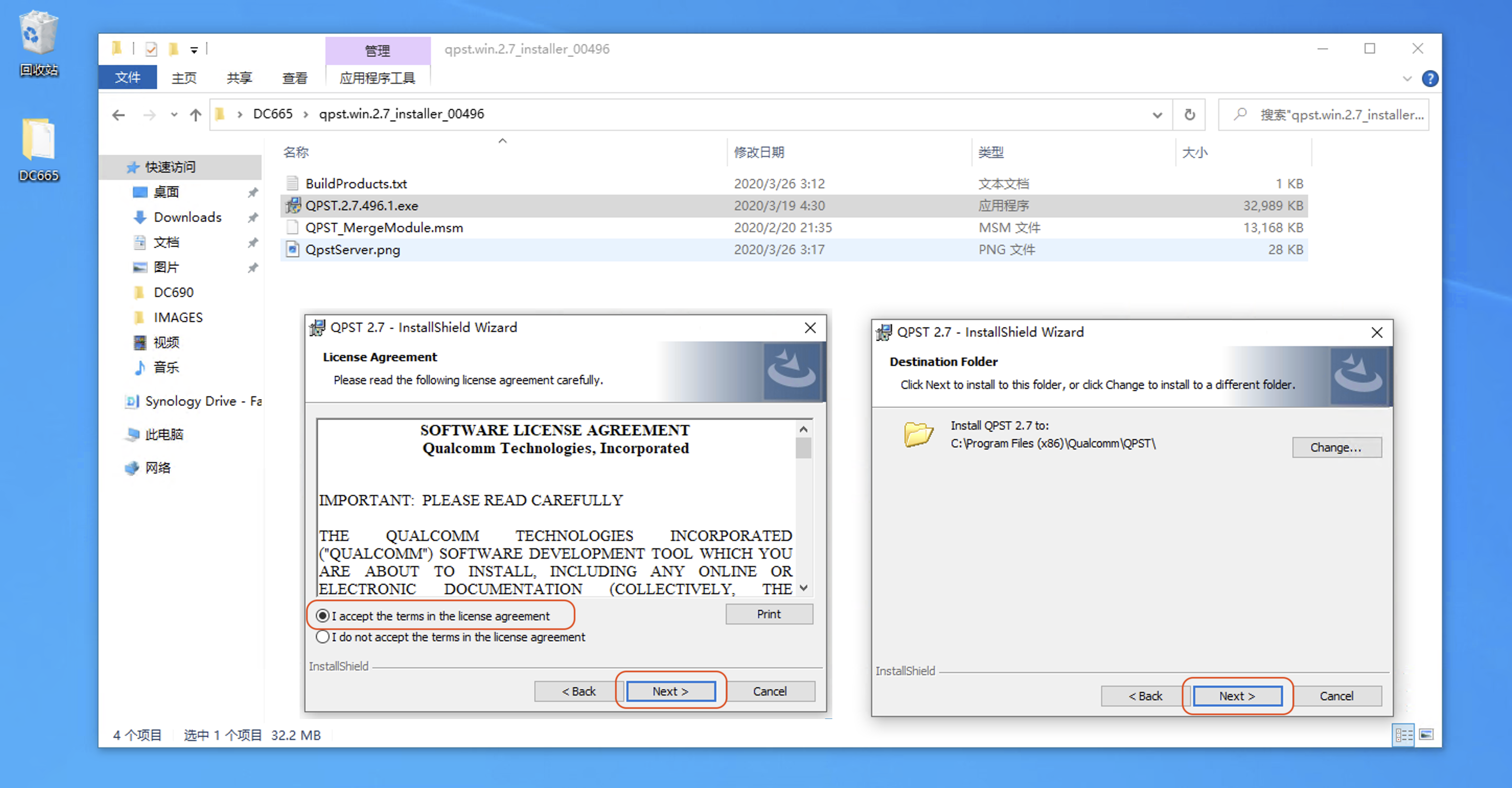
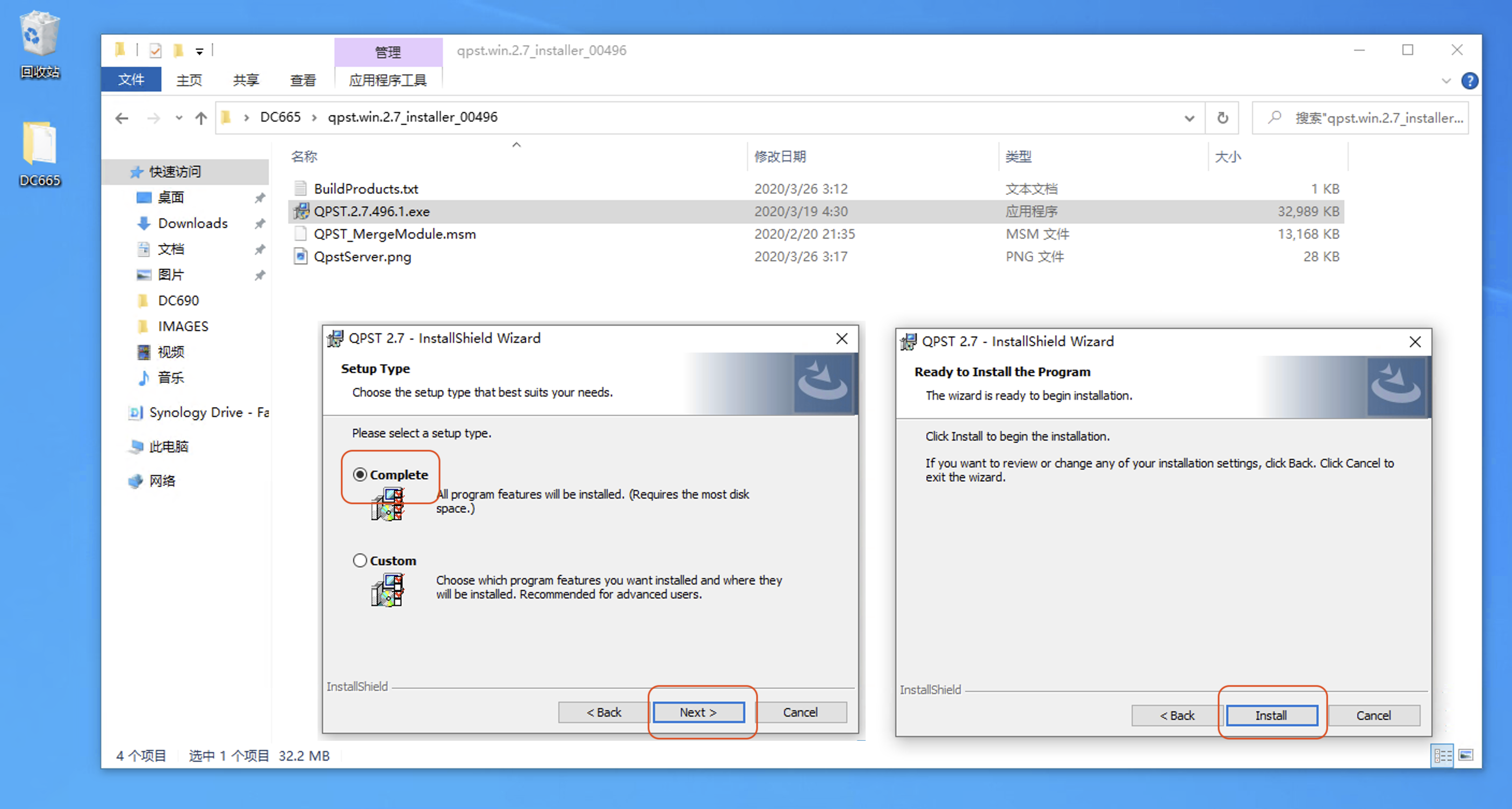
Run the installer to install QPST/QFIL.
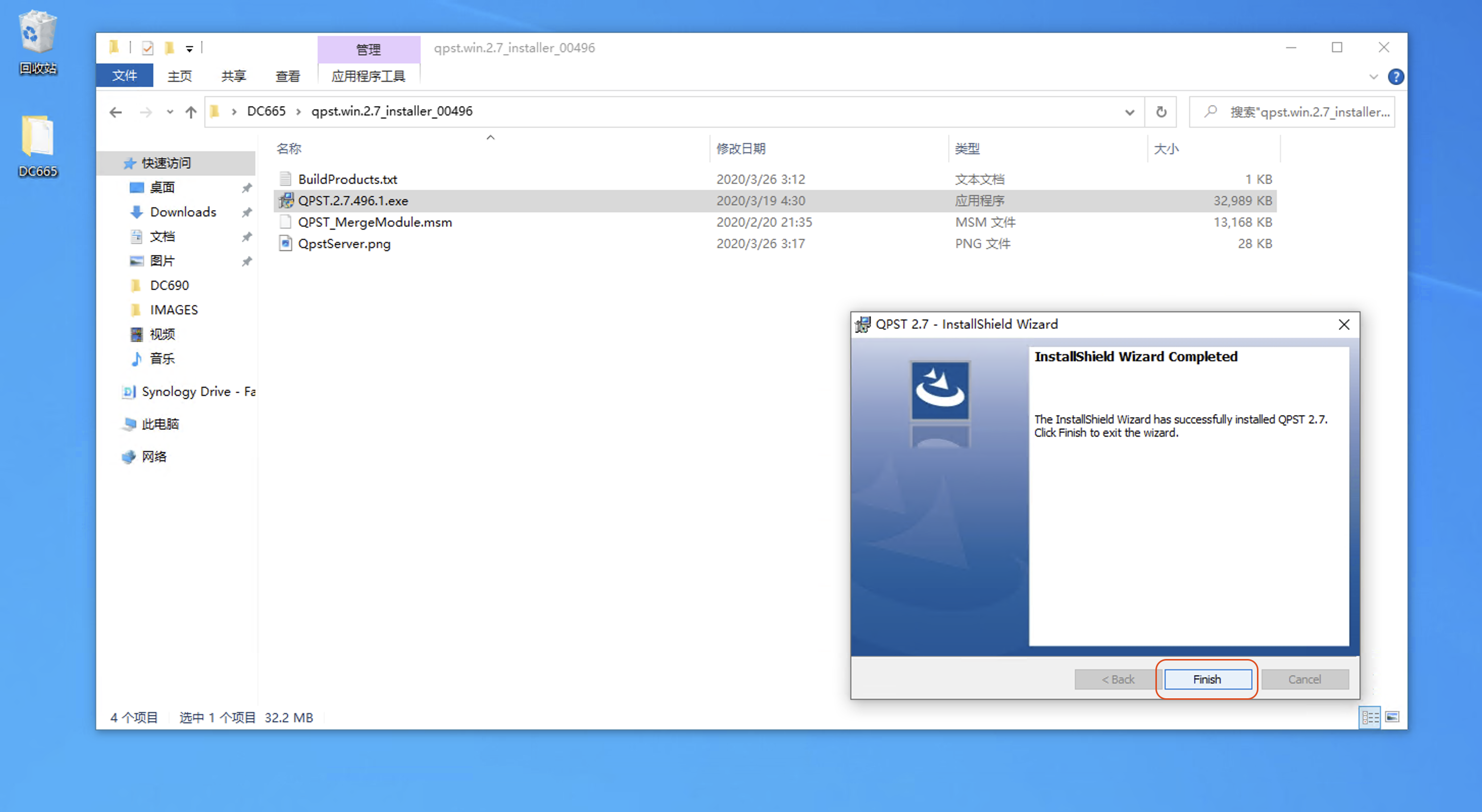
Installation completed
Starting the Upgrade
Open the Upgrade Software
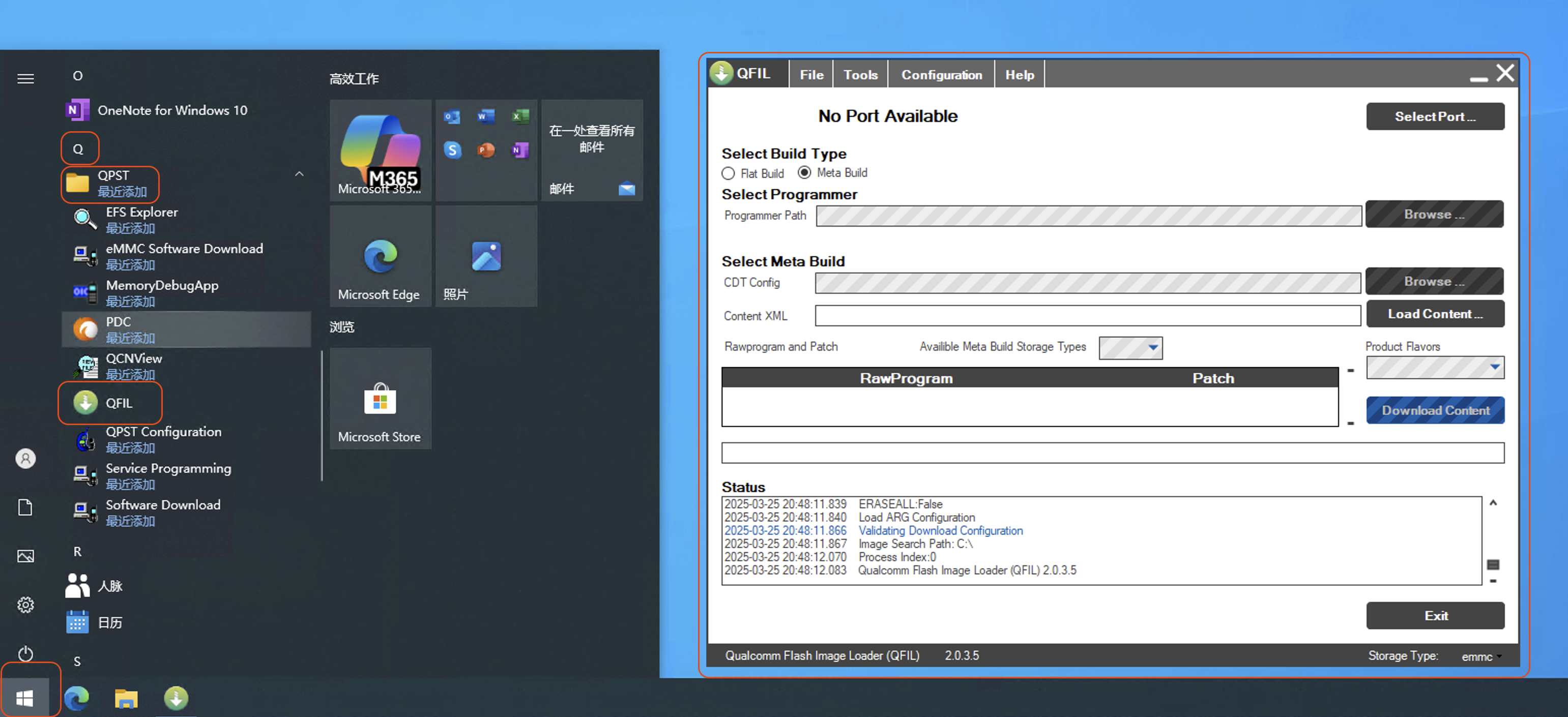
Open Start Menu \ QPST \ QFIL upgrade software
Opening effect
Select Firmware
-
Select
Flat Build-Browse ... -
Select
Fanconn_V1.1.7_DC665_TPJ_UFS_V1.1_20250312120421\prog_firehose_ddr.elfand clickOpen
Select
prog_firehose_ddr.elf
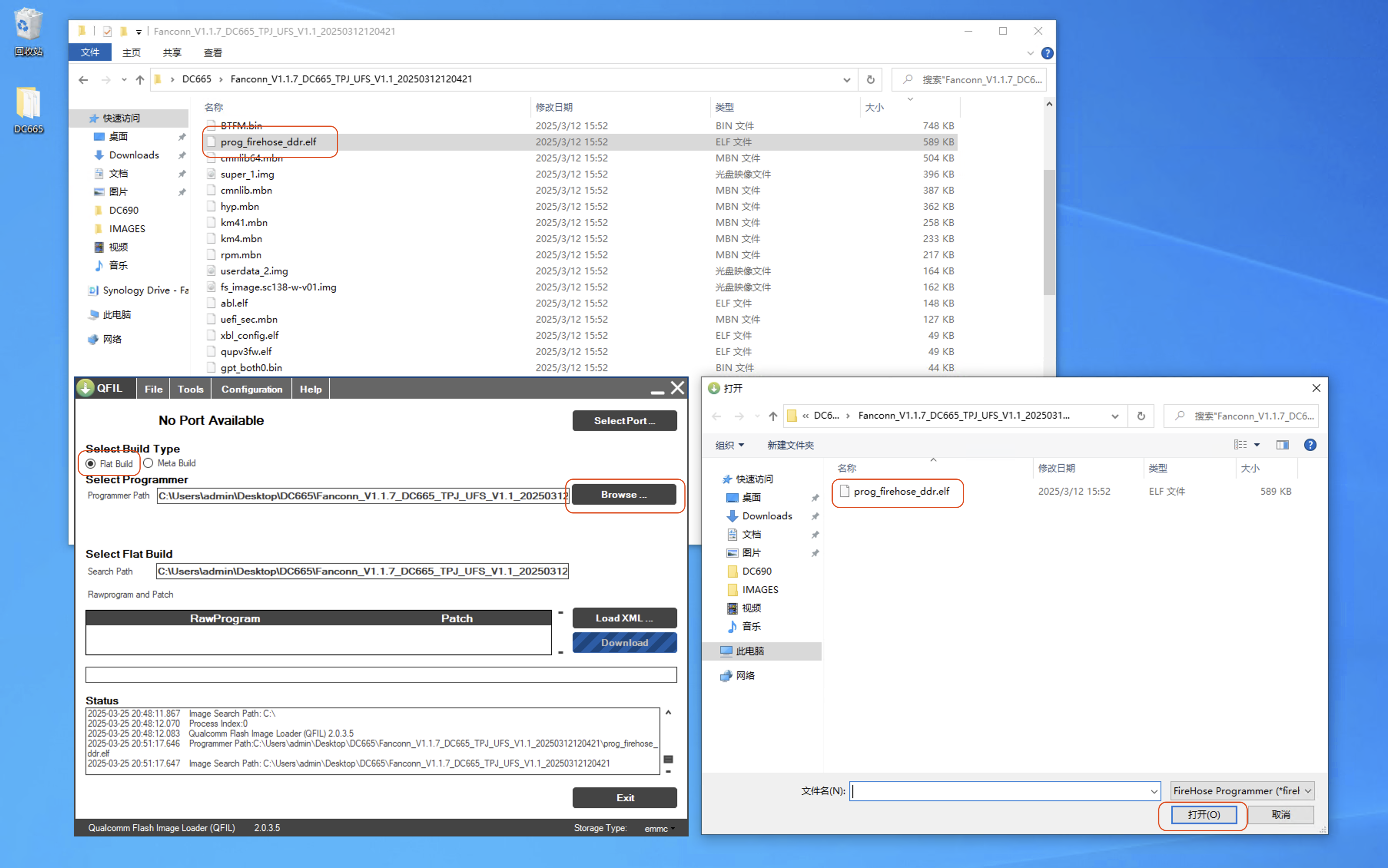
Select Partitions
- Click
Load XML ...again and selectFanconn_V1.1.7_DC665_TPJ_UFS_V1.1_20250312120421\rawprogram0_update_sparse.xmland clickOpen
Select
rawprogram0_update_sparse.xml
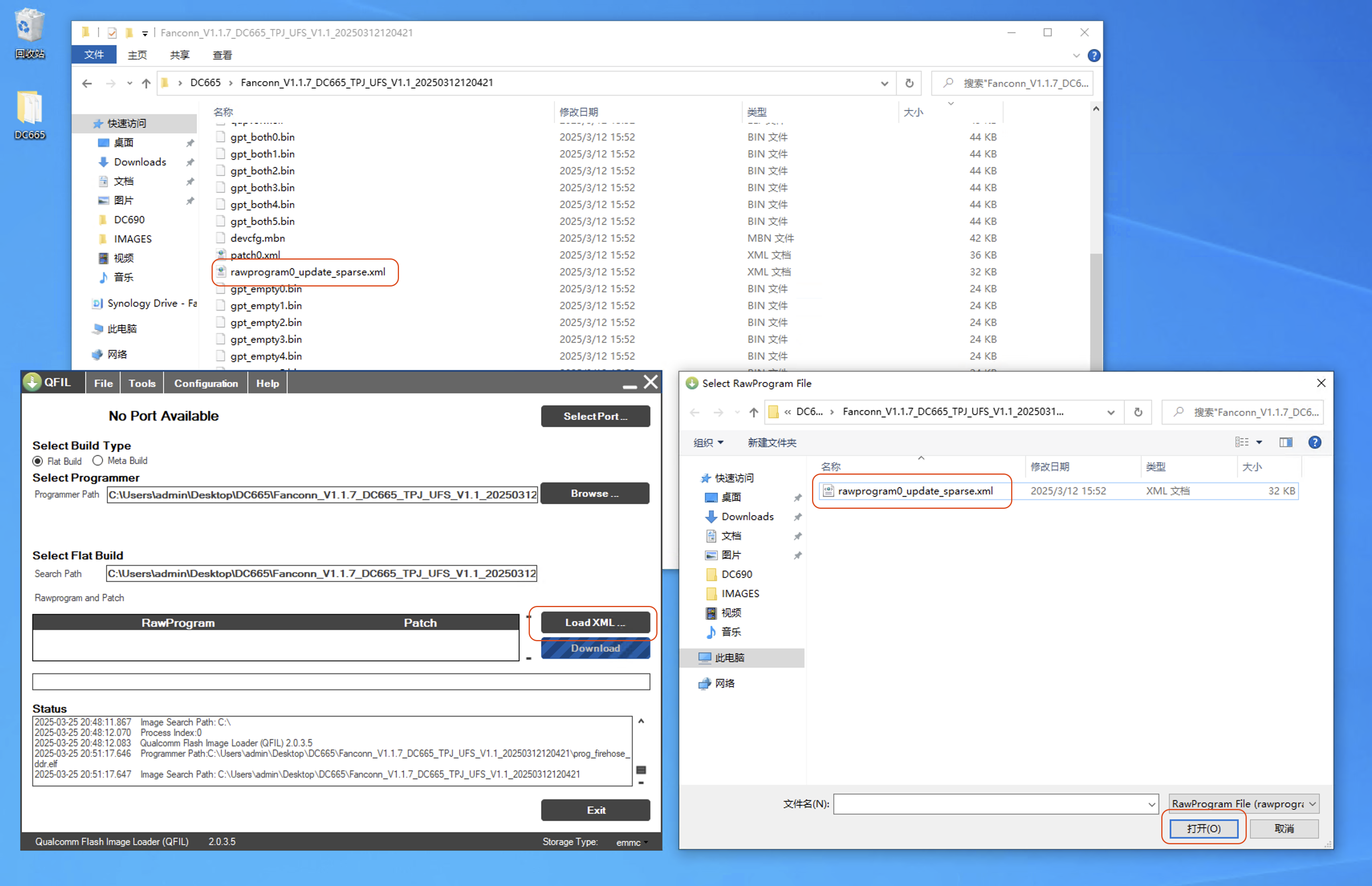
- In the pop-up window, select
Fanconn_V1.1.7_DC665_TPJ_UFS_V1.1_20250312120421\patch0.xmlagain and clickOpen
Select
patch0.xmlagain
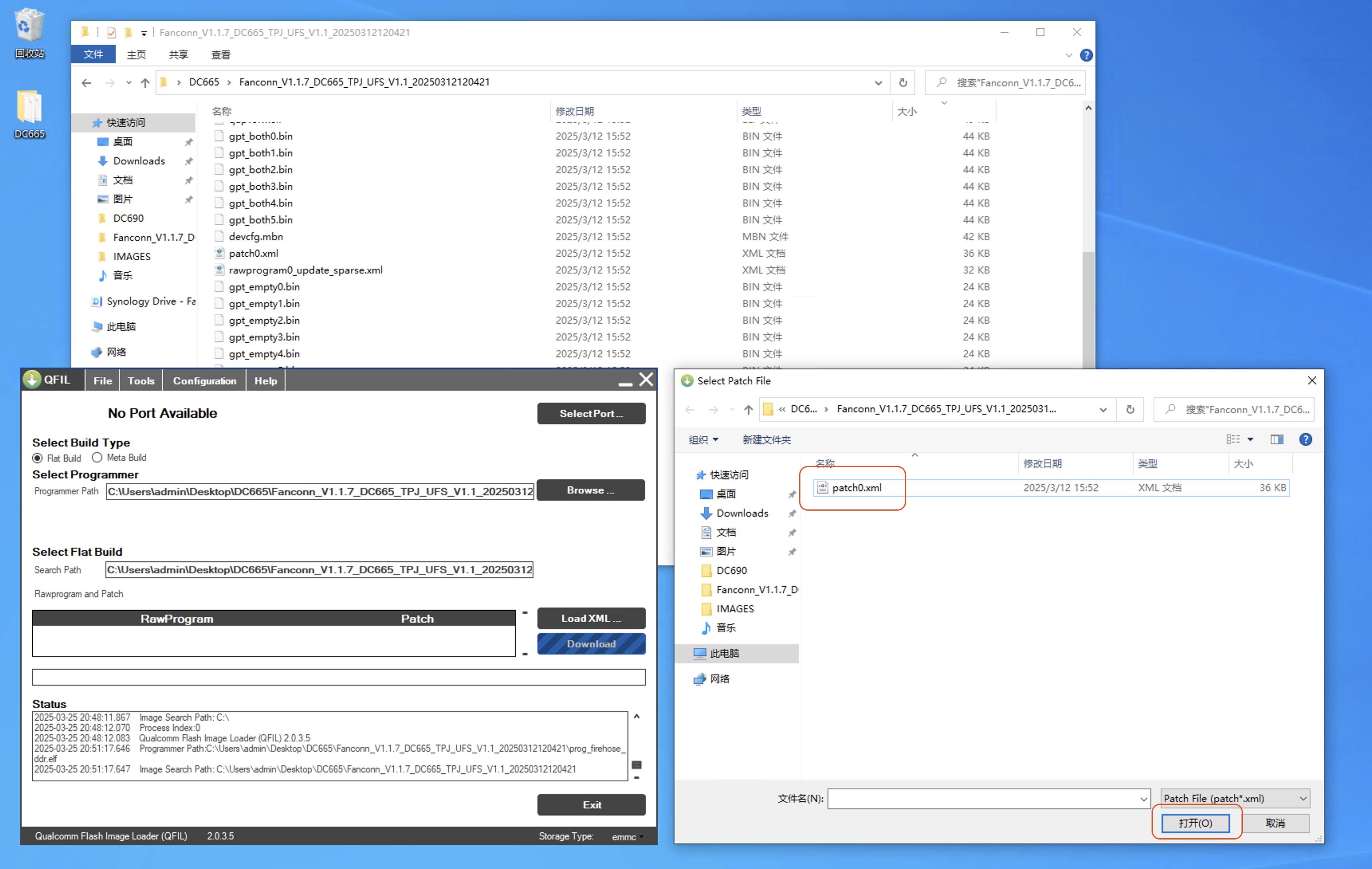
Entering Upgrade Mode
Motherboard/Device Diagram
Wiring diagram
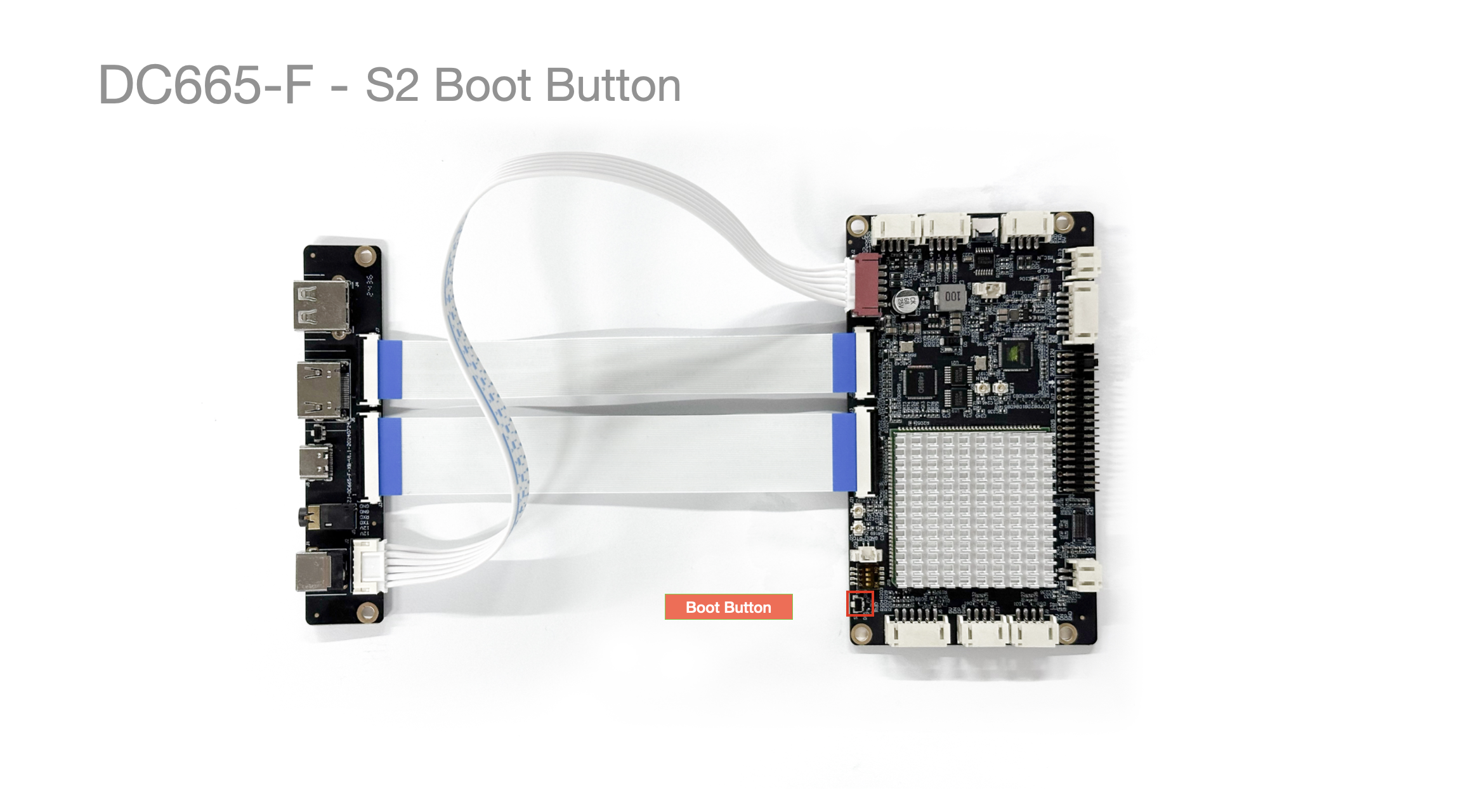
If there is a casing, you can use a toothpick or similar to press the
BOOT Buttonhere.
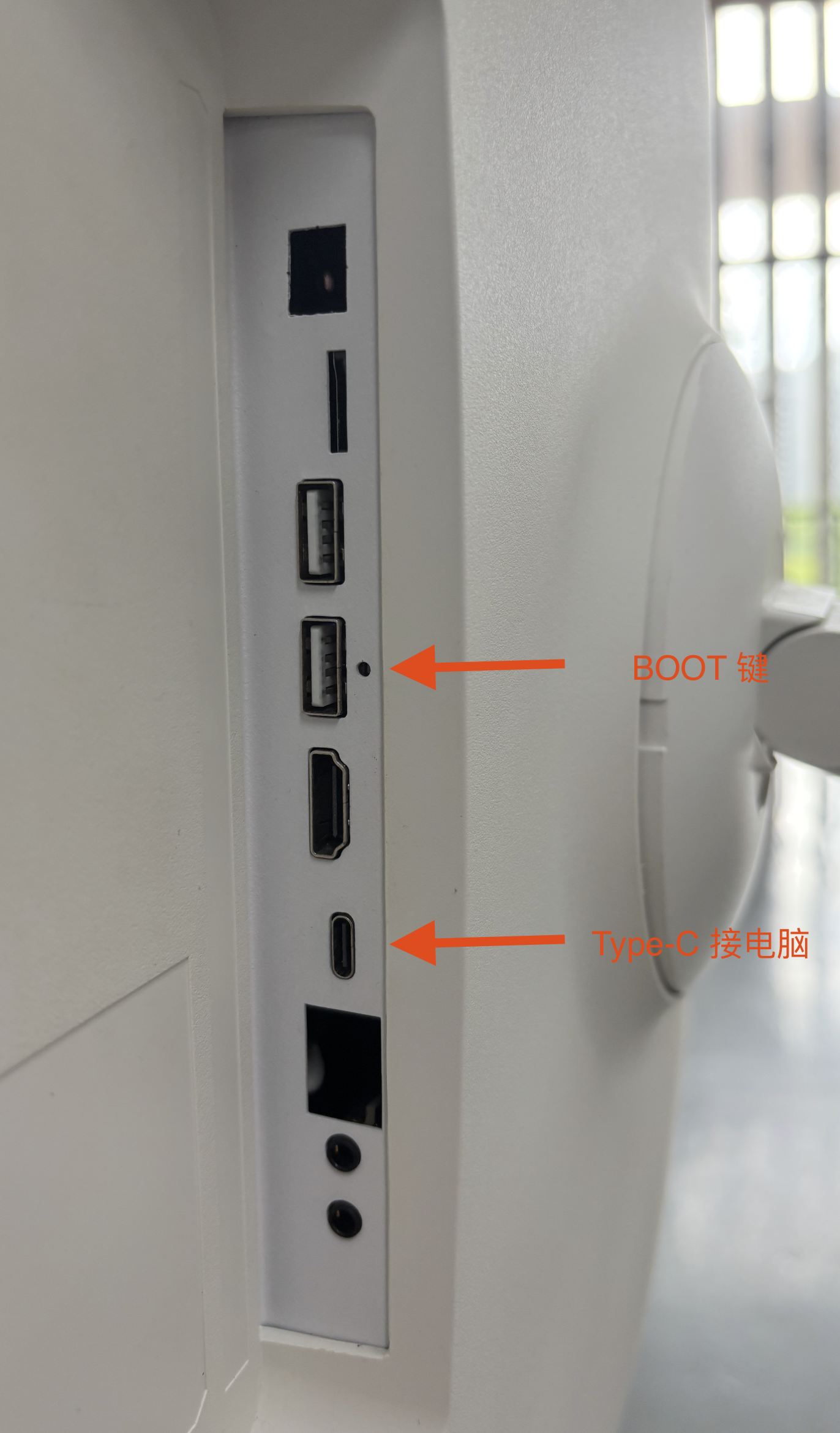
Auto Power-On Motherboard Entering Upgrade Mode
Auto power-on motherboards power on automatically when connected to power.
-
Connect the
USB TYPE-Cdata cable to the motherboard. -
Press and hold the
Boot Button. -
Connect the
DC12Vpower supply to the motherboard. -
Wait until it enters
boot modethen release.
Manual Power-On Motherboard Entering Upgrade Mode
For non-auto power-on motherboards, you need to manually power on after connecting the power.
-
Connect the
USB TYPE-Cdata cable to the motherboard. -
Connect the
DC12Vpower supply to the motherboard. -
Press and hold the
Boot Button. -
Press and hold the
Power Button, release after enteringboot mode.
Entering Loader Mode via adb shell
When the device is in a normal state, you can also enter upgrade mode by entering the following command directly in adb:
# Check if the device is connected
adb devices
# List of devices attached

# Reboot into QDLoader mode
adb reboot edl
If you see error: closed during debugging, it means password verification is required to continue debugging.
error: closed

# Verify password
adb shell password
# Reboot into loader mode
adb reboot edl
Enter the password for normal debugging. Note: password is not the actual password. Contact technical personnel for the actual password.
Note: Passwords are not publicly released. Please contact technical personnel to obtain them.
For specific reference:
Parameter Settings
Select the Device to Upgrade
When Please Select an Existing Port is displayed, click Select Port, select Qualcomm HS-USB QDLoader 9008(COM3), and click OK.
Select
Qualcomm HS-USB QDLoader 9008(COM3)
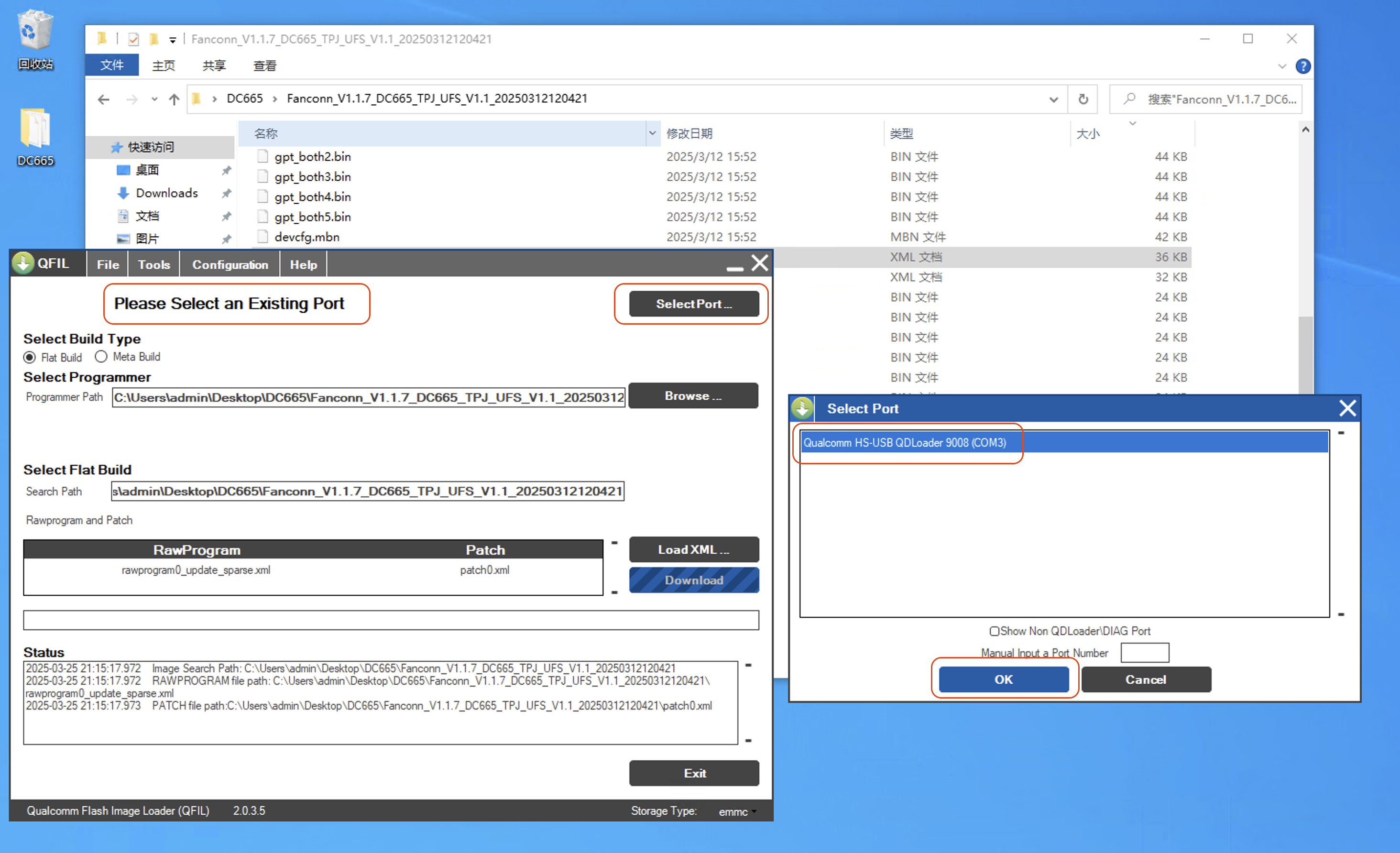
Select Device Flash Type
According to the information on the sticker on the back of the motherboard, finally select Storage Type: - ufs.
Select
Storage Type:-ufs
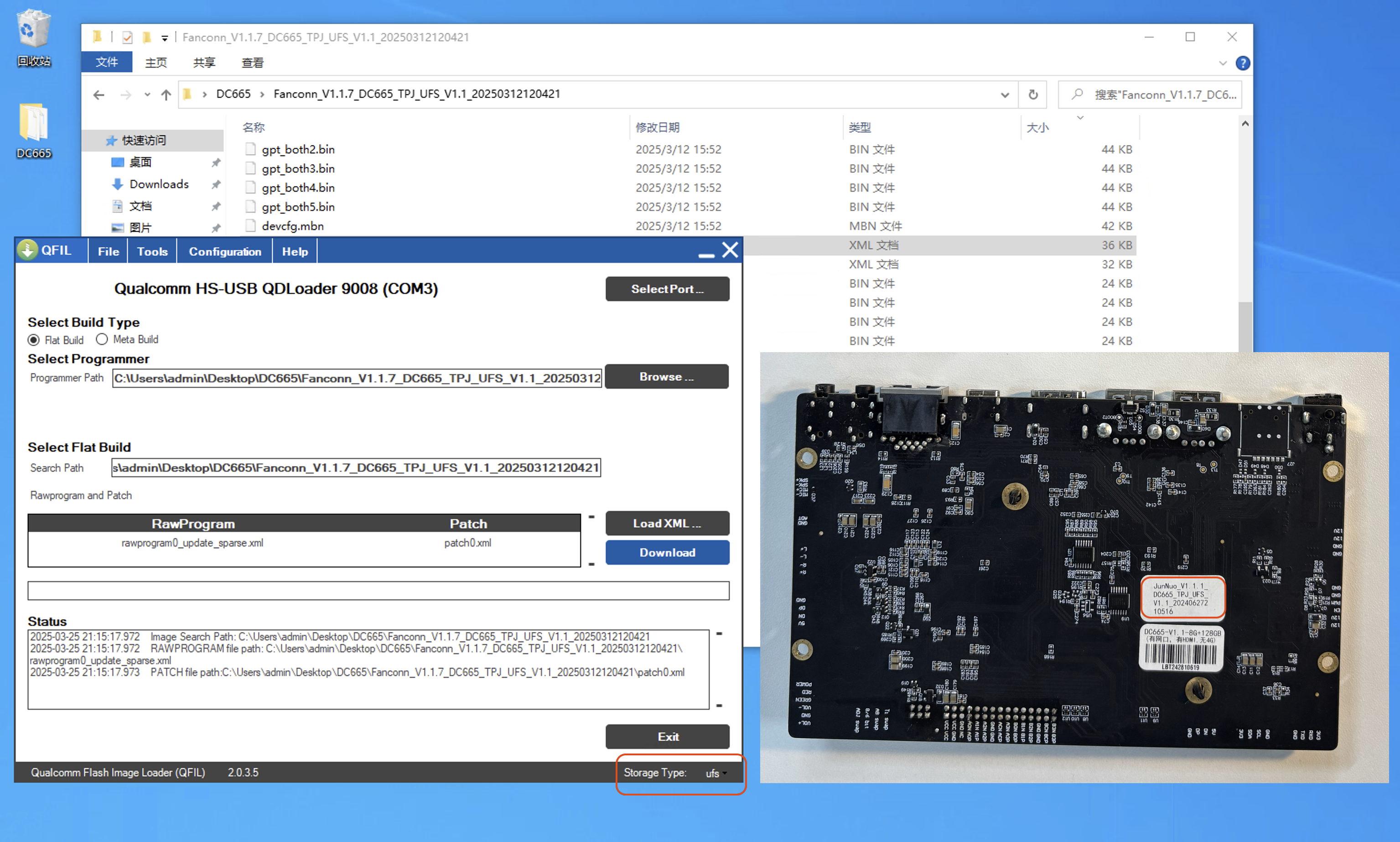
Automatic Restart After Upgrade Completion
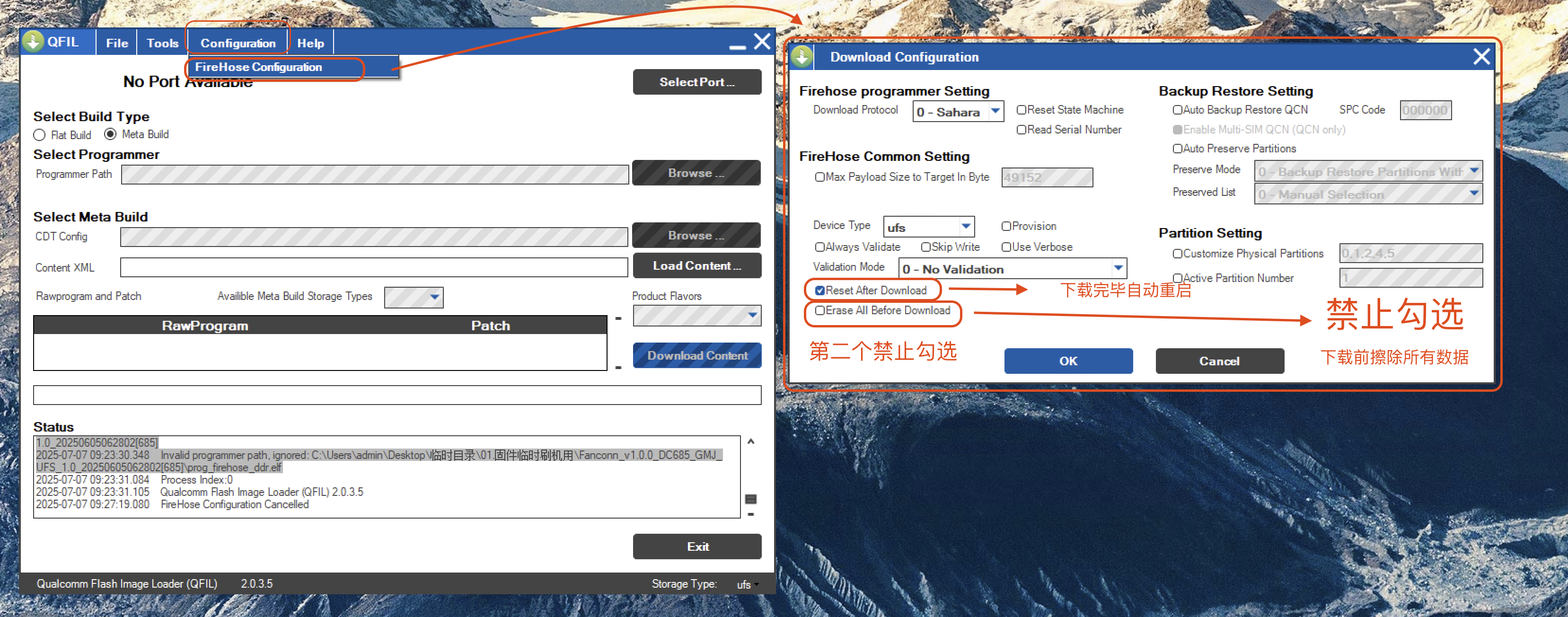
In Configuration - FireHose Configuration - Download Configuration
Check Reset After Download
This means automatic restart after download completion
Precautions
Clear Flash Option Erase All Before Download
Erase All Before DownloadWARNING
RISK OF SYSTEM SOFTWARE FAILURE!
-
Limited to professional personnel for completely clearing/restoring the entire device.
-
Unless specifically required when
flashing base firmware,do NOT check .Erase All Before Download -
If it needs to be used due to special circumstances,
immediately disable the .clear optionafter use
Be careful not to check it by mistake