Quick Install - Linux / OpenWrt

EC20 Installation
Quickly get started with the EC20 LTE Cat 4 Dongle on Linux / OpenWrt
Prerequisites
- A Linux device (this article uses an OpenWrt / ImmortalWrt router as an example)
- Dongle EC20 and a USB data cable
- A Nano-SIM card with Internet service
- The router's WAN port has working Internet access (for downloading drivers)
If the router is not yet online, you can download the corresponding IPK/APK packages on a computer with Internet access and install them from a USB flash drive. Router architectures differ, so look up the matching version in the OpenWrt package repository.
Connecting the Device
Installing the Nano-SIM Card
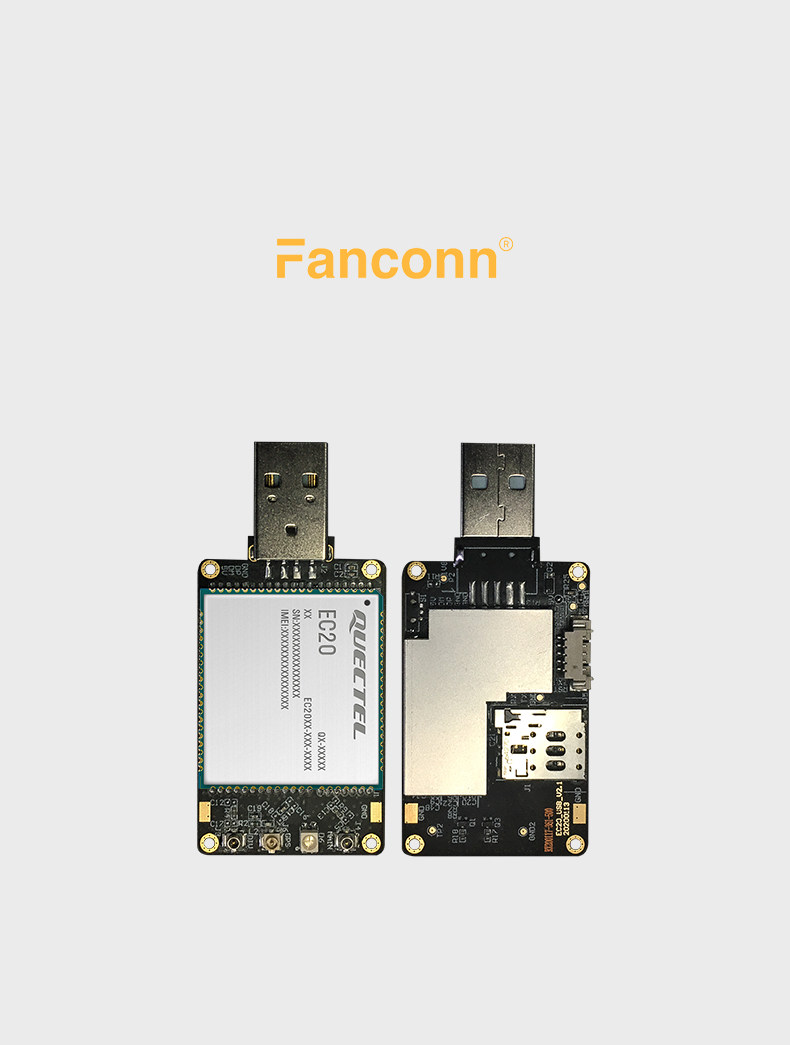
- If the device has a USB protective cover, remove it first (skip this step for bare-board devices without an enclosure)
- Push the Nano-SIM card into the slot in the direction indicated on the slot
Connecting to the Router USB Port
Plug the Dongle into the router's USB-A port.
Note: Some routers cannot supply enough power over USB. A USB hub with an independent power supply is recommended to prevent the module from rebooting repeatedly.
Configuring the Dongle - Router Side
Connecting to the Router
ssh root@192.168.1.1
The management address depends on the actual router.
Checking the USB Device
First confirm that the system has detected the module:
root@OpenWrt:~# lsusb
You should see the Quectel device (the EC20 and EC25 share the same USB PID, so appearing as EC25 LTE modem is normal):
Bus 001 Device 002: ID 2c7c:0125 Quectel Wireless Solutions Co., Ltd. EC25 LTE modem
If lsusb: not found is reported, install usbutils first:
# OpenWrt 24.10 and earlier
opkg update
opkg install usbutils

# Versions using apk, such as ImmortalWrt 25.12
apk update
apk add usbutils
Installing Drivers and Tools
Installing the USB serial driver (for AT commands):
# opkg
opkg update
opkg install kmod-usb-serial-option

# apk
apk update
apk add kmod-usb-serial-option
Installing the ECM network adapter driver (for usb0 connectivity):
# opkg
opkg install kmod-usb-net-cdc-ether

# apk
apk add kmod-usb-net-cdc-ether
Installing the serial terminal tool:
# opkg
opkg install minicom

# apk
apk add minicom
Checking the Serial Ports
root@OpenWrt:~# ls /dev/ttyUSB*
Expected output:
/dev/ttyUSB0 /dev/ttyUSB1 /dev/ttyUSB2 /dev/ttyUSB3
The AT command port of the EC20 is
/dev/ttyUSB2; the baud rate measured on this device is115200.If
/dev/ttyUSB*does not exist, confirm thatkmod-usb-serial-optionis installed and replug the Dongle.
Optional: Factory Reset
A reset clears the historical configuration in the module (APN, USB mode, band lock, etc.). It is recommended for new devices or when the configuration is in disarray; if the module is currently working properly, you can skip this section and go directly to Setting the USB Operating Mode.
1. Enter the AT Terminal
minicom -D /dev/ttyUSB2 -b 115200
Send AT; a reply of OK means communication is working:
AT
OK
2. Restore Factory Settings and Reboot
AT&F
OK

AT+QPRTPARA=3
OK

AT+CFUN=1,1
OK
AT+CFUN=1,1reboots the module; USB re-enumerates and the serial ports disappear briefly for 30~60 seconds.
3. Exit minicom
Press Ctrl + A, then X, and select Yes.
After the reset, usbnet returns to the module default of 0 (QMI / RMNET); follow the next section to set ECM mode again.
Setting the USB Operating Mode
Open the AT terminal again:
minicom -D /dev/ttyUSB2 -b 115200
Checking the Current Mode
AT+QCFG="usbnet"
+QCFG: "usbnet",0
OK
Mode Description
| Parameter | Mode | Description |
|---|---|---|
| 0 | QMI / RMNET | Requires kmod-usb-net-qmi-wwan + uqmi; the EC20 factory default |
| 1 | ECM | Natively supported by Linux/OpenWrt; recommended |
| 2 | MBIM | Requires kmod-usb-net-cdc-mbim + umbim |
| 3 | RNDIS | Requires kmod-usb-net-rndis |
If the queried value is
0(default) or3(RNDIS) and the corresponding driver is not installed, you will see the module detected but no network adapter.
Switching to ECM Mode
AT+QCFG="usbnet",1
OK

AT+CFUN=1,1
OK
Wait for the module to reboot (about 30~60 seconds), then exit minicom.
Confirming the Network Adapter
root@OpenWrt:~# ls /sys/class/net
The USB ECM adapter is usually named usb0 (if eth0/eth1 are not taken, it may also be named eth2; refer to the actual output).
root@OpenWrt:~# ip addr show usb0
Expected output (the IP is assigned automatically by the module):
11: usb0: <BROADCAST,MULTICAST,UP,LOWER_UP> mtu 1500 state UP qlen 1000
    link/ether 16:38:3e:7e:05:30 brd ff:ff:ff:ff:ff:ff
    inet 192.168.225.49/24 brd 192.168.225.255 scope global usb0
Unlike the BG95, the EC20 still exposes the AT serial ports after switching to ECM mode (/dev/ttyUSB0 ~ /dev/ttyUSB3),
so you can use minicom to query CSQ, CEREG and other statuses while online, without switching back to another USB composition.
Configuring Internet Access
Option 1: Command Line (UCI)
Change the WAN port device to usb0 (the interface names depend on your setup; this article uses wan / wan6):
uci set network.wan.device='usb0'
uci set network.wan6.device='usb0'

uci commit network
service network reload
In a multi-WAN environment (for example, wan1 as the primary link and wan3 as the cellular backup), it is recommended to set a higher metric on the cellular interface to enable failover:
uci set network.wan3.device='usb0'
uci set network.wan36.device='usb0'
uci set network.wan3.metric='20'
uci set network.wan36.metric='20'

uci commit network
service network reload
The smaller the metric value, the higher the priority. Keep
wan1at the default0and set cellular to20, so the wired link is preferred and cellular is the backup; unplugging the network cable switches over automatically.
Option 2: Web Interface
- Open
Network→Interfaces→wan→Edit - Select
usb0as theDevice - Click
Save→Save & Apply - For IPv6, apply the same settings to
wan6
About the APN
In ECM mode the EC20 dials automatically using the APN configured with AT+CGDCONT. Factory firmware usually presets ctnet / ctwap (China Telecom);
for other carriers, change it in the AT terminal (example for China Mobile cmnet):
AT+CGDCONT=1,"IPV4V6","cmnet"
OK

AT+CFUN=1,1
The APN is provided by the carrier, for example
cmnet(China Mobile),ctnet(China Telecom),3gnet(China Unicom).
Verification
Checking the Interface Status
root@OpenWrt:~# ifstatus wan
Confirm "up": true and that a 192.168.225.x address has been obtained.
Checking the Routes
root@OpenWrt:~# ip route
default via 10.0.0.1 dev eth1  src 10.0.0.43
default via 192.168.225.1 dev usb0  src 192.168.225.49  metric 20
Testing the Module Link
root@OpenWrt:~# ping -c 3 192.168.225.1
If this succeeds, the ECM link between the router and the module is working.
Testing on a Specific Adapter (verify cellular without unplugging the cable)
root@OpenWrt:~# ping -I usb0 -c 3 223.5.5.5
64 bytes from 223.5.5.5: seq=0 ttl=50 time=41.8 ms
64 bytes from 223.5.5.5: seq=1 ttl=50 time=49.8 ms
64 bytes from 223.5.5.5: seq=2 ttl=50 time=55.6 ms
IPv6 Test
In a multi-WAN environment the IPv6 default route carries a source address prefix, so the source address must be specified for testing:
root@OpenWrt:~# ip -6 addr show usb0
root@OpenWrt:~# ping -6 -I <usb0 IPv6 address> -c 3 2400:3200::1
Tested on ImmortalWrt 25.12.2 (MT7981, kernel 6.12):
- Module model
EC20F, firmwareEC20CEHCLGR06A04M1G - After a factory reset the default
usbnetvalue is0; after switching to1(ECM),usb0was created - In ECM mode
/dev/ttyUSB0~/dev/ttyUSB3remain available - Both IPv4 (
192.168.225.0/24) and IPv6 (carrier-assigned prefix) worked normally
FAQ
| Symptom | Cause | Solution |
|---|---|---|
lsusb does not show 2c7c:0125 | USB not enumerated / insufficient power | Use another USB port or a powered hub |
lsusb shows it, but no /dev/ttyUSB* | Serial driver not installed | Install kmod-usb-serial-option |
No usb0 | usbnet=0/3 but no QMI/RNDIS driver installed | Switch to ECM (usbnet=1) or install the corresponding driver |
usb0 has no IP | DHCP client not running | Confirm the interface proto is dhcp and reload the network |
| No AT response | Wrong serial port or baud rate | Confirm /dev/ttyUSB2 and baud rate 115200 (you may also try 9600) |
| No Internet access after reset | The reset set usbnet back to the default 0 | Re-run AT+QCFG="usbnet",1 + AT+CFUN=1,1 |
| Network adapter present but no Internet access | SIM not registered / wrong APN / no data balance | Check with AT+CPIN?, AT+CSQ, AT+CGDCONT? |
For more AT commands, refer to Device Debugging.