General FAQ CAM126

FAQ CAM126 General
Cannot boot / cannot stream / flashing tool does not recognize / flashing fails
- The system may have crashed
- The software may have crashed
- Did not press boot / Mask to enter flashing mode
- Firmware and hardware do not match
Note that CAM126 / CAM126B-P are not compatible with each other and have different chips
You can try the following two methods to enter flashing mode and re-flash
CAM126
CAM126B-P
Loader mode button
Press and hold the Boot button, then power on (USB) to enter Loader boot mode
Maskrom mode button
Press and hold the Maskrom button, then power on (USB) to enter Maskrom boot mode
- You can use tweezers or other metal objects to short-circuit the two contacts shown in the figure
Video latency! Special note!
Players such as VLC will have a
On Windows, please use EasyPlayer to reduce latency
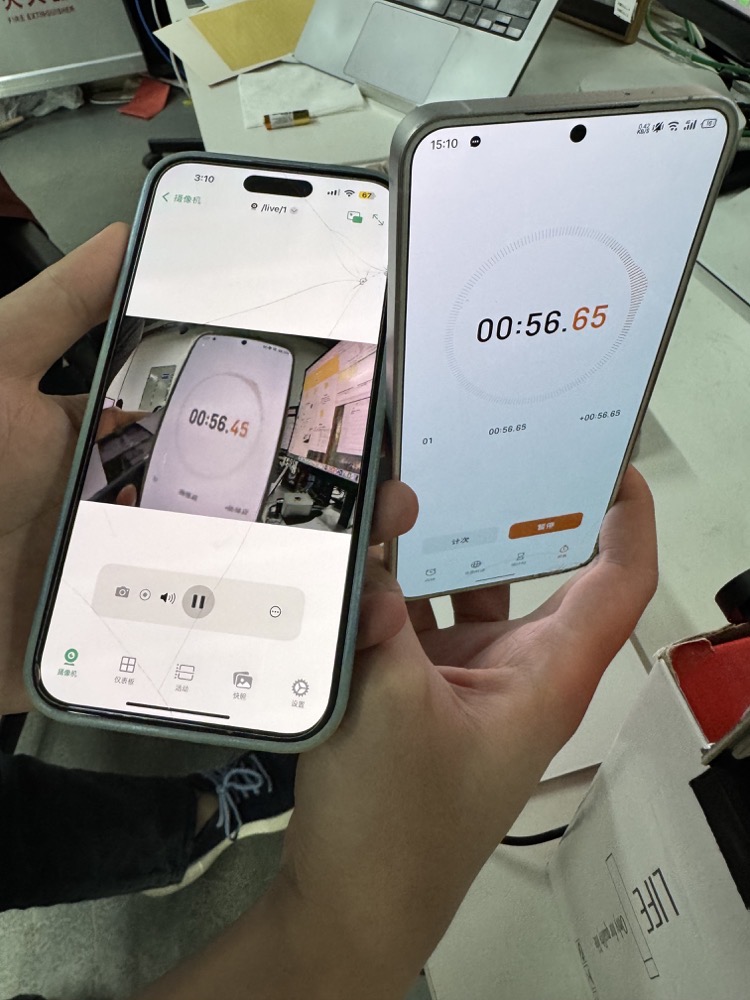
- Reference latency
200ms
On the left, the
iPhoneconnects to the local network routervia Wi-Fi, and within the local network uses theIPCamssoftware to monitor the actual latency comparison effect of CAM126B-P
Network environment! No router
Some users do not have a router, only Wi-Fi; you can refer to the following to share the network and then connect to the network
- First open the control panel
Adapter Settings
Control Panel - Network Connections - Change adapter settings
- Enable sharing
WLAN - Right-click - Properties - Sharing - Allow other network users to connect through this computer's Internet connection(N) - OK
If there are multiple Ethernet cards, below Allow other network users to connect through this computer's Internet connection(N)
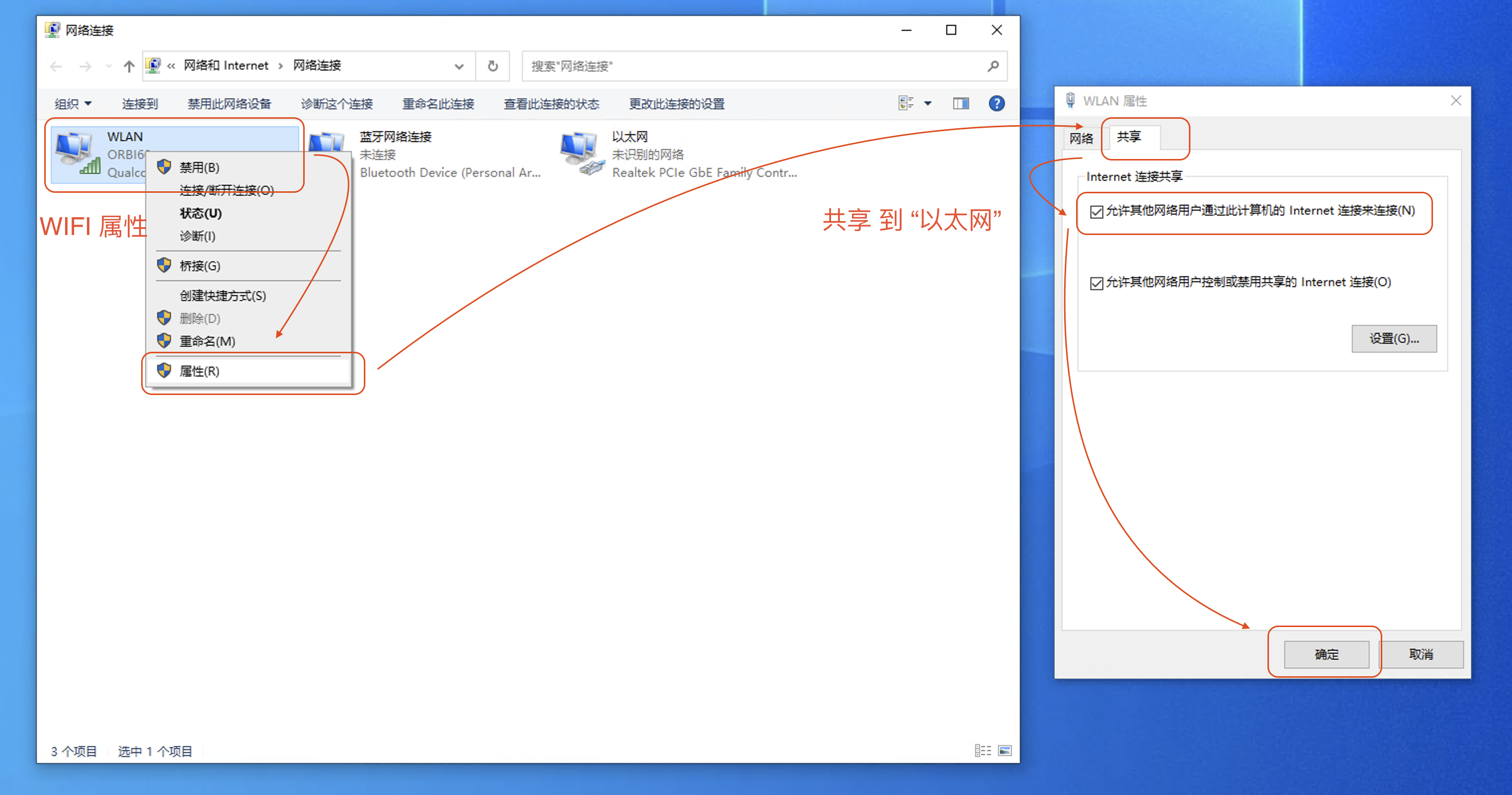
- Check that it is enabled successfully;
Ethernetautomatically switches to theshared network segment
Ethernet - Status - Details - 192.168.137.1
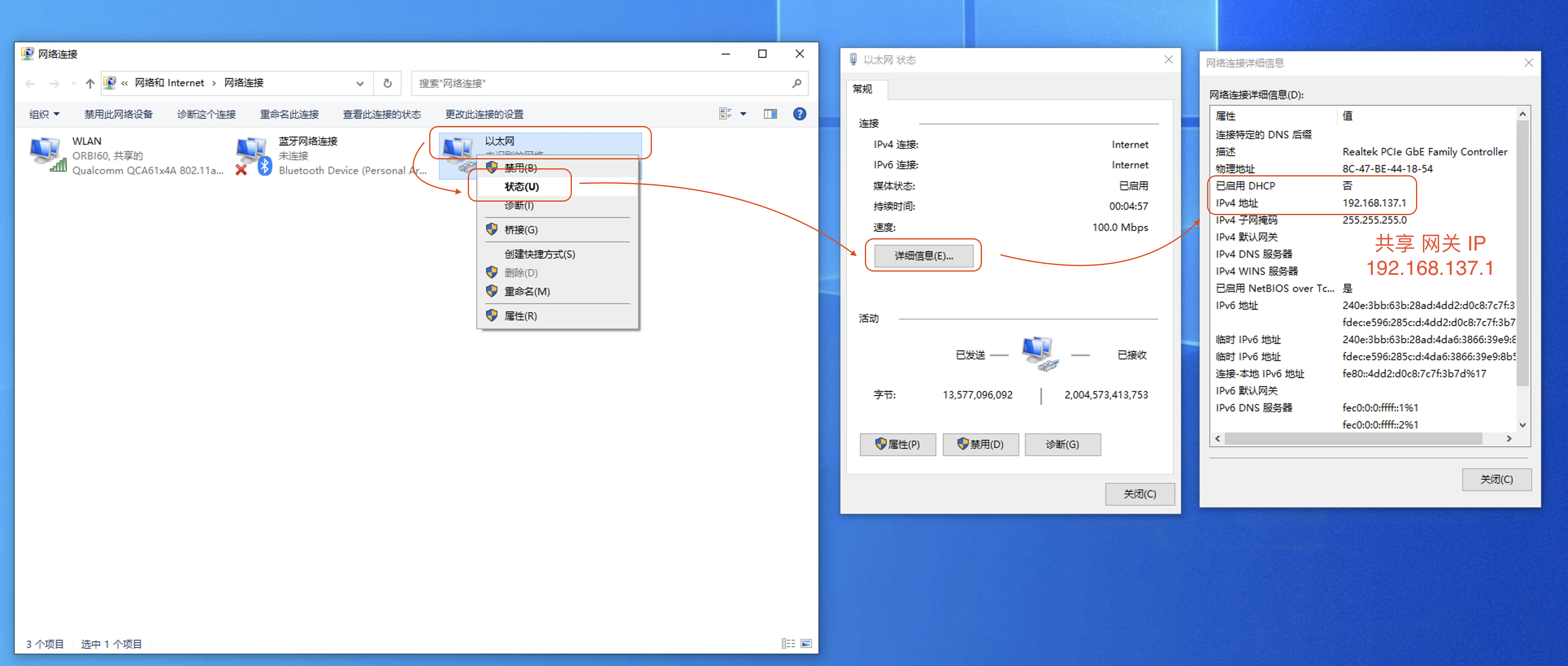
- Finally, connect the computer's
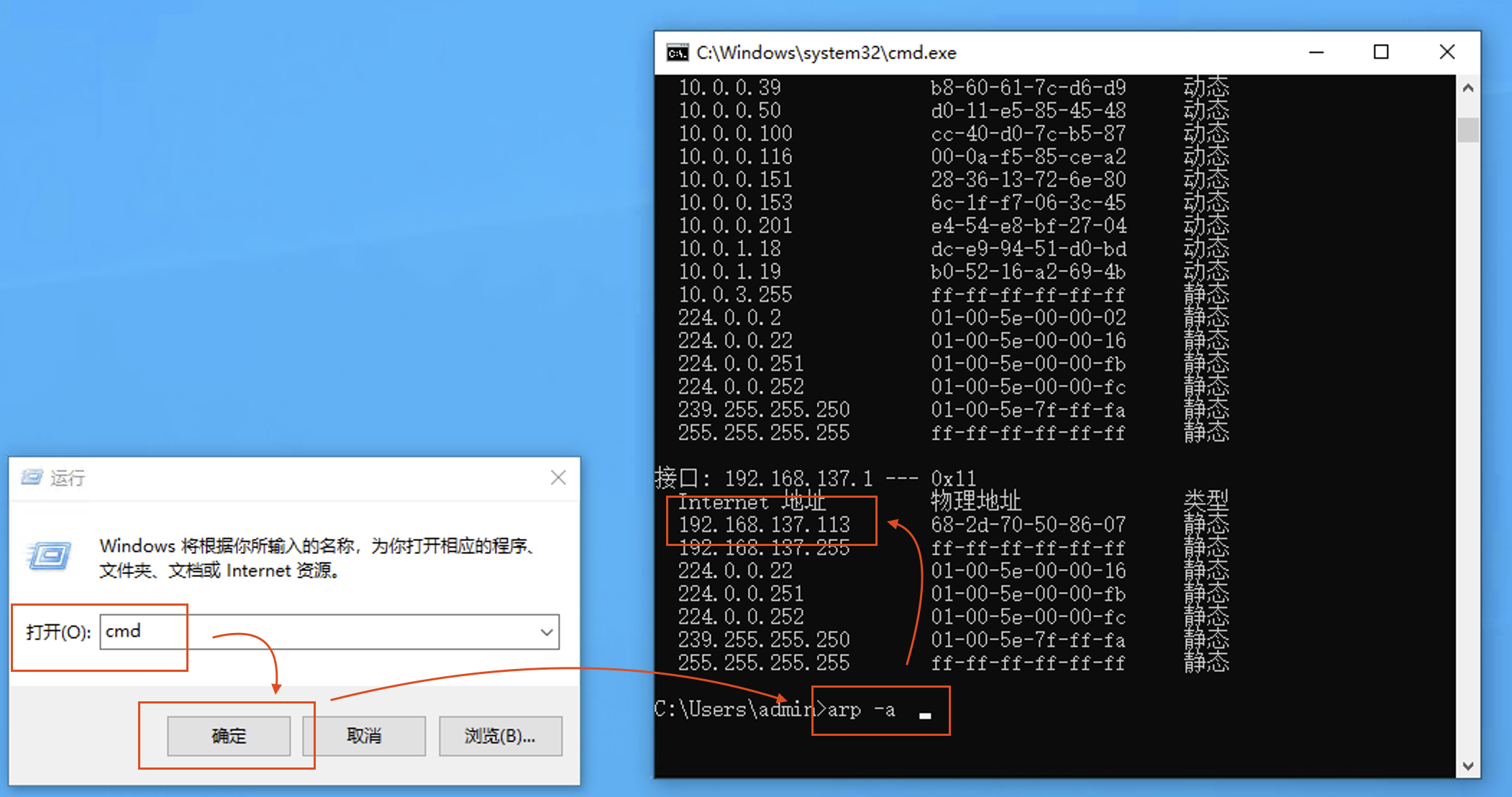
Ethernetto the device and usearpto find the device's shared IP
Usually 192.168.137.x
Exclude 192.168.137.1 (
Ethernet gateway )Exclude 192.168.137.255 (
broadcast address )
Win + R cmd
arp -a

Interface: 192.168.137.1 --- 0x11
  Internet Address      Physical Address      Type
  192.168.137.113       68-2d-70-50-86-07     static
  192.168.137.255       ff-ff-ff-ff-ff-ff     static
Tools
RKISP_Tuner_v3.4.1_Alpha.rar
Link: https://pan.baidu.com/s/13rAs9o6qNYz8sBR69DRR1w?pwd=fanc
Extraction code: fanc Copy this content and open the Baidu Network Disk mobile app for more convenient operation
Password Related
ssh
Generally just use root@[ip]
ssh root@[ip]
Connect via network IP adb
adb connect [ip]

adb shell

# Set the root password for the first time
passwd
Wired USB connection
adb shell

# Set the root password for the first time
passwd
WEB Page
The default account password is
Account: admin
Password: admin
Development and Debugging
Compile Debian command
You need to configure the variable; everything else stays the same
export RK_ROOTFS_SYSTEM=debian
How to check logs
- Usually the camera is not plugged in, or not correctly recognized
After adb shell, logcat | grep imx415 or logcat | grep imx307 to view the driver loading information of the corresponding imx series camera
If there is no logcag, use dmesg | grep imx415 or dmesg | grep imx307
If there is no loading information, it means there is no camera or it is not correctly recognized. Reference information:
Log reference/streaming anomaly
When streaming is working,
Taking imx415 as an example, normal loading log:
If you do not understand it, it is recommended to copy the log to AI for analysis
## The kernel successfully read the imx415 sensor's chip ID (0000e0) via the I2C bus, indicating that the hardware connection is normal and the sensor has responded. This is the key sign of successful loading.
Jan  1 00:00:01 rv1126bp-buildroot kern.info kernel: [    1.221046] imx415 1-0010: Detected imx415 id 0000e0

## Suggests that the developer consider updating the imx415 driver to match the endpoints defined in the Device Tree more strictly. This is only an advisory warning and does not affect current operation; it is usually because the port/endpoint configuration in the device tree differs slightly from the driver's expectation, but the existing configuration still allows the camera to work.
Jan  1 00:00:01 rv1126bp-buildroot kern.notice kernel: [    1.221082] imx415 1-0010: Consider updating driver imx415 to match on endpoints

## Rockchip's MIPI CSI-2 D-PHY controller (csi2-dphy0) successfully matched with the imx415 sensor, with bus type 5. This indicates that the physical layer (D-PHY) of image data transmission has been correctly bound to this camera, and image data can be received normally afterwards.
Jan  1 00:00:01 rv1126bp-buildroot kern.info kernel: [    1.221100] rockchip-csi2-dphy csi2-dphy0: dphy0 matches m00_b_imx415 1-0010:bus type 5
Camera greenish/ghosting
-
Please update Image Quality
you can copy it directly to the motherboard to replace -
You can also put it into the SDK and recompile the firmware
-
You can also flash the latest firmware which has already been fixed
Located at 资料下载 / RV1126BP / 01.硬件资料 / Sensors / Image Quality
cp imx415_CMK-OT1948-PV1_styleDahP0_test.json /etc/iqfiles/imx415_default_default.json

cp imx307_CMK-OT0837-PT2_YT-2929_UNV-40IRC-2M-F20_test.json /etc/iqfiles/imx307_default_default.json