FAQ

FAQ
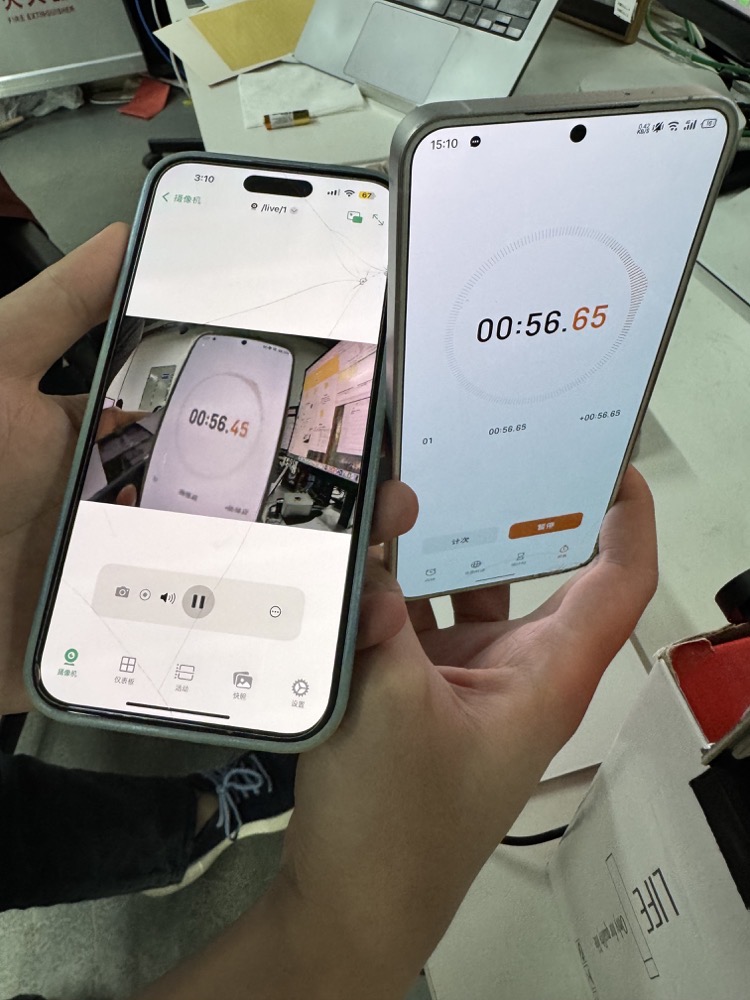
Video Latency! Important Note!
Players such as VLC have a
On Windows, use EasyPlayer to reduce latency.
- Reference latency
200ms
On the left, an
iPhoneisconnected to the LAN router over Wi-Fi, and the softwareIPCamsis used on the LAN to monitor the actual latency of the RV1126B-p for comparison.
Network Environment! No Router
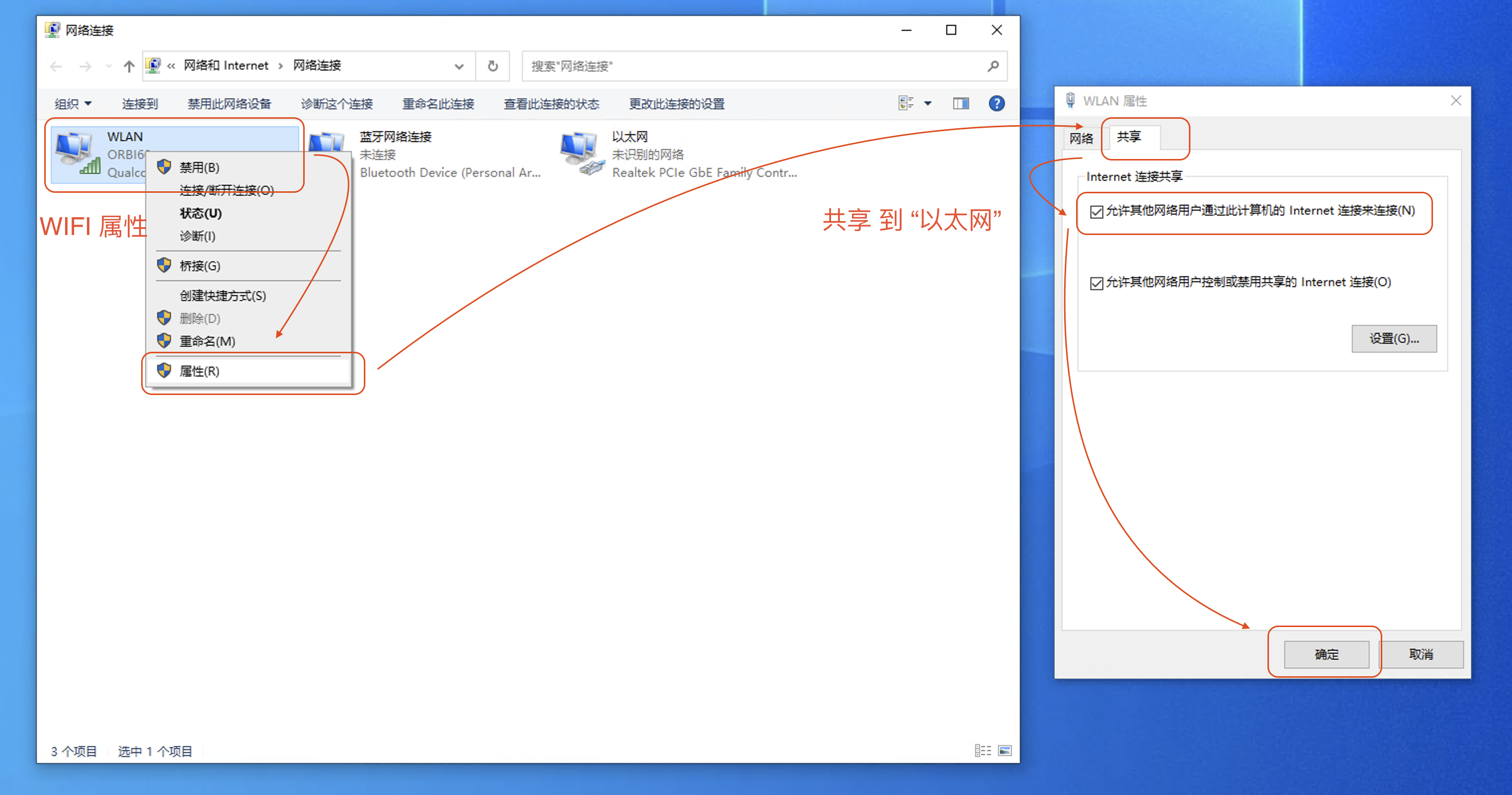
Some users have no router and only Wi-Fi. Refer to the following to share the network before connecting.
- First open the Control Panel's
Adapter Settings.
Control Panel - Network Connections - Change adapter settings
- Enable sharing
WLAN - Right-click - Properties - Sharing - Allow other network users to connect through this computer's Internet connection - OK
If there are multiple Ethernet adapters, Allow other network users to connect through this computer's Internet connection to use the shared IP for Internet access.
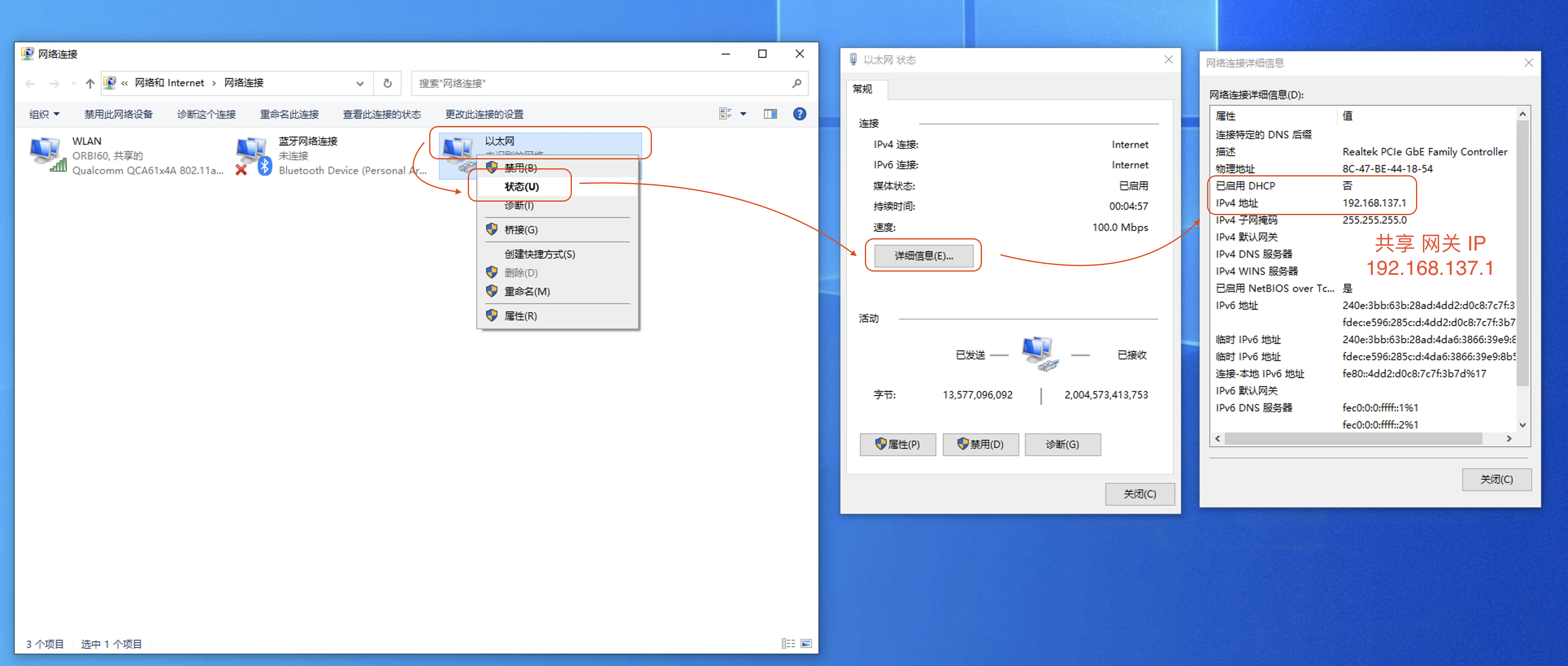
- Verify that sharing is enabled and that
Ethernethas automatically switched to theshared subnet.
Ethernet - Status - Details - 192.168.137.1
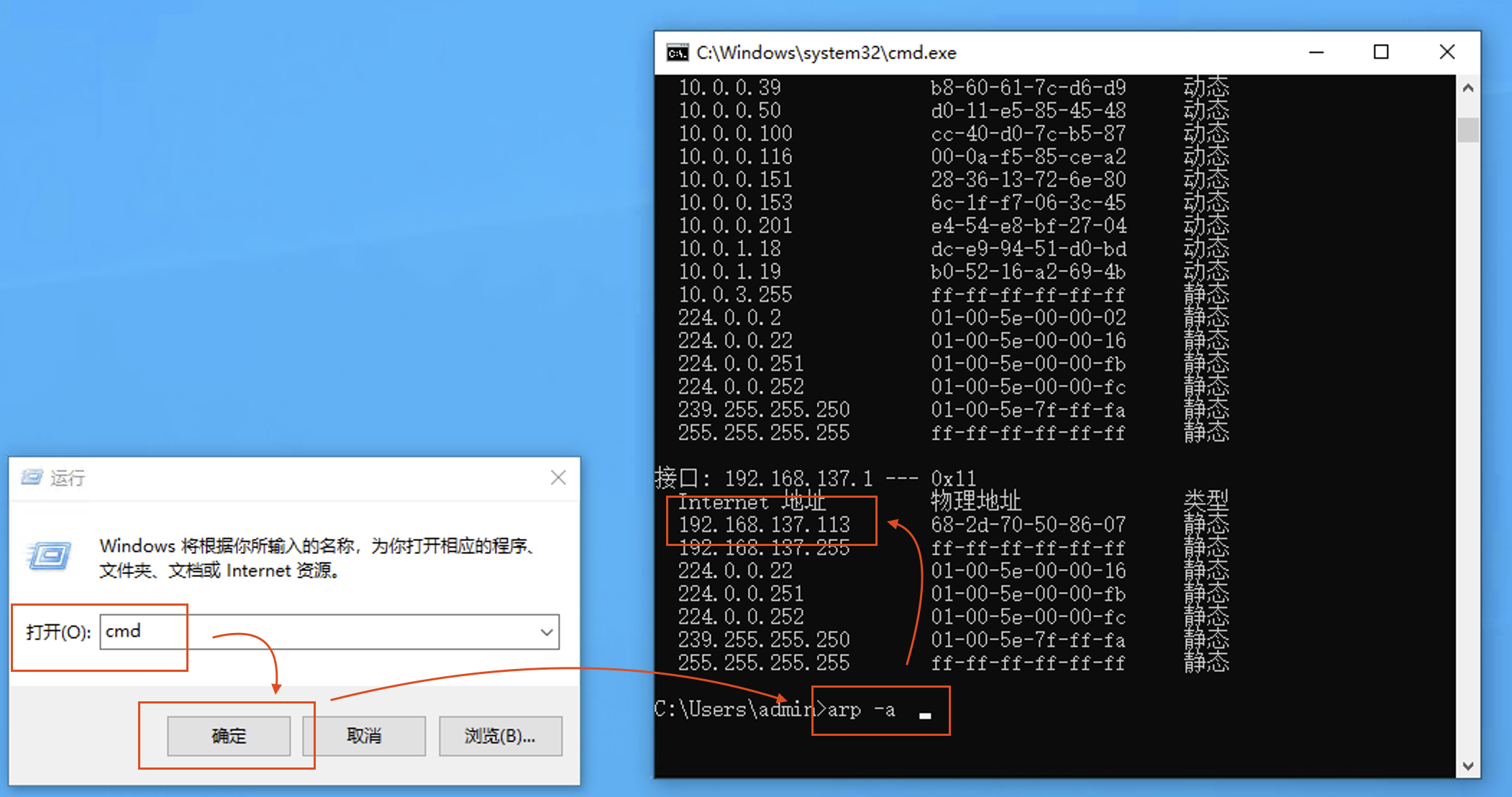
- Finally, connect the PC's
Ethernetto the device and usearpto find the device's shared IP.
Usually 192.168.137.x
Exclude 192.168.137.1 (
Ethernet gateway )Exclude 192.168.137.255 (
broadcast address )
Win + R cmd
arp -a

Interface: 192.168.137.1 --- 0x11
  Internet Address      Physical Address      Type
  192.168.137.113       68-2d-70-50-86-07     static
  192.168.137.255       ff-ff-ff-ff-ff-ff     static